Write and publish blog posts
The Blog lets you write posts, add images and links, set search engine text, and publish to your site's /blog page. It also lists posts your site drafts for you from other features, such as events, for you to review.
Where to find it: /admin/blog in your admin.
Shows up when the Blog feature is turned on for your site.
Find your posts
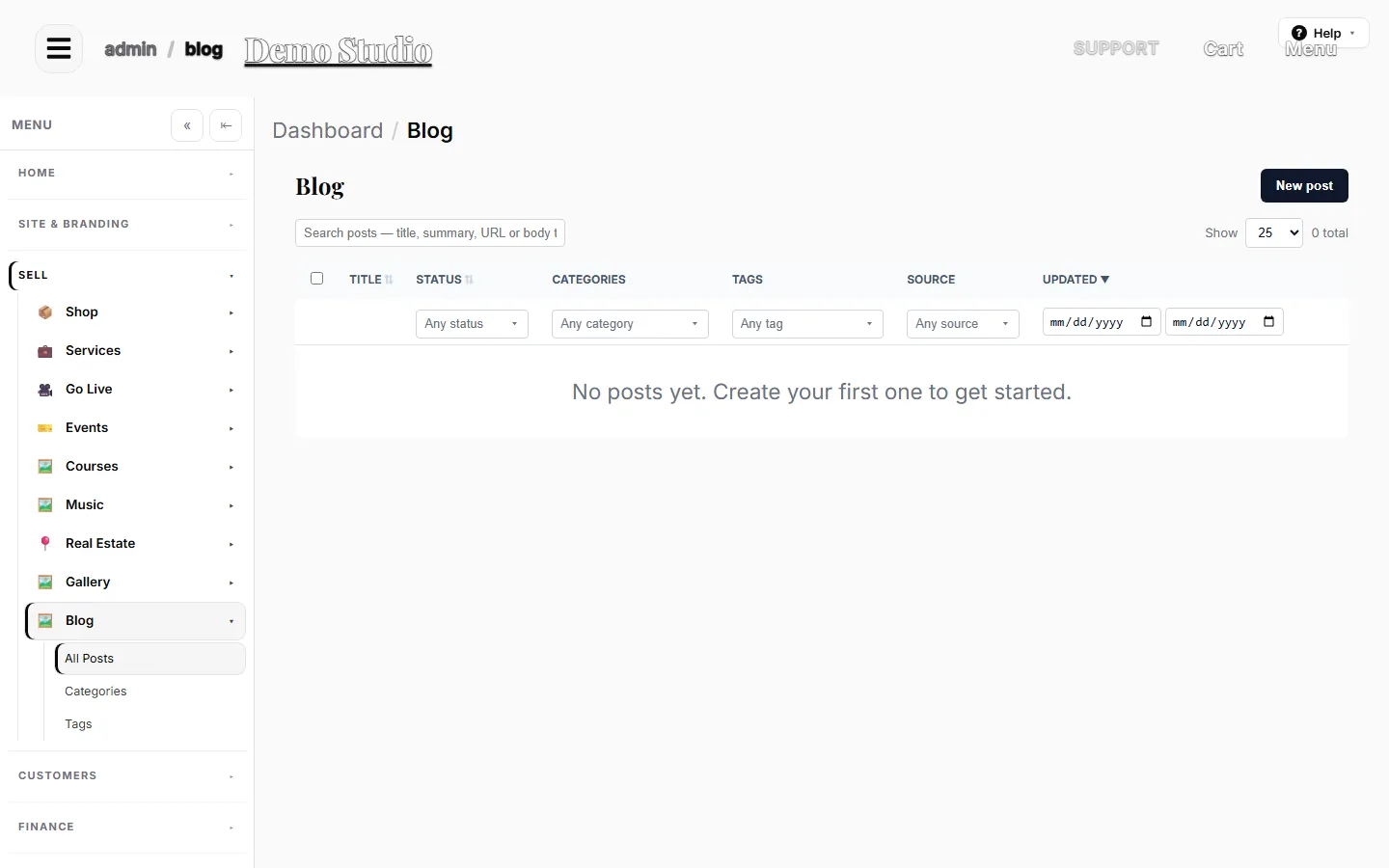
Open Sell → Blog → All Posts. Search by title, summary, address or body text, or filter by status, category, tag, source and date. Click a title to open it.
| Status | What it means |
|---|---|
| Suggestion | Drafted for you by your site, for example from an event. Review it before publishing. |
| In Progress | You're still writing it. |
| Draft | Saved but not public. |
| In Review | Ready for someone to check. |
| Published | Live on your /blog page. |
| Archived | Kept for your records, not public. |
The Source column shows Written by hand or From events.
Write a post
- Click New post.
- Enter the title. It becomes the main heading on the page, and the web address fills itself while auto from title is ticked.
- Write a short excerpt of 1 to 2 sentences. It shows in listings.
- Write the body. Use the toolbar for headings, lists, quotes and links.
- Pick Categories and Tags in the sidebar.
- Fill in the SEO fields if you want different text in search results.
- Click Save.
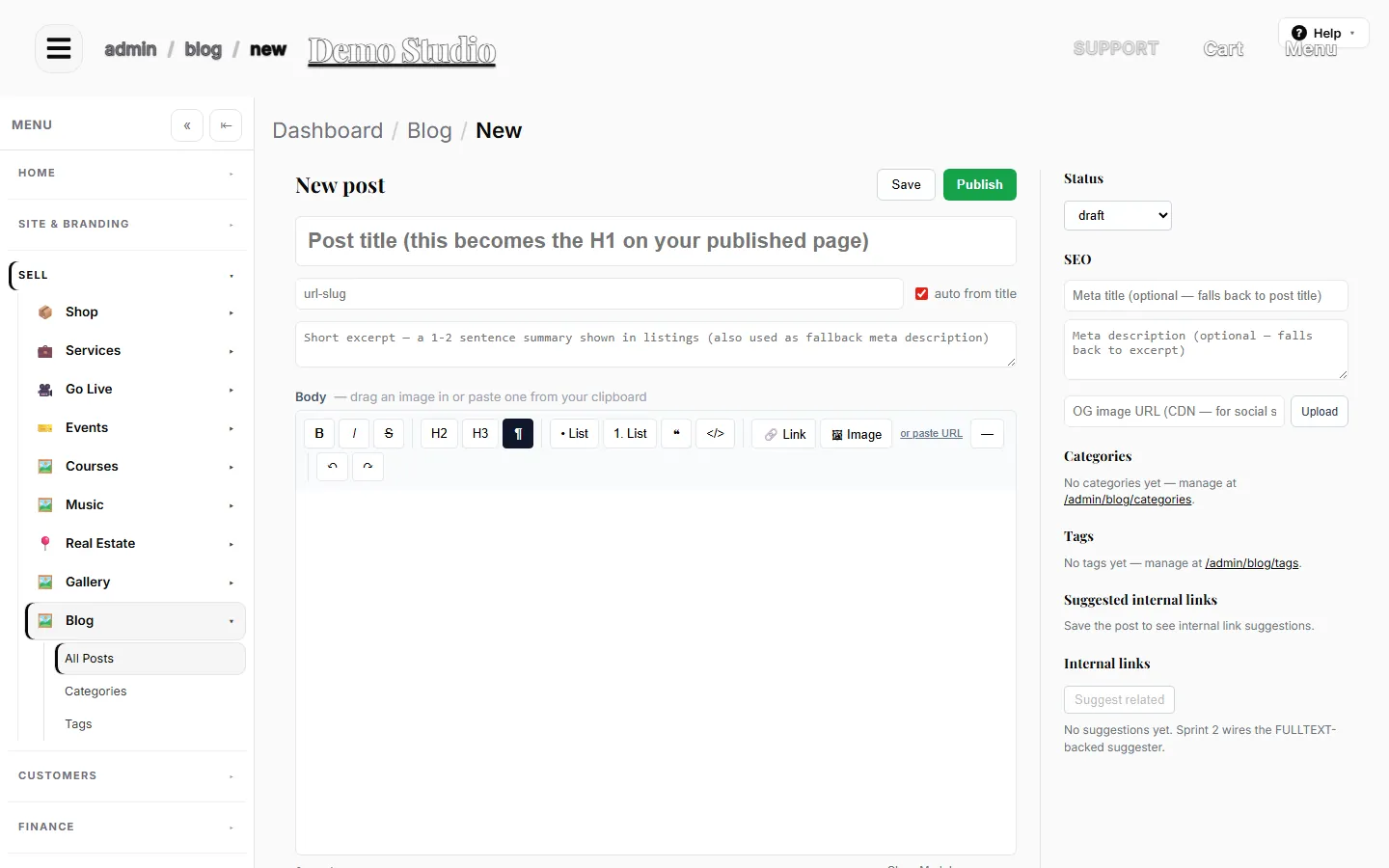
- Add images with 🖼 Image, by dragging a file onto the body, or by pasting from your clipboard. Images must be 10 MB or smaller, and you'll be asked for alt text.
- Use or paste URL to add an image you already host.
- Once the post is saved, Suggested internal links lists your other posts, services, events and products. Click one to add a link where your cursor is.
- Use Heading 2 (section) and Heading 3 (subsection) inside the body. The title is already the main heading.
Publish a post
- Save the post at least once. Publish stays greyed out until you do.
- Click Publish and confirm.
Publishing is blocked, with Publish blocked: and a reason, when:
- the body has fewer than 100 words (the counter shows how many more you need)
- the body contains a main (H1) heading
- an image has no alt text
- the meta description is the same as another published post's
When you publish, search engines are told about the new page. If you've turned on automatic sharing for blog posts, a social post draft is created for you to review. It's never posted on its own.
Unpublish or delete posts
- On All Posts, tick the posts.
- Click Move to Draft to take them off your public blog, or Discard to delete them.
You can act on up to 500 posts at a time.
Questions
How do I unpublish a post from the editor?
The editor has no unpublish button. Tick the post on All Posts and click Move to Draft.
What happens to old links if I change a post's address?
When you change the slug of a saved post, the old address redirects to the new one.
Can I publish blog posts on an adult-content site?
No. Posts on adult-content sites stay as suggestions and can't be published.
Does the editor warn me before I leave with unsaved changes?
Don't count on it. Click Save before you leave the page.