Course enrollments and analytics
Enrollments shows who is taking each of your courses and how far they've got, and lets you export the list. Course Analytics shows how students move through a course and where they drop off.
Where to find it: /admin/courses/enrollments in your admin.
Shows up when the Courses feature is turned on for your site.
See who is enrolled
Open Sell → Courses → Enrollments. The Course Enrollments table shows each Student, the Course, the enrollment Type, their Progress, and when they enrolled and completed.
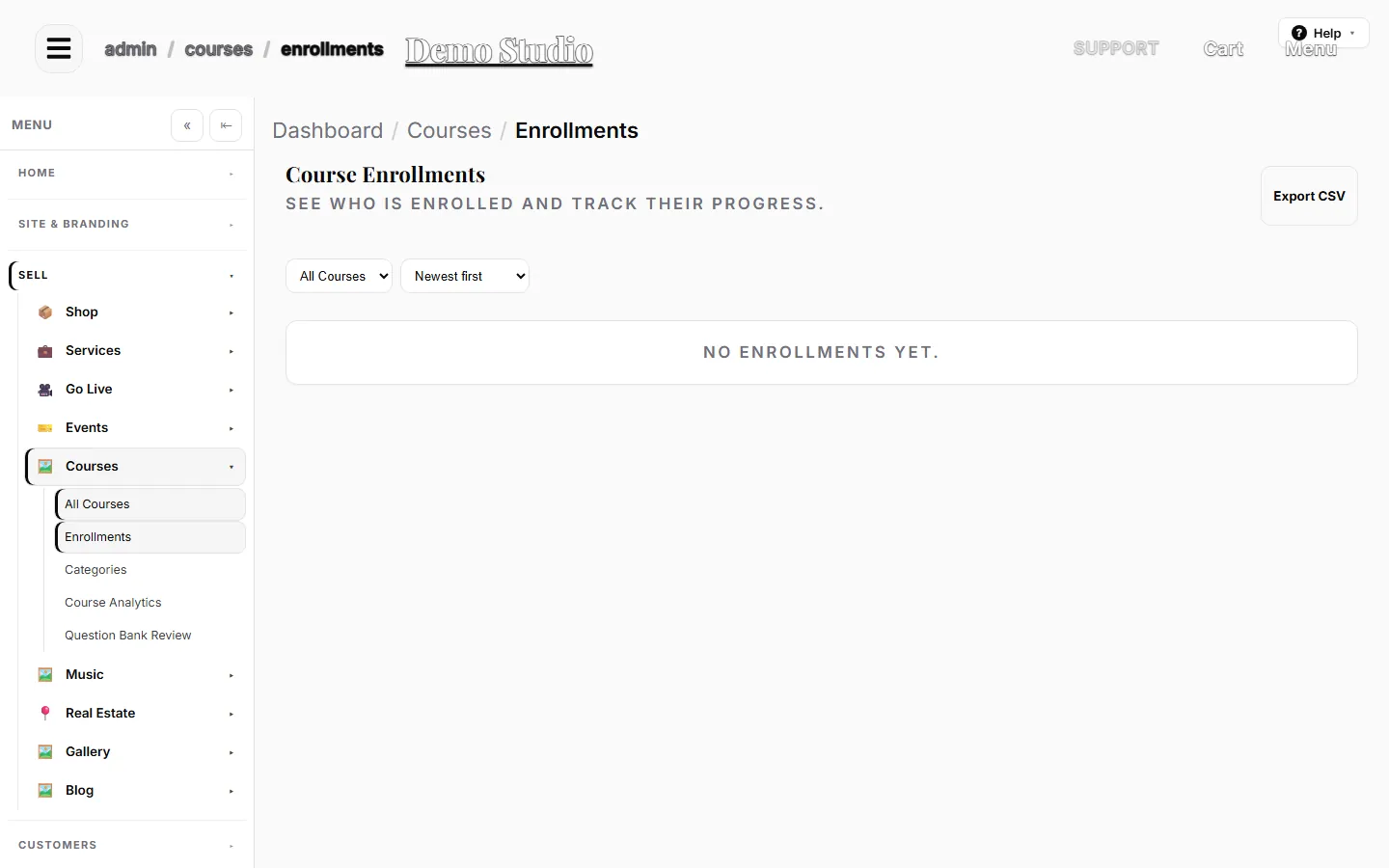
- Pick a course from All Courses to filter the list.
- Sort by Newest first, Oldest first, Progress (high) or Progress (low).
- Click Open to go to that student's customer page.
- Click Nudge to open Messages addressed to that student. Nothing is sent until you write and send the message yourself.
Export enrollments
Click Export CSV to download the rows you're viewing. The file includes each student's name, email, course, enrollment type, progress, and enrolled and completed dates.
Read course analytics
- Open Sell → Courses → Course Analytics, or click Analytics in a course's builder.
- Pick a course from Select a course....
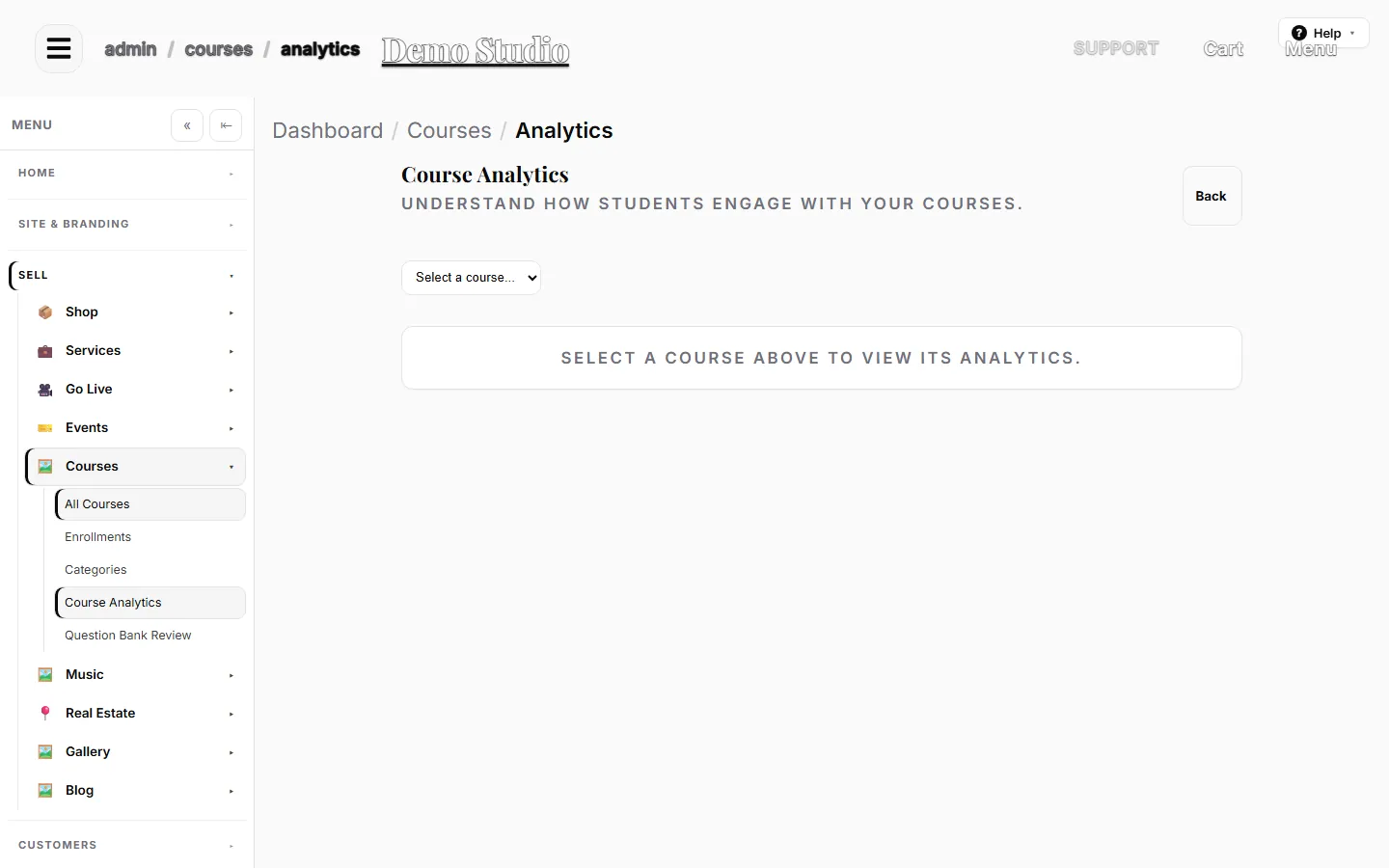
- Total Enrollments, Completed (with the completion rate), Avg Progress and Avg Days to Complete.
- Lesson Completion (Drop-off Analysis) shows how many students finished each lesson. A steep drop shows where students lose interest.
- Rating Distribution and Recent Enrollments (Last 30 Days).
This page is view only.
Questions
Can I remove a student from a course here?
Not from this page yet. Contact support if you need a student removed.