Bulk upload photos and videos
Bulk Upload sends many photos and videos at once into an existing album or a brand-new one. Use it when you have a whole shoot to add rather than a few files.
Where to find it: /admin/content/upload in your admin.
Shows up when the Gallery feature is turned on for your site.
Pick the album and settings
Open Sell → Gallery → Bulk Upload, or click ⭳ Bulk Upload on the Albums page.
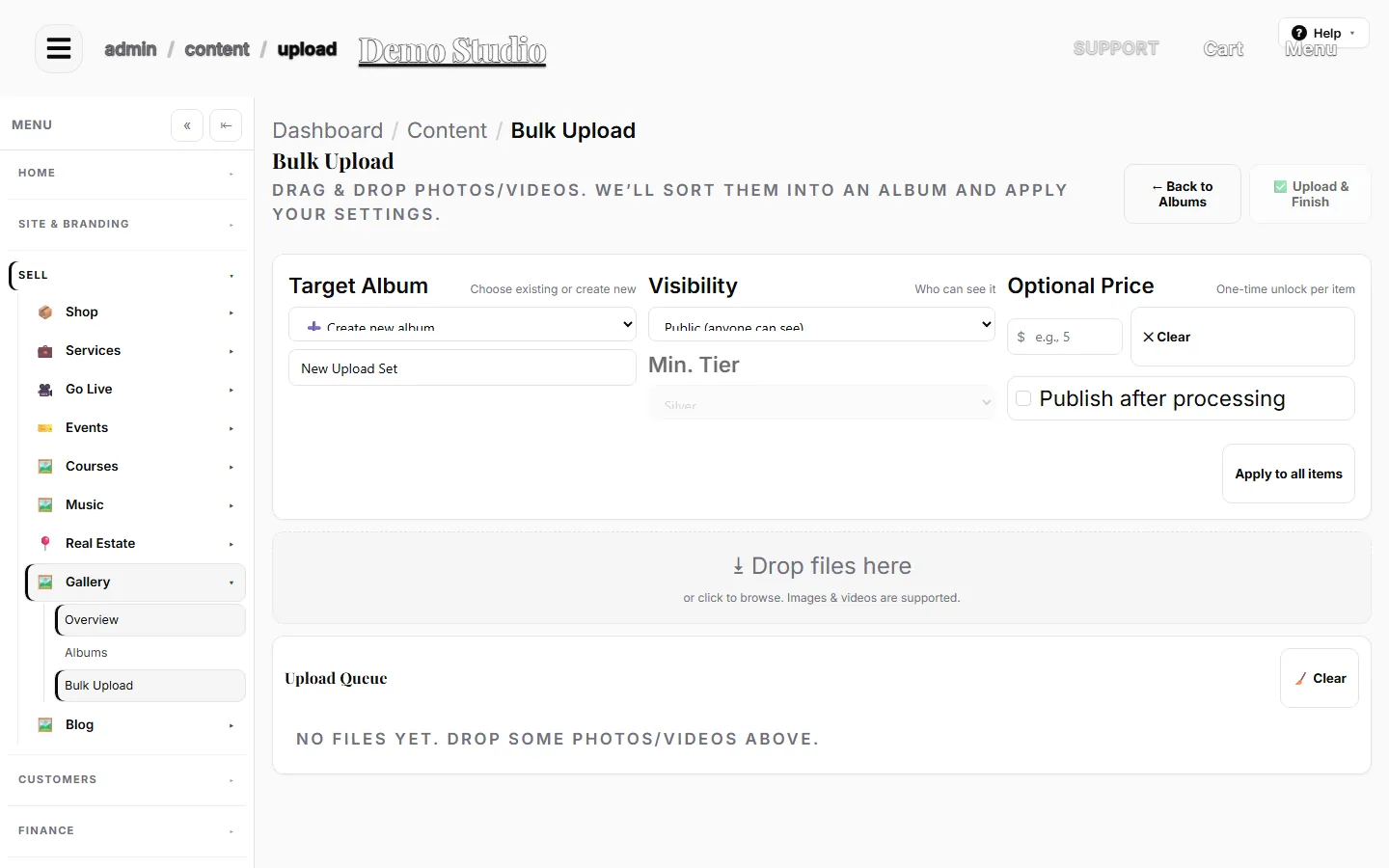
- Under Target Album, pick an existing album, or ➕ Create new album and type a title.
- For a new album, pick a Visibility. For Tier-gated (subscribers only), also pick a Min. Tier.
- For a new album, you can enter an Optional Price. This becomes the price to open the whole album, not a price per item.
When you upload into an existing album, that album's own visibility and price decide who sees the new files. Change them on the album's edit page.
Add files and upload
- Drag files onto ⭳ Drop files here, or click it to browse.
- Each file takes the settings you picked when you added it. If you change the settings afterwards, click Apply to all items.
- Click ✅ Upload & Finish.
- Keep the tab open until every file shows Uploaded.
- If a card says Failed, read the reason on it, fix the problem, and click ↻ Retry.
- Photos: JPG, PNG, HEIC, GIF, WEBP and similar, up to 10 MB each.
- Videos: MP4, MOV, M4V, WEBM and similar, up to 250 MB each.
- Files upload 4 at a time. There's no limit on how many you add.
- Leaving the page clears the queue, so stay until it finishes.
After the upload
- A new album starts unpublished. Open it from Albums and click Publish when you're ready.
- Alt text is filled in for new photos automatically. You can edit it in the album's Edit Media view.
- If your session expires mid-batch, the files that didn't upload stay in the queue. Log in again, then click ↻ Retry.
Questions
Does Publish after processing publish my album?
Not yet. New albums always start unpublished. Open the album and click Publish.
Why was my file refused?
It's either not a photo or video we accept, or it's too big. Convert it to JPG, PNG, MP4 or MOV, or compress it, then retry.