Publish music releases and tracks
Music lets you sell or give away singles, EPs and albums on your site. Create a release, upload its tracks, set a price or make it free, and publish it to your storefront. The Overview shows your plays, purchases and revenue.
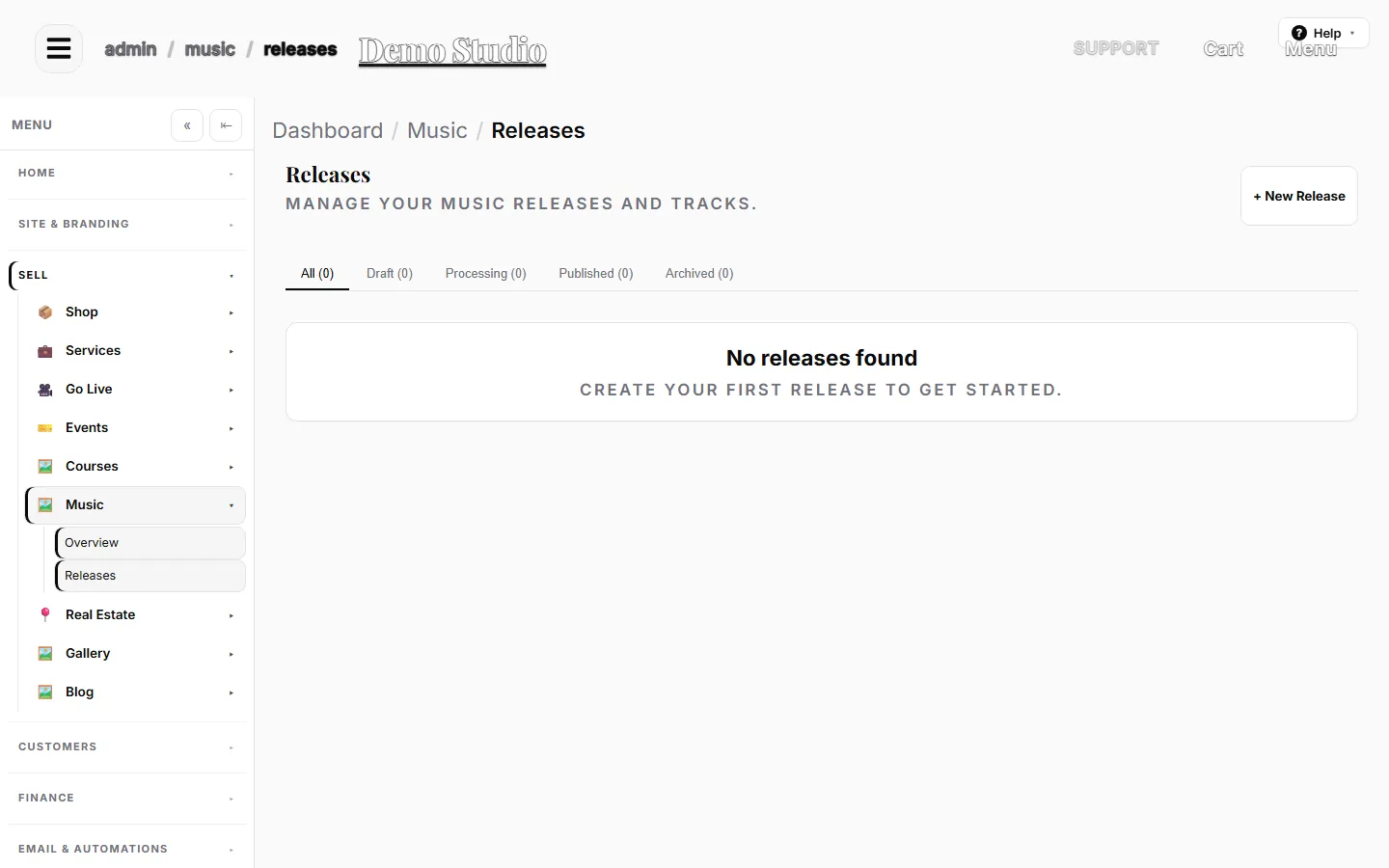
Where to find it: /admin/music/releases in your admin.
Shows up when the Music feature is turned on for your site.
See how your music is doing
Open Sell → Music → Overview. The Music Dashboard shows Releases, Tracks, Total Plays, Purchases and Revenue, plus Top Tracks, Recent Purchases, Revenue by Release and Genres. It's view only.
Create a release
- Open Sell → Music → Releases and click + New Release.
- Enter a Title and Artist Name, and pick a Release Type: Single, EP, Album, Mixtape, DJ Mix, Compilation or Beat Pack.
- Add Genre, Mood and BPM (1 to 999) if you like.
- Under Pricing, choose Free or Paid. For paid, enter the Price ($).
- Fill in Release Date, Description, Label, Copyright and UPC as needed.
- Add Artwork. A square image works best, for example 1400x1400.
- Click Save. The Tracks and Credits tabs appear.
Upload tracks and add credits
- Open the Tracks tab and click + Upload Track.
- Pick one audio file: MP3, WAV, FLAC, AIFF, AAC or M4A, up to 500 MB.
- You'll see Track uploaded. Transcoding will begin shortly. Your site makes streaming, download and 30-second preview copies in the background.
- Reload the page to check progress. Each track needs to show Completed. If one shows Failed, click Retry.
- Click Edit on a track to add its Title, ISRC, Explicit content and Lyrics.
| Track status | What it means |
|---|---|
| Pending | Uploaded and waiting to be processed. |
| Processing | Being converted. |
| Completed | Ready to publish. |
| Failed | Processing didn't work. Click Retry. |
On the Credits tab, click + Add Credit, pick a role such as Primary Artist, Producer or Songwriter, and click Save Credits.
Publish, unpublish or delete
- On Releases, click Publish on the release card.
- Confirm. The release is now visible to fans on your storefront, free or for sale.
Publishing is refused if the release has no tracks, or if any track hasn't finished processing.
- Unpublish moves the release to Archived. Fans lose access until you publish it again.
- Delete removes the release from your admin and storefront after you confirm.
| Release status | What it means |
|---|---|
| Draft | Not public yet. |
| Published | Live on your storefront. |
| Archived | Unpublished. Fans can't open it. |
Questions
Can I schedule a release to publish later?
Not yet. Publish it yourself from the Releases list when you're ready.
Why can't I upload a track?
Save the release first. The Tracks tab only appears on a saved release.
How do I copy an existing release?
There's no working copy option yet. Click + New Release and fill it in.