Use tracking links and referral links
Make tracking links with a short URL and QR code for ads, posts, partners or word of mouth, and see the clicks, signups and revenue each one brings in. The Referrals page shows your own invite links and who signed up through them.
Where to find it: /admin/referral-links in your admin.
Make a tracking link
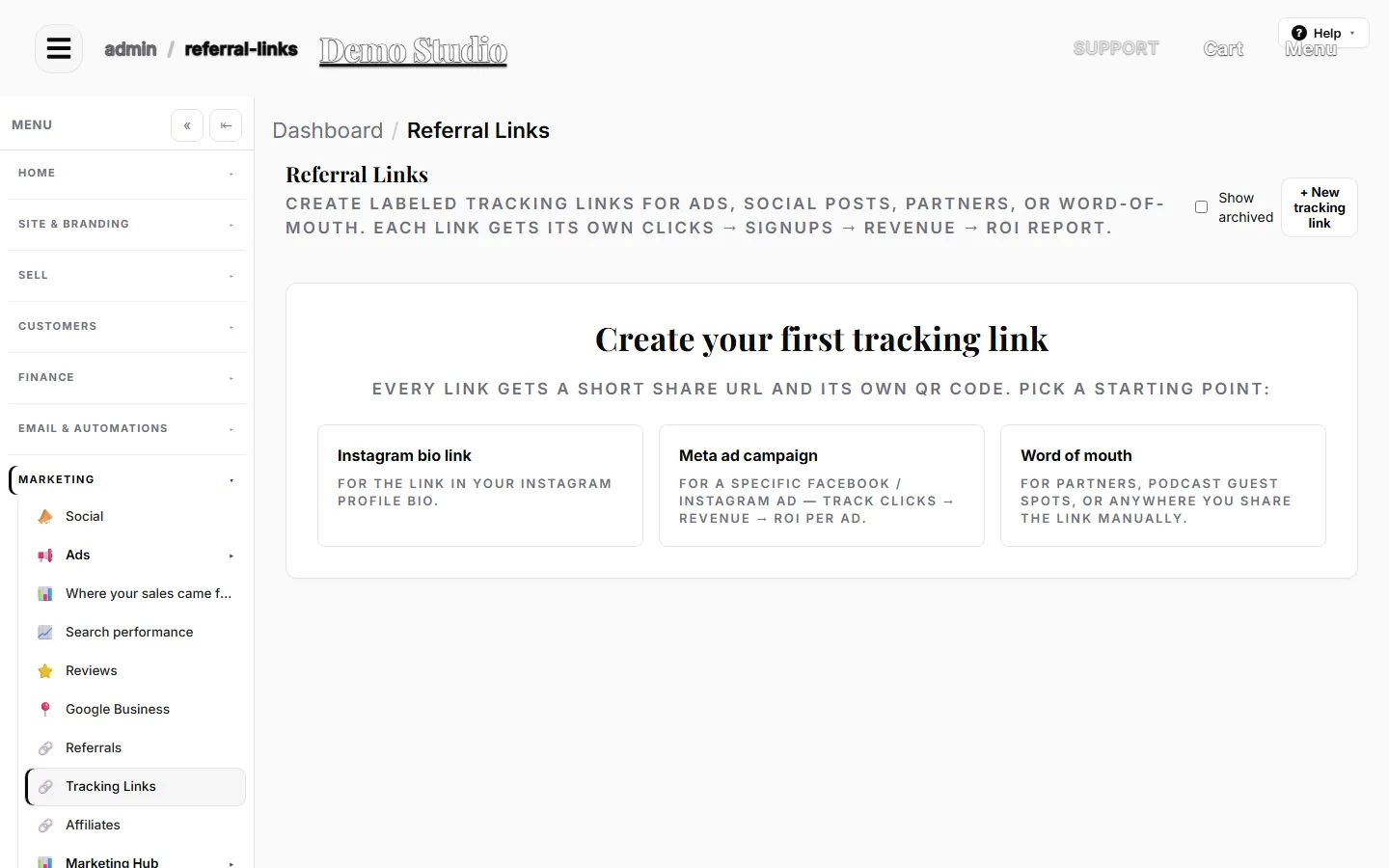
- Open Marketing → Tracking Links. The page is titled Referral Links.
- Click + New tracking link, or pick a starter card such as Instagram bio link, Meta ad campaign or Word of mouth.
- Type a Label, for example Sunday Brunch flyer.
- Under Where should this link send people?, choose the home page, one of your pages, the sign-up page, or Another page….
- Check the Slug. It becomes part of the link.
- Optionally add Cost spent on this campaign, UTM tags and notes, then save.
Your referral links
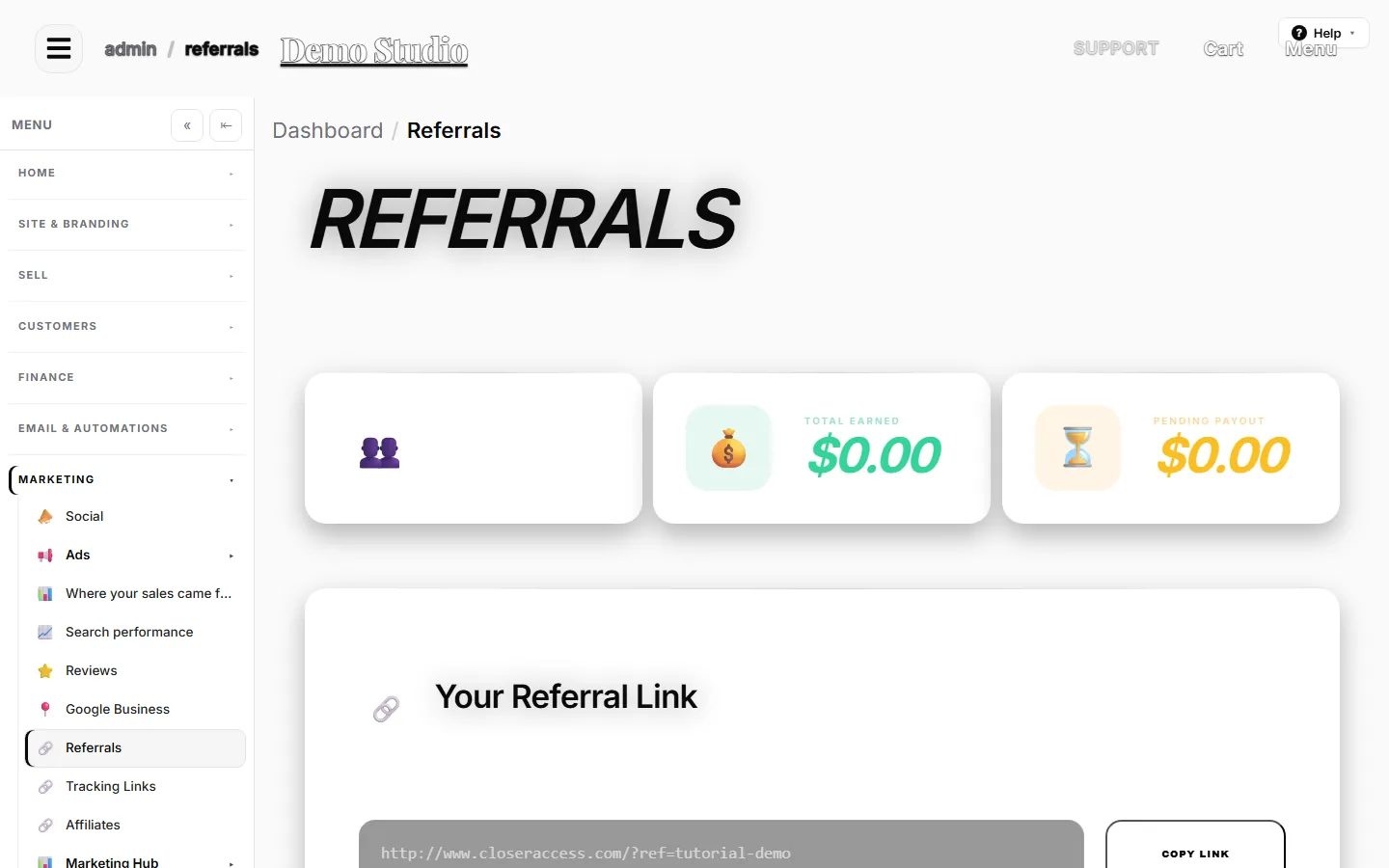
Open Marketing → Referrals to see your own invite links.
- Your Referral Link invites other businesses to the platform. Click Copy Link and share it. People You Referred lists the businesses that signed up with it.
- Fan Invite Link sends fans to your site. Click Copy Fan Link. Fans You Referred lists who signed up.
- Fans Sent To Your Tenant lists signups on your site that someone else brought in.
- Rewards Summary shows Total Earned, Paid Out and Pending. In Earnings History, the Yield column is the amount.
Questions
Do I need to turn anything on to use tracking links?
No. Tracking links and referrals are available on every site.
What happens when I archive a link?
The short URL keeps working, but new signups are no longer credited to that link. You can unarchive it.
Can a customer get credit for sales from a link?
Yes. When you edit a link, use Credit sales from this link to to pick a customer. See Run an affiliate program.