Connect your own AI agent with a key
AI Agent Access lets you connect your own Claude, or another AI agent, to your site with a key. The agent can read your site and propose changes, and nothing goes live until you approve it here.
Where to find it: /admin/agent-access in your admin.
Create a key for your agent
- Open Site & Branding → AI Agent Access and stay on the Keys tab.
- Click + Create key.
- Fill in Name it (so you remember what it's for), for example "Jordan's Claude".
- Under What this key is allowed to do, tick what the agent may propose changes to, such as Edit look & homepage (drafts) or Manage events (drafts). Reading your site is always allowed.
- Pick how long the key lasts in Expires after. 90 days (recommended) suits most people.
- Click Create key. Enter your PIN if you are asked.
- In the next window, click Copy key and send it to the person securely. Then click Done.
The person connects their Claude by running the one-line command shown under How your friend connects their Claude, with the key pasted in where the page says. They only do this once.
Approve or reject proposed changes
When an agent proposes a change, it waits on the Approvals tab under Changes waiting for your approval.
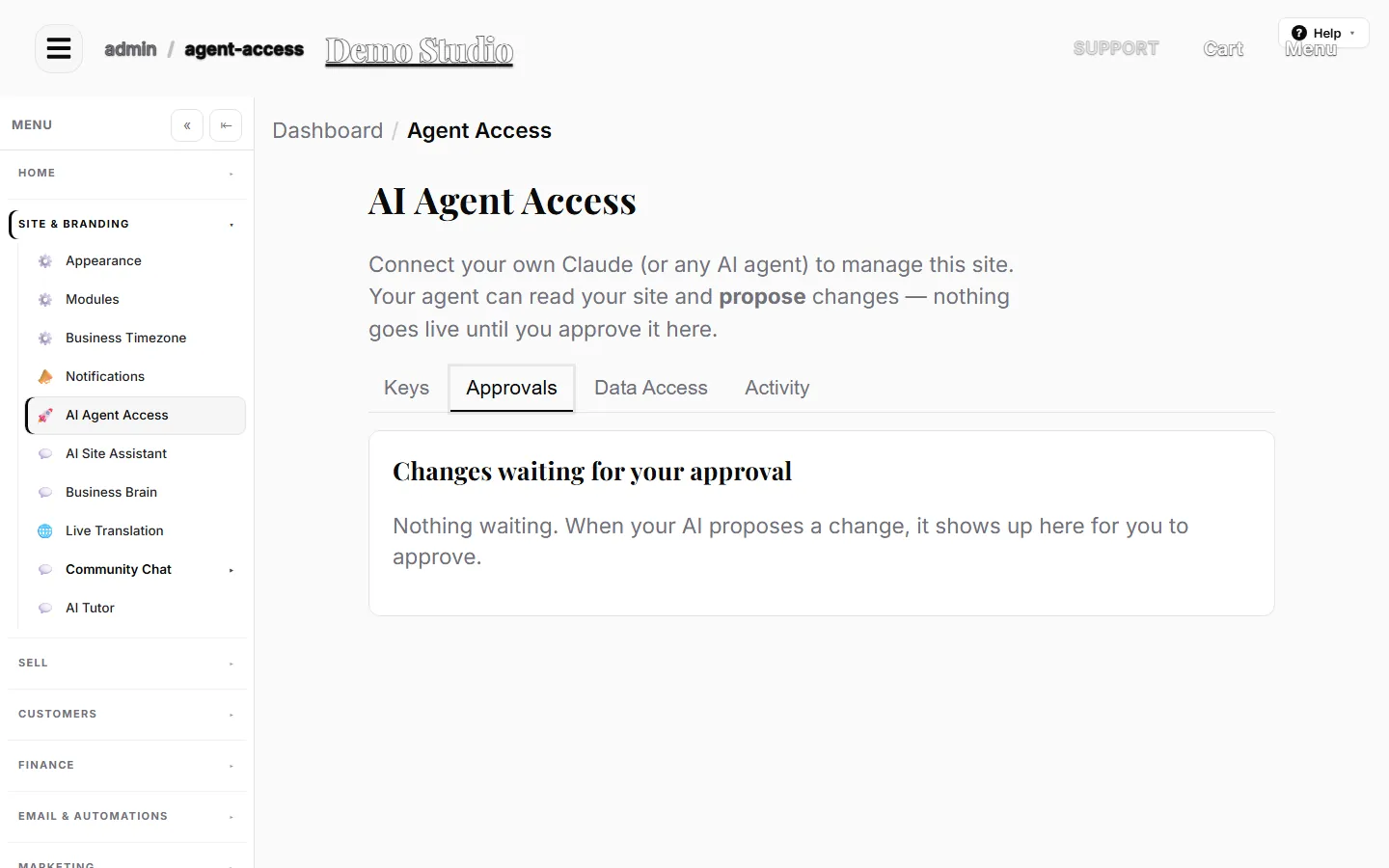
- Read the summary on each card. To see exactly what will change, click See the full proposed change.
- Click Approve & apply to make the change. Enter your PIN if asked.
- Or click Reject to throw the change away.
Let your agent see deeper data
The Data Access tab controls what else your agent can see. Everything here is off by default and takes effect the moment you flip a switch. There is no email to confirm.
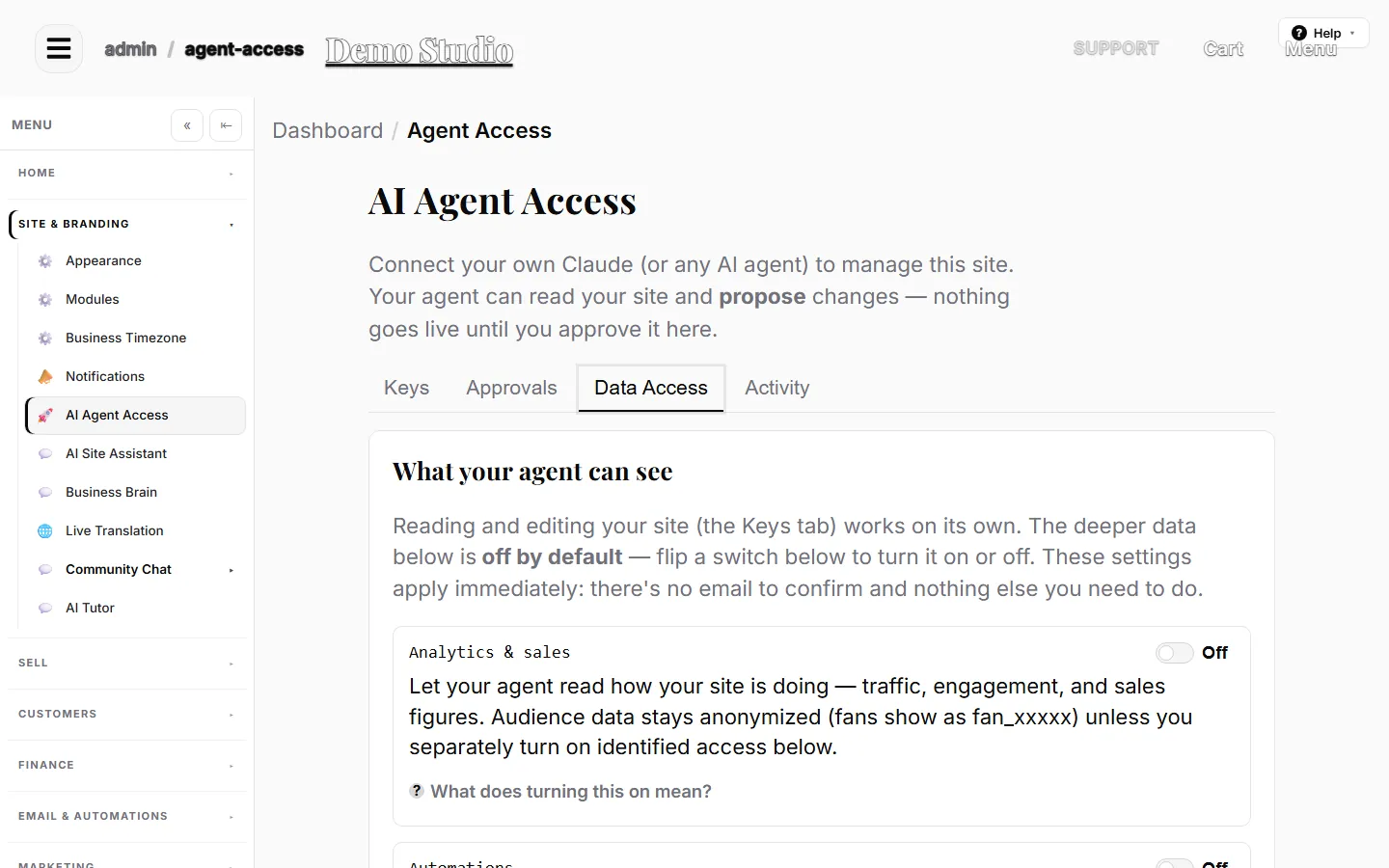
- Analytics & sales lets the agent read traffic, engagement and sales figures. Fans show as anonymous IDs like fan_xxxxx.
- Automations lets the agent set up webhooks and draft marketing changes. Drafts still wait for your approval.
- When a switch is on, the card shows the date it turns off on its own.
| Data Access switch | What it means |
|---|---|
| Off | The agent can only read and propose changes to your site. |
| On | The agent can also use this data until the date shown. |
| Working… | Your change is being saved. |
Inside an active Analytics & sales card, Show real names & emails goes one step further. To turn it on, click Turn on, type the exact phrase shown on screen, and click Turn it on. You may be asked for your PIN.
Stop an agent and check what it did
- To cut off an agent, open Keys and click Revoke on its row. Confirm. Any agent using that key stops working immediately.
- To see what an agent did, open Activity. What your AI did lists the latest actions with When, Action, Result and From.
Questions
How many keys can I have?
Two active keys per site. To add a third, revoke one first.
Can the agent change my site without me?
No. Every change waits on the Approvals tab until you approve it.
Do pending changes from my AI Site Assistant show here too?
Yes. Both tools share one approval list, so you can approve a change in either place.
Who is allowed to use this page?
Owners and admins of your site. Creating keys and approving changes may ask for your PIN.