Sign up guests at the door with Quick Signup
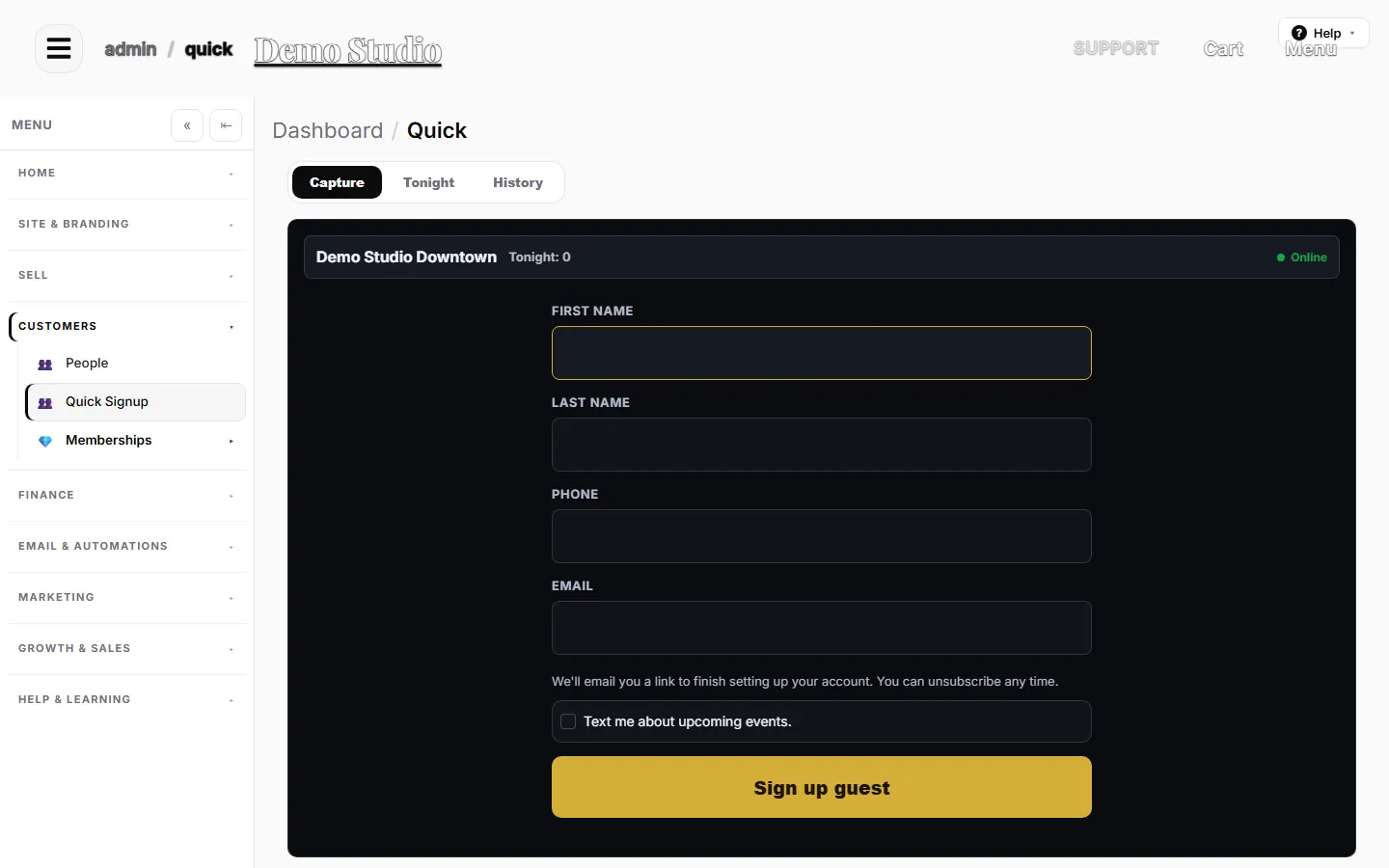
Quick Signup is a fast form for the door. Staff type a guest's name and contact details, the guest gets an account and an email to finish setting it up, and tonight's list builds itself.
Where to find it: /admin/quick in your admin.
Before you start
- Open Customers → Quick Signup on your own site's address, ideally on a tablet. It does not run on the CloserAccess platform address. If you see "Quick Signup isn't available here", switch to your site's own address.
- Staff need the Door work (scan, guest list, Quick Signup) or Users & roles permission. See Set up staff roles and access.
- Your venue comes from your locations. If you see "No venue configured", add a location first.
Sign up a guest
- On the Capture tab, pick the venue if you have more than one. The device remembers your choice.
- Type the guest's First name and press Enter. Enter moves you to the next field.
- Type Last name, Phone and Email, pressing Enter after each. Phone is optional.
- Tick "Text me about upcoming events." only if the guest asks for texts. It always starts unticked.
- Press Sign up guest.
- When you see "You're in" with the guest's first name, press Next guest. The screen also clears by itself after a moment.
If the guest has signed up before with the same email or phone, you'll see "Welcome back" instead. They are checked in for tonight. No new account is made and no email is sent.
Check tonight's list and past signups
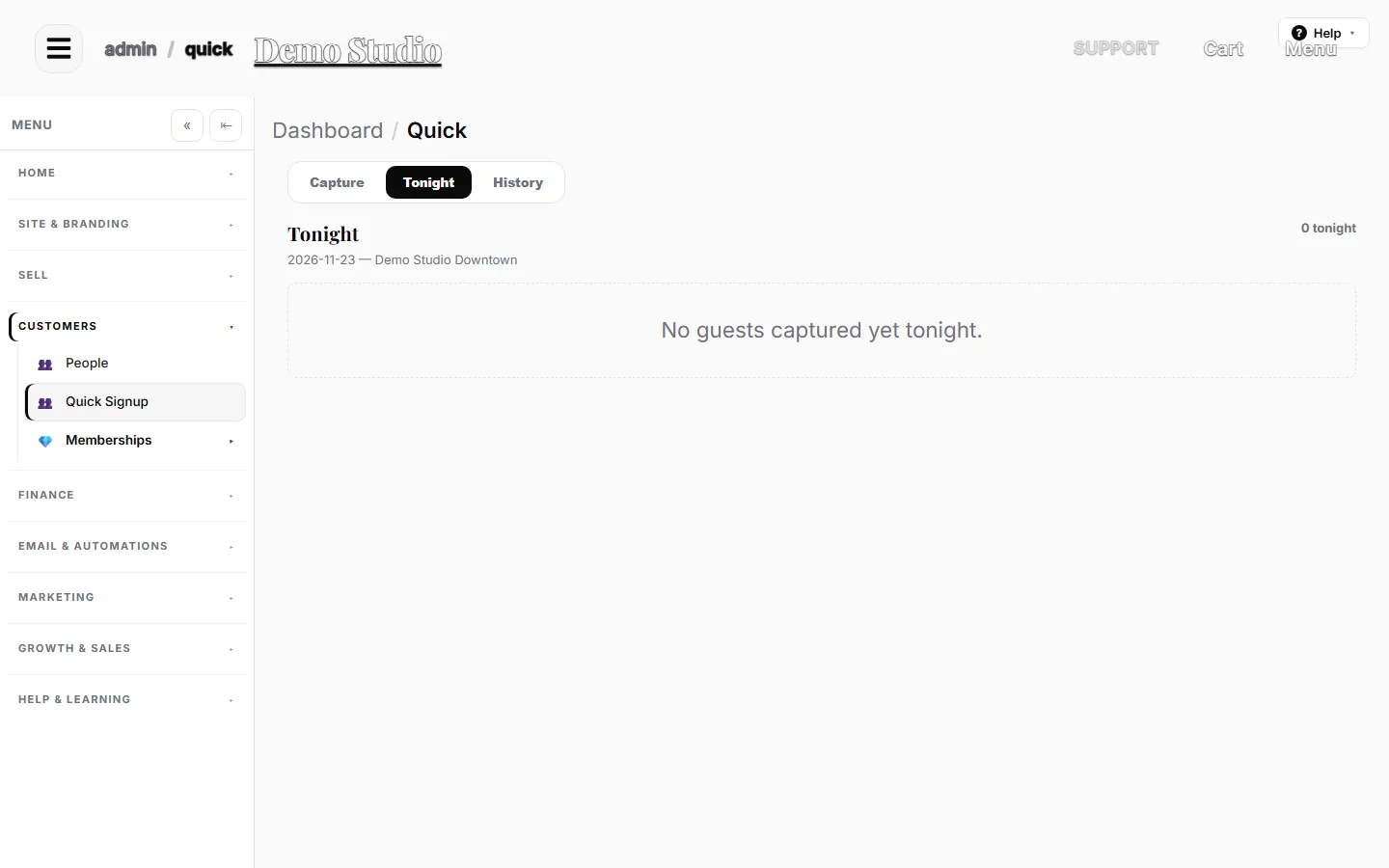
The Tonight tab lists everyone captured tonight with the time, name, phone, email and invite status. Click Resend to send a guest's setup email again, or Copy email to copy their address.
| Invite status | What it means |
|---|---|
| Pending | The setup email has not gone out yet. |
| Invite sent | The email was sent. |
| Opened | The guest opened the email. |
| Completed | The guest finished setting up their account. |
| Failed | The email could not be delivered. Check the address, then use Resend. |
The History tab searches past signups. Set From, To and Venue, type a name, email or phone in Search, then click Search. Click Load more to see older rows.
Questions
Which fields are required?
First name, last name and email. Phone is optional.
It says my session belongs to a different site. What do I do?
Sign out, then sign back in on this venue's own site address.
There's a warning that the site's domain isn't fully configured. Does that matter?
Yes. Until your domain setup is finished, the setup emails may not reach guests.
Do I get an email for every guest?
No. Quick Signup guests do not trigger the new-signup email you can turn on in People.