Find and contact your customers
The People page lists everyone who has visited your site, bought something, or signed up, and shows how to reach them. Use it to find a customer, see their history, add them to an email list, or keep private notes about them.
Where to find it: /admin/people in your admin.
Open the People page
Go to Customers → People. The page has two tabs: Everyone, which opens first and lists your visitors and customers, and Accounts & staff, which manages logins to your admin. This article covers Everyone. For logins and staff, see Manage accounts and staff logins.
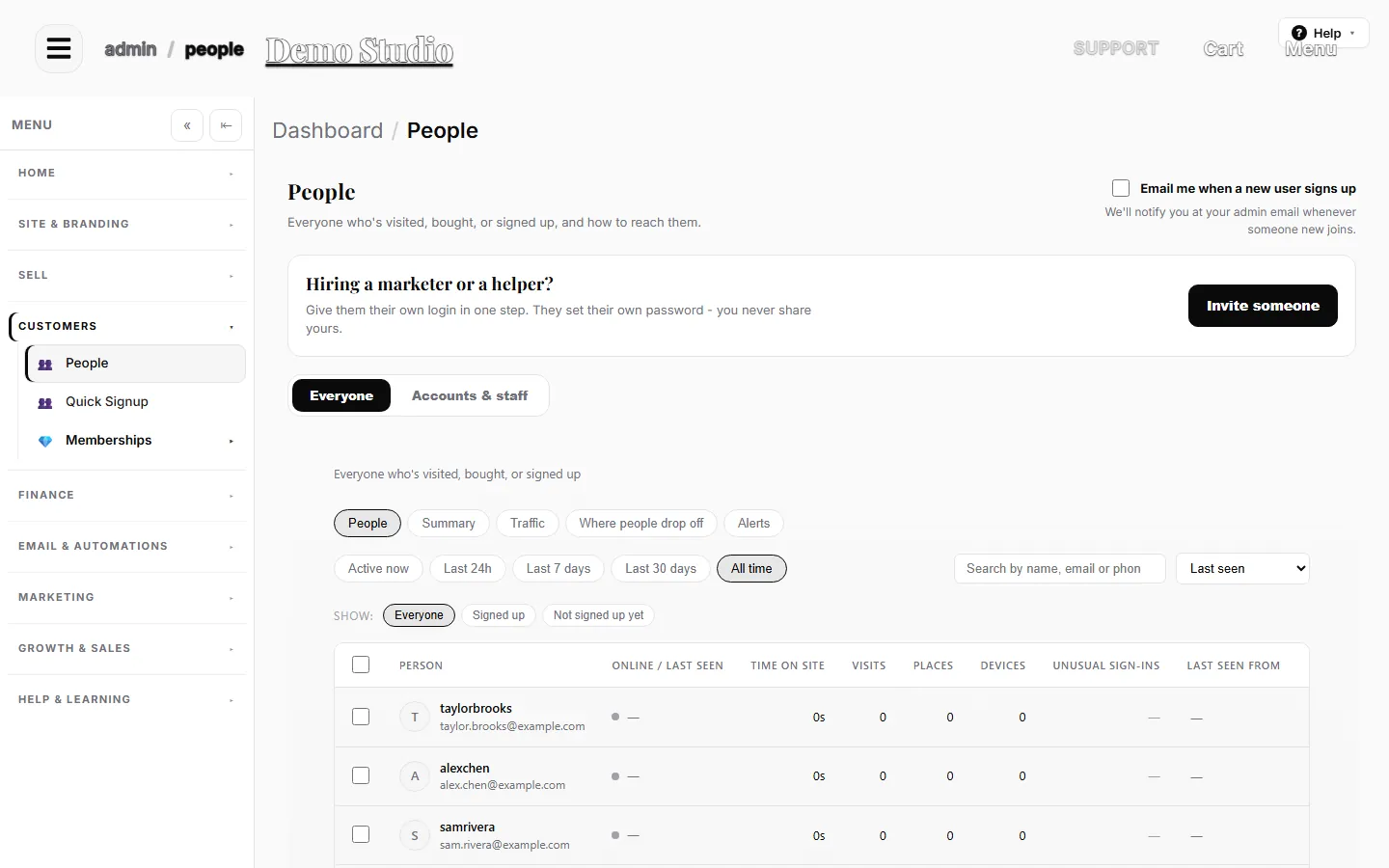
At the top you can tick Email me when a new user signs up. When it is on, your admin email gets a message each time someone new creates an account. Guests you add with Quick Signup do not trigger this email.
Find someone
- Type a name, email or phone number in Search by name, email or phone....
- To narrow the list, pick a time chip: Active now, Last 24h, Last 7 days, Last 30 days or All time.
- Use the Show: chips to pick Everyone, Signed up or Not signed up yet.
- Change Sort to Last seen, Time on site or Unusual sign-ins if you want a different order.
The list shows 50 people per page and refreshes itself every 30 seconds while you have it open. Columns include Person, Online / last seen, Time on site, Visits, Places, Devices, Unusual sign-ins and Last seen from.
The view chips above the list switch between People (the default), Summary, Traffic, Where people drop off and Alerts.
Contact people or add them to an email list
For anyone who has signed up, click ⋯ at the end of their row. You can pick Email, Text, Call, Copy email or View profile. Email, Text and Call open the apps on your own device. Nothing is sent from your site.
- Tick the box on each row you want, or the box in the header to pick the whole page.
- In the bar that appears, choose a list from Choose a list.
- Click Add to list.
See one customer's history and add notes
Click a row to open that person's page. It shows their name, email and phone, when they became a customer, where they came from, and whether they are on the site now.
- Tiles: Total spent, Last purchase, Last came in, Visits in person, Site visits, Time on site.
- Buttons: Text, Call, Email, Copy email, Add to list.
- Tabs: Purchases, Timeline, Site visits and Security. Security lists the places and devices they signed in from, and any unusual sign-ins.
In Notes and tags, type a tag such as VIP and click Add tag, or write a note and click Save note. Notes and tags are only for your team. The customer is never told. Each note has a Delete link.
Questions
Can I refund or cancel something from a customer's page?
No. The Purchases tab is read only. Refunds start from Shop orders or Tips, see Refund a payment. Membership changes are made on the Accounts & staff tab.
Why don't I see Notes and tags?
The panel only shows once your site has been set up for notes. If it is missing, ask your platform admin.
Does the platform email the person when I click Email?
No. Email, Text and Call open your own email, messaging or phone app. You send the message yourself.
Why don't Quick Signup guests trigger my new-signup email?
Guests added at the door are skipped on purpose so a busy night does not flood your inbox. You can see them on the Quick Signup page under Tonight and History.