Create, issue and scan rewards
Rewards let you give customers things like a free drink, a checkout coupon, points or a service credit, either by hand or automatically at signup or after a purchase. Staff scan the reward's QR code at the door or bar to mark it used.
Where to find it: /admin/rewards/templates in your admin.
Shows up when the Rewards feature is turned on for your site.
Create a reward template
A template defines a reward you can give. Open Growth & Sales → Rewards → Templates.
- Click New Template.
- Fill in a unique code, a title and a description.
- Pick the type and, for a coupon, the checkout_coupon_code or discount percent.
- Choose the policy, how many claims are allowed, and when it expires. Leave expiry blank for never.
- Tick Issue on signup to give it to every new signup, or Trigger on purchase of… to give it after a purchase.
- Make sure Active is ticked and click Create.
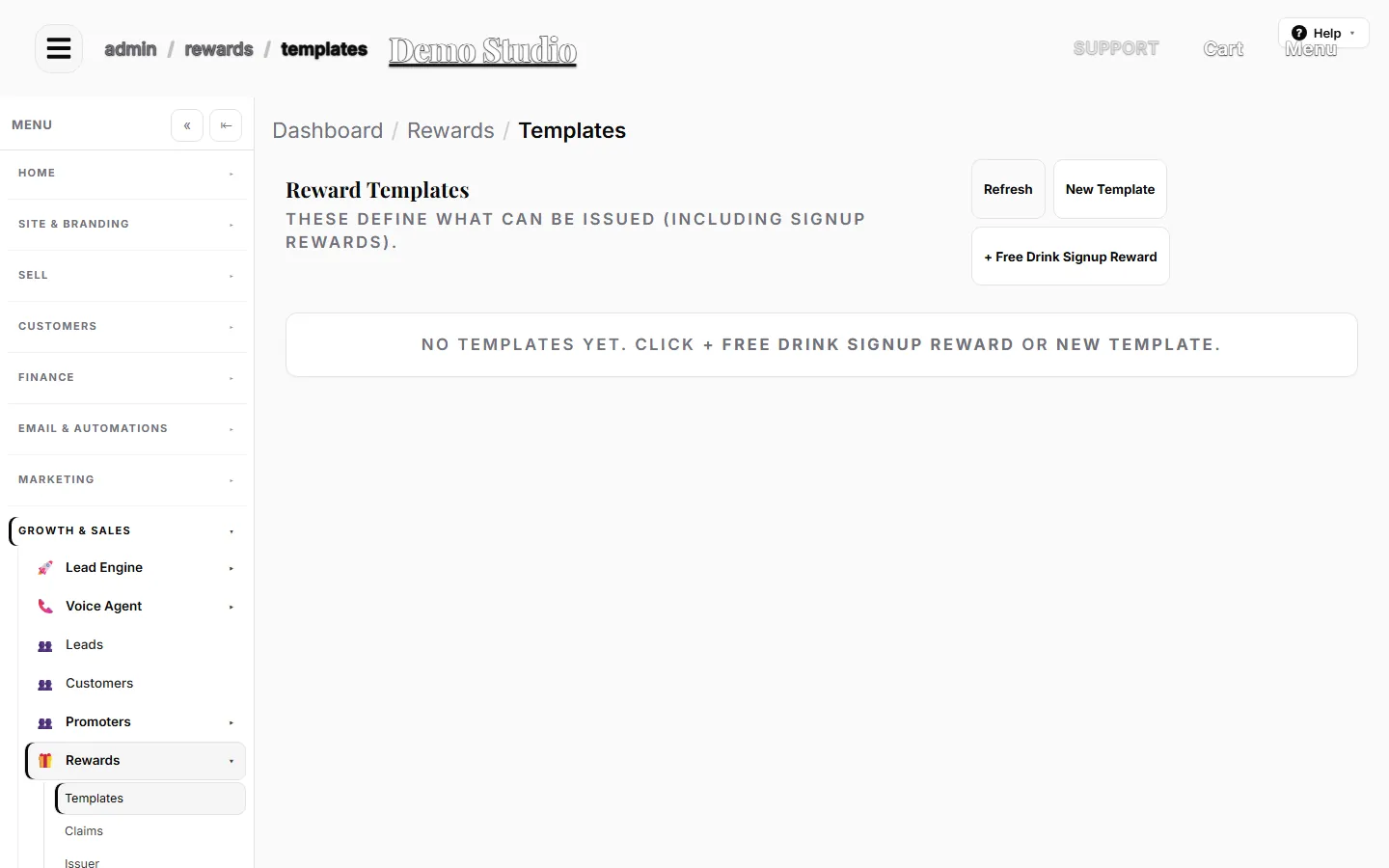
What the template options mean
| Option | What it means |
|---|---|
| QR claim | A reward the customer shows as a QR code to staff. |
| Album unlock | Gives the customer access to a photo album. |
| Service credit | Credit toward a service. |
| Points | Adds points to the customer's account. |
| Checkout coupon | A discount code used at checkout. |
| Policy one_time | Each customer can get it once. |
| Policy every_booking | Given with every booking. |
| Context door_entry, bar_drink, table_service | Where the reward is used: at the door, at the bar or at the table. |
Give a reward to a customer
- Open Rewards → Issuer.
- Search for the customer by username, email or name, and check the user card.
- Pick a template under Choose a template.
- Click Issue Reward.
The reward appears on the customer's rewards page. The result shows the QR and the code, with Copy code if you want to send it to them yourself.
Scan and claim rewards
- Open Rewards → Scanner on a phone or tablet. Allow camera access.
- Scan the customer's QR code, upload a photo of it with Upload QR image, or paste the code.
- Click Claim. The result shows the customer and how many claims are used.
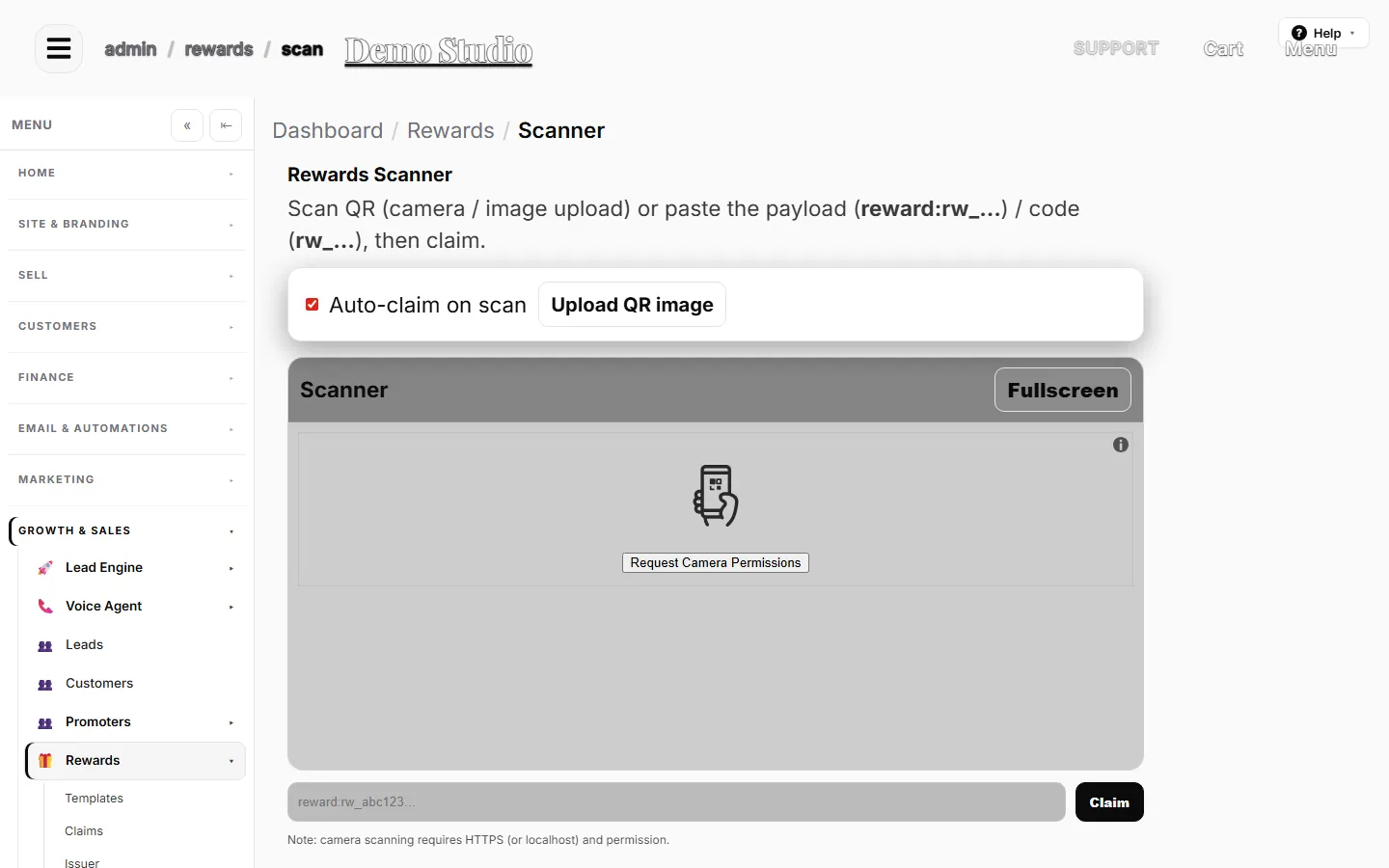
Rewards → Claims lists the last 50 claims: when, which reward, which customer, and who claimed it.
Questions
Why won't the camera work?
Camera scanning needs a secure (https) page and camera permission in your browser. You can also upload a photo of the QR or paste the code.
Is the customer told when I issue a reward?
It shows on their rewards page. Copy the code from the result if you want to send it to them yourself.
Should I keep reward codes private?
Yes. Anyone with a reward's code can have it scanned, so treat codes like tickets.