Build your home page and About page
Build your home page and About page from blocks in the Appearance editor. Add, reorder, hide and style blocks, then publish when the preview looks right.
Where to find it: /admin/site-appearance/home in your admin.
Understand the home page structure
Open Site & Branding → Appearance and pick Home Page in the section dropdown. The first card, Structure, controls which blocks your home page has and in what order.
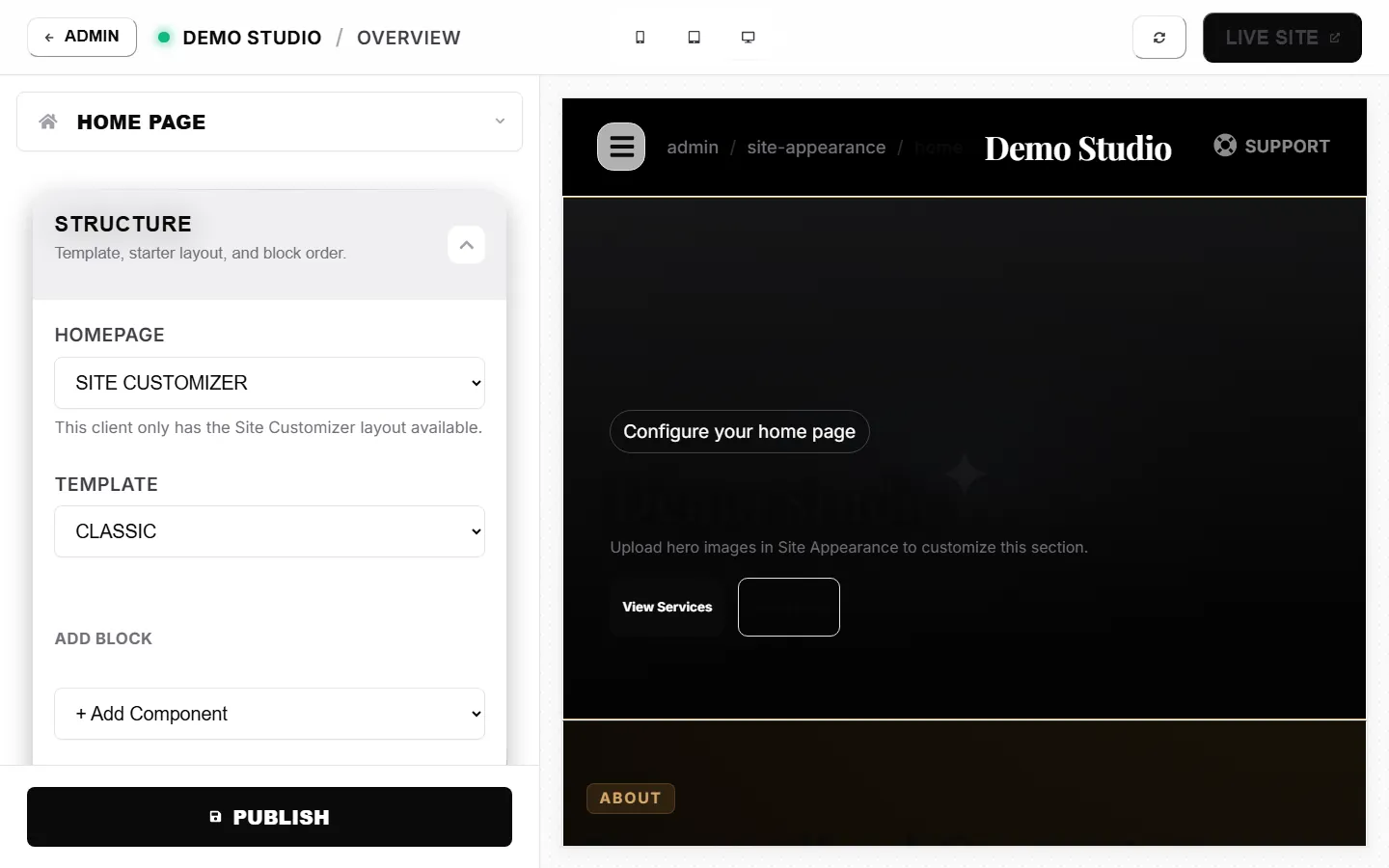
- Homepage shows SITE CUSTOMIZER (the block builder). If a hand-built page has been made for your site, you can also pick HAND-BUILT PAGE.
- Template loads a starter layout of blocks.
- Add Block adds a new block to the page.
- Current Blocks lists every block in order, with buttons to move, copy, hide or remove each one.
If your site uses a hand-built home page, its layout is fixed by the design, but you can still edit the content of each section in the cards below Structure.
Add and arrange blocks
- In Structure, open the + Add Component dropdown and pick a block type, such as Hero Banner, Gallery, Events, Reviews Widget or Footer CTA.
- A card for the new block appears below. Open it and fill in Content, such as the headline and subtitle.
- In Current Blocks, use the up and down arrows to move the block where you want it.
- Check the preview, then click Publish.
- The eye icon hides a block without deleting its content. In the block's own card, Show Block does the same.
- The copy icon, or Duplicate, makes a copy of the block.
- The trash icon, or Remove, deletes the block right away. There is no confirm step.
Edit a block's content and style
Each block has its own card, titled by its type. Content holds the words, images and buttons. Click Advanced to see Style (colors, background, fonts, sizes) and Layout (padding and spacing).
- For a hero, add one or more items to Hero Slides. Each slide needs a Title (required), which shows as the big headline. Add Hero Media, an Eyebrow and a Subtitle if you want them.
- Add buttons under Hero Buttons. For each, set Button text, Link (for example /about) and Style.
- To go back to the default look for a block, click Reset Style.
Build your About page
- Pick About Page in the section dropdown.
- Open Identity and fill in Display Name, Stage Name, Tagline, City, Timezone and Bio. Leave a blank line between paragraphs in the bio.
- Open Visuals and add an Avatar, Banner and Feature Image.
- Open Structure to add blocks such as Bio / Story, Timeline, Testimonials, Q&A or Social Links, and to set their order.
- Click Publish.
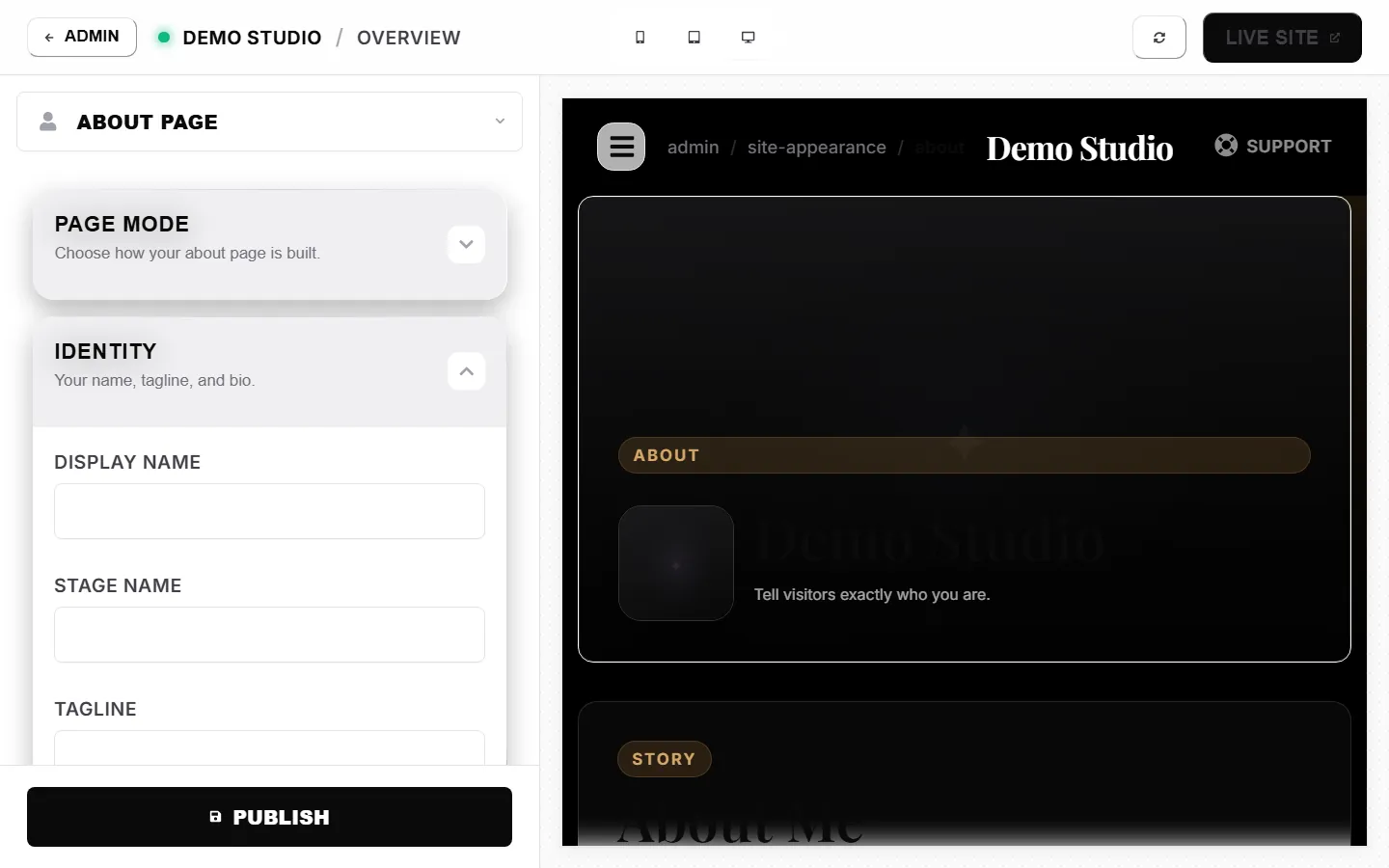
If a custom About page has been built for your site, Page Mode lets you switch between SITE CUSTOMIZER and CUSTOM PAGE. In custom mode you edit the content of each section of that design.
Questions
Can I add my own template or hand-built page?
No. The templates and hand-built pages available to your site are set up by the CloserAccess team, not from this editor.
I removed a block by mistake. Can I get it back?
If you have not published yet, click Discard to undo all unpublished edits. After publishing, you need to add the block again.
Why is my hero slide not showing a headline?
Each slide needs a Title (required). Fill it in for every slide.