Style your pages, footer and Google listing
Use the later steps of the Appearance editor to style your Services, Events, Gallery, Blog and Memberships pages, set up your footer, and write the text people see for your site in Google results.
Where to find it: /admin/site-appearance/seo in your admin.
Style your feature pages
Open Site & Branding → Appearance and pick a page in the section dropdown. Each of these steps only shows when that feature is on for your site. Your real services, events, photos, posts and plans always show; these settings change how the page presents them.
| Step | What you can change |
|---|---|
| Services | Layout (Services page layout and Theme mode), Visuals (hero and side image), Hero Banner (title, subtitle and call-to-action button), and Display Settings (Default view: by category, by provider or by subscription level). |
| Events | Visuals (default images), Copy (headlines and the empty-page message) and Landing (how events appear on your home page). |
| Gallery | Gallery Style (Legacy Grid, Magazine, Story Feed, Cinematic or Pinterest), Features (Tipping, Custom content requests, Share caption), Visuals, Landing and Copy. |
| Blog | Page introduction (eyebrow, title, description) and Layout: Editorial highlights the newest story, Compact gives every post equal weight. |
| Memberships | Hero (headline, subtitle, three trust badges), Subscribe Button labels, a four-question FAQ, and Legal link labels. |
The Theme mode setting on the Services step only applies to the Premium Parallax layout.
Set up your footer
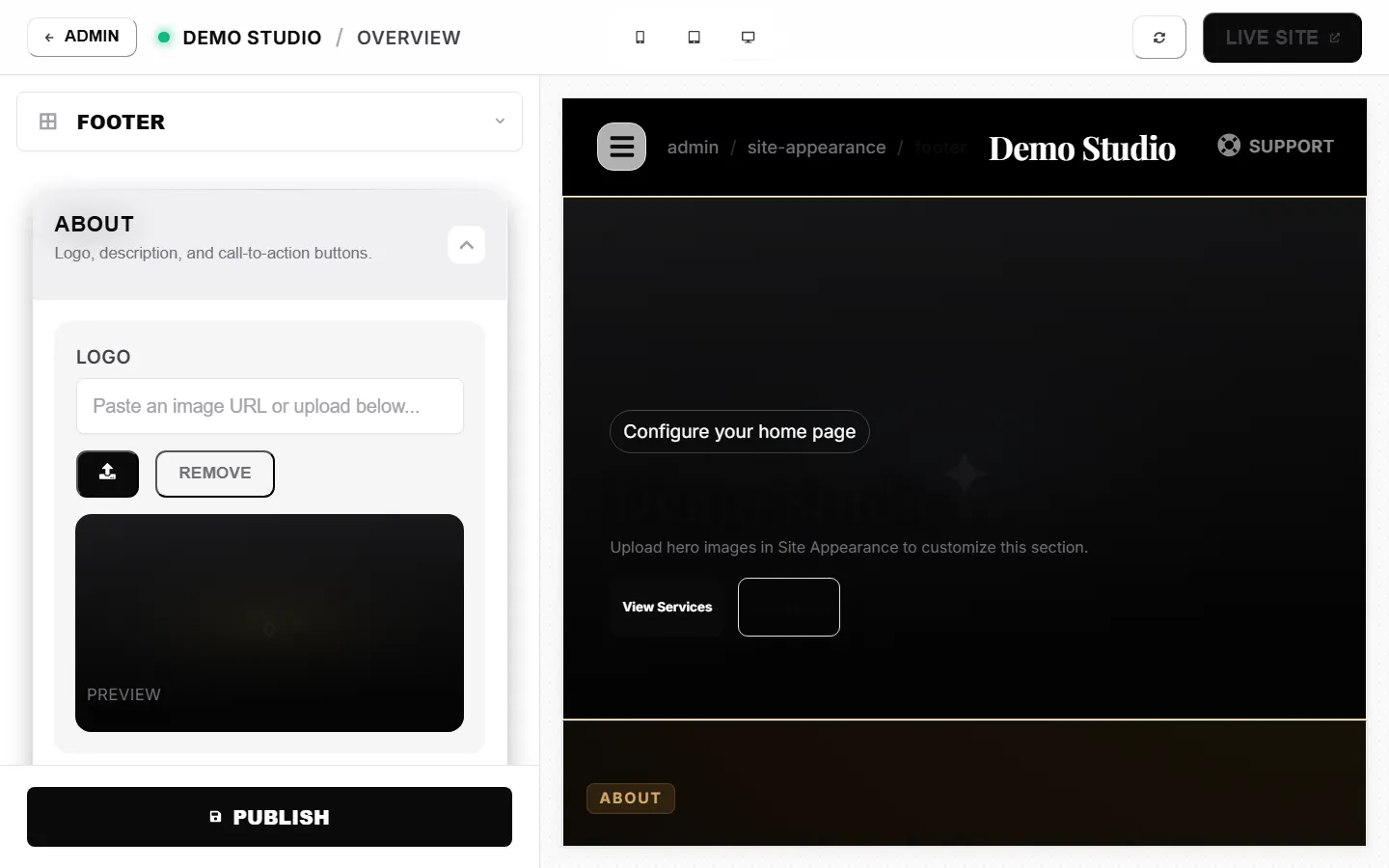
- Pick Footer in the section dropdown.
- Open About and add a Logo, Title, Body text, and a Primary CTA and Secondary CTA button.
- Open Links. Set the Explore Title and Support Title, then click Add under each to add links with a Label and Path (for example /services).
- Open Socials & Legal and fill in Contact Title, Email, your Instagram, Twitter, TikTok and YouTube, and Legal Text.
- Click Publish.
Write your Google listing text
- Pick SEO in the section dropdown.
- In Search Listing, write a Meta description of 80 to 160 characters. Lead with what you do, where you do it, and why it matters to the visitor. The counter shows your length.
- Enter one Focus keyword: the search phrase you most want to rank for, such as "Brooklyn dance studio".
- In Keywords, type a phrase and press Enter or click Add. Use commas to add several at once. You can add up to 12. Click a keyword chip to remove it.
- Click Publish.
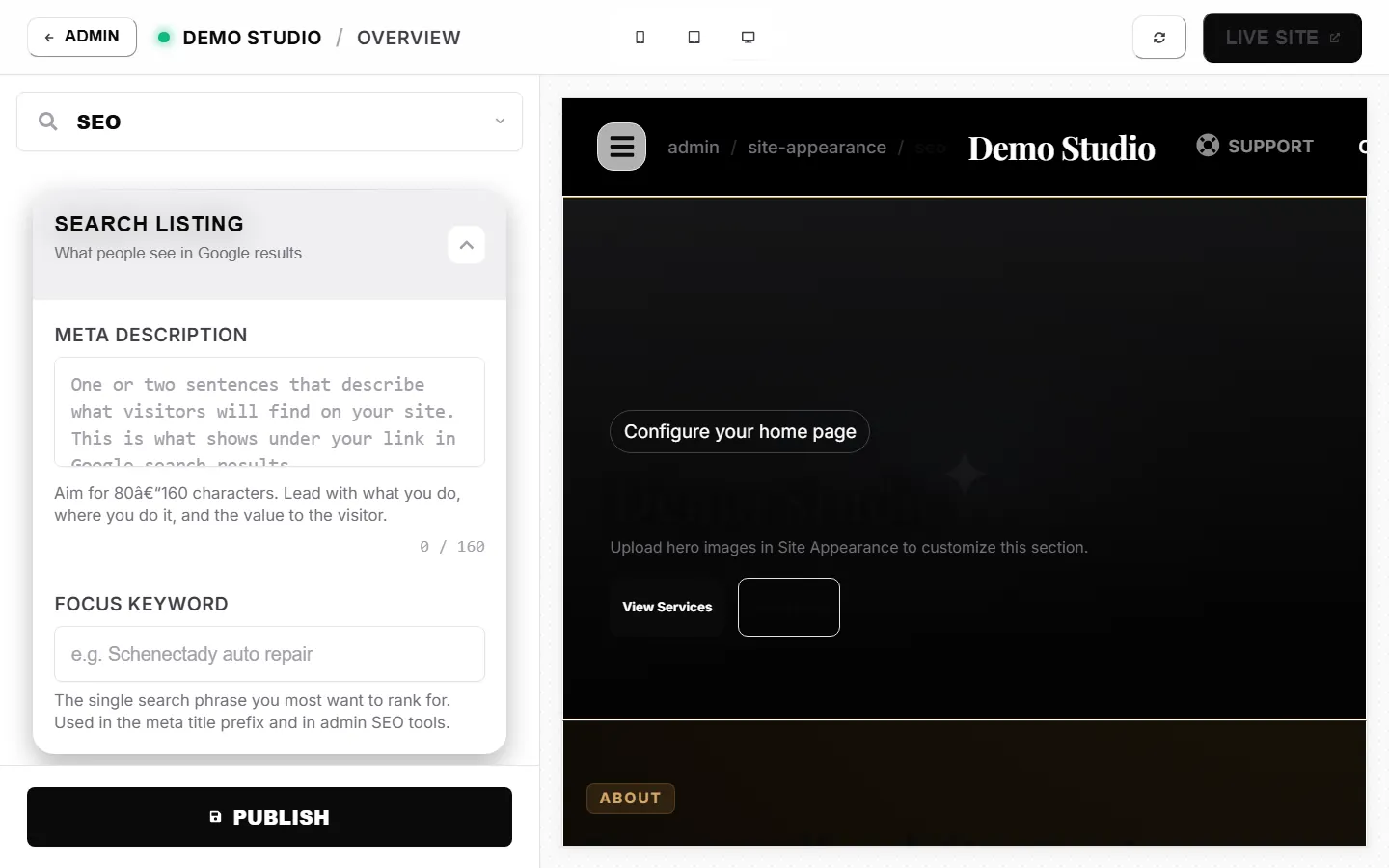
Your site adds this text to every page for search engines. The How this helps card lists what else is done for you automatically, such as your sitemap.
Questions
Why don't I see the Services, Events or Gallery step?
Those steps only appear when the feature is on for your site. Turn it on in Site & Branding → Modules first, then reopen the editor.
My meta description counter is red. Will it still save?
Yes, but Google will likely cut off anything past about 160 characters. Shorten it so the whole message shows.
I changed the Events Landing headline and my home page changed too. Why?
The Landing cards on the Events and Gallery steps edit the same text as the matching block on your home page. It is one setting shown in two places.