Set sales tax and ship-from address
Commerce & Shipping sets the sales tax your shop charges and where your orders ship from. The tax rate, your tax states, and your ship-from state and ZIP code are what checkout uses.
Where to find it: /admin/commerce-settings in your admin.
Shows up when the Shop feature is turned on for your site.
Open your store settings
Open Sell → Shop → Commerce & Shipping. The page is titled Store Settings.
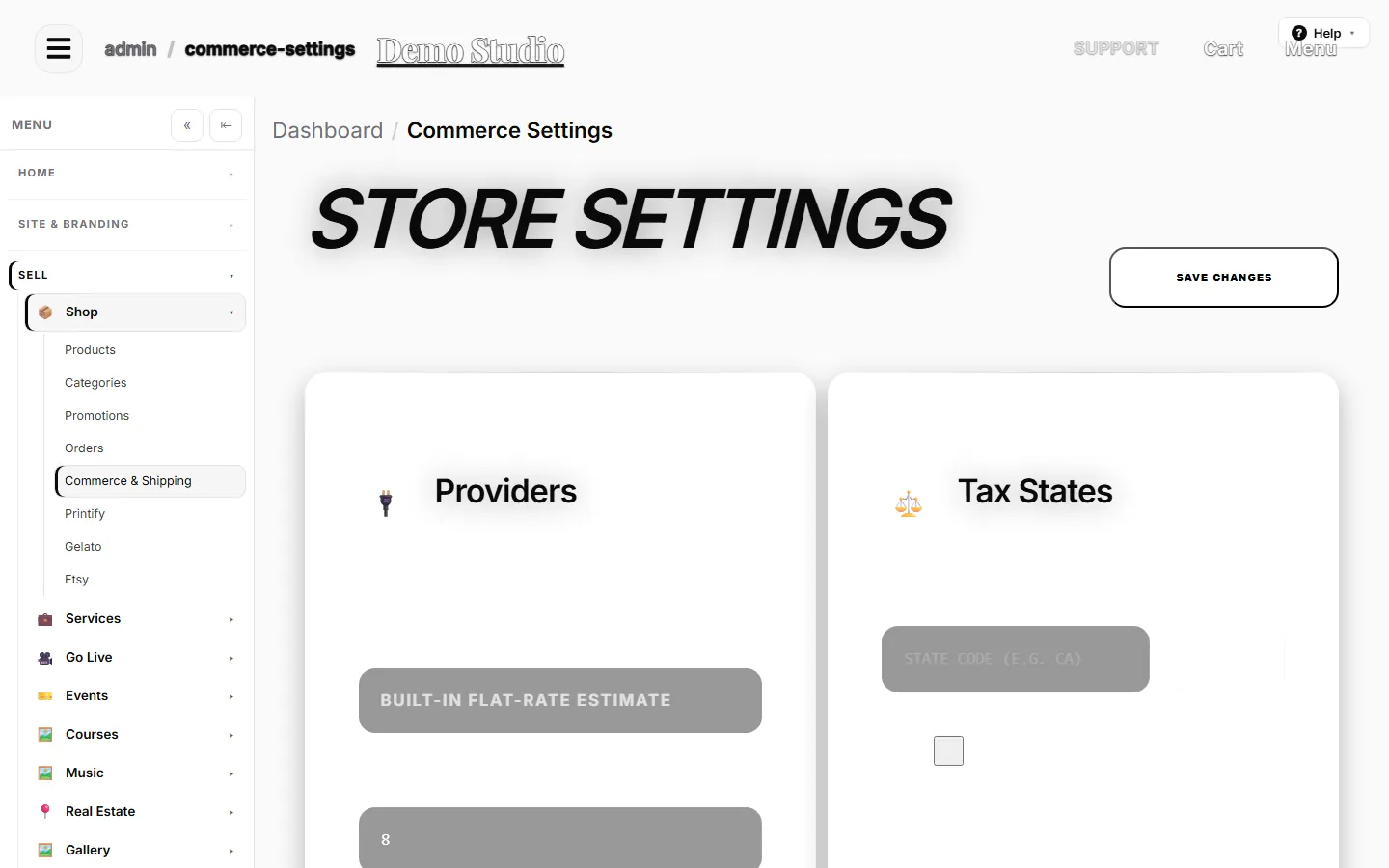
Set your sales tax
- In Estimated sales tax rate (%), enter your rate, from 0 to 30. Enter 0 to turn tax off.
- Under Tax States, type a 2-letter state code such as CA and click Add (or press Enter). Add each state where you collect tax.
- Click the × on a state to remove it.
- Click Save Changes. You'll see Settings saved!
Tax is charged on orders shipping to any state in your list, and always on orders shipping to your own ship-from State. The rate is a flat estimate, not a full tax calculation for every city and county.
Set where you ship from
- Under Ship From Address, enter your State as a 2-letter code, for example NY.
- Enter your Zip Code.
- Fill in the rest of the address for your records.
- Click Save Changes.
Shipping estimates for your own products use your ship-from Zip Code plus each product's weight and size from its Shipping & Fulfillment tab. A product with no size entered is treated as a small box.
Questions
My Tax States list changed by itself.
Setting up payouts with a US business address replaces your Tax States list with that one state. Check this page after you finish payout setup and add any other states again.
Are the address fields required?
Save Changes saves even with empty fields, so check that State and Zip Code are filled in before you save.
Do the other boxes on this page change my prices?
Not today. Only the tax rate, tax states, ship-from state and ship-from ZIP code affect checkout.