Add and edit products
The Products page is where you build your shop catalog: physical goods, digital downloads, and items that link to a bookable service. Use it to add a product, set a price or a sale, upload images, add sizes and colors, and track stock.
Where to find it: /admin/shop/products in your admin.
Shows up when the Shop feature is turned on for your site.
Find your products
Open Sell → Shop → Products. The page is titled Products & Inventory and shows Total Items, Active and Needs Restock at the top.
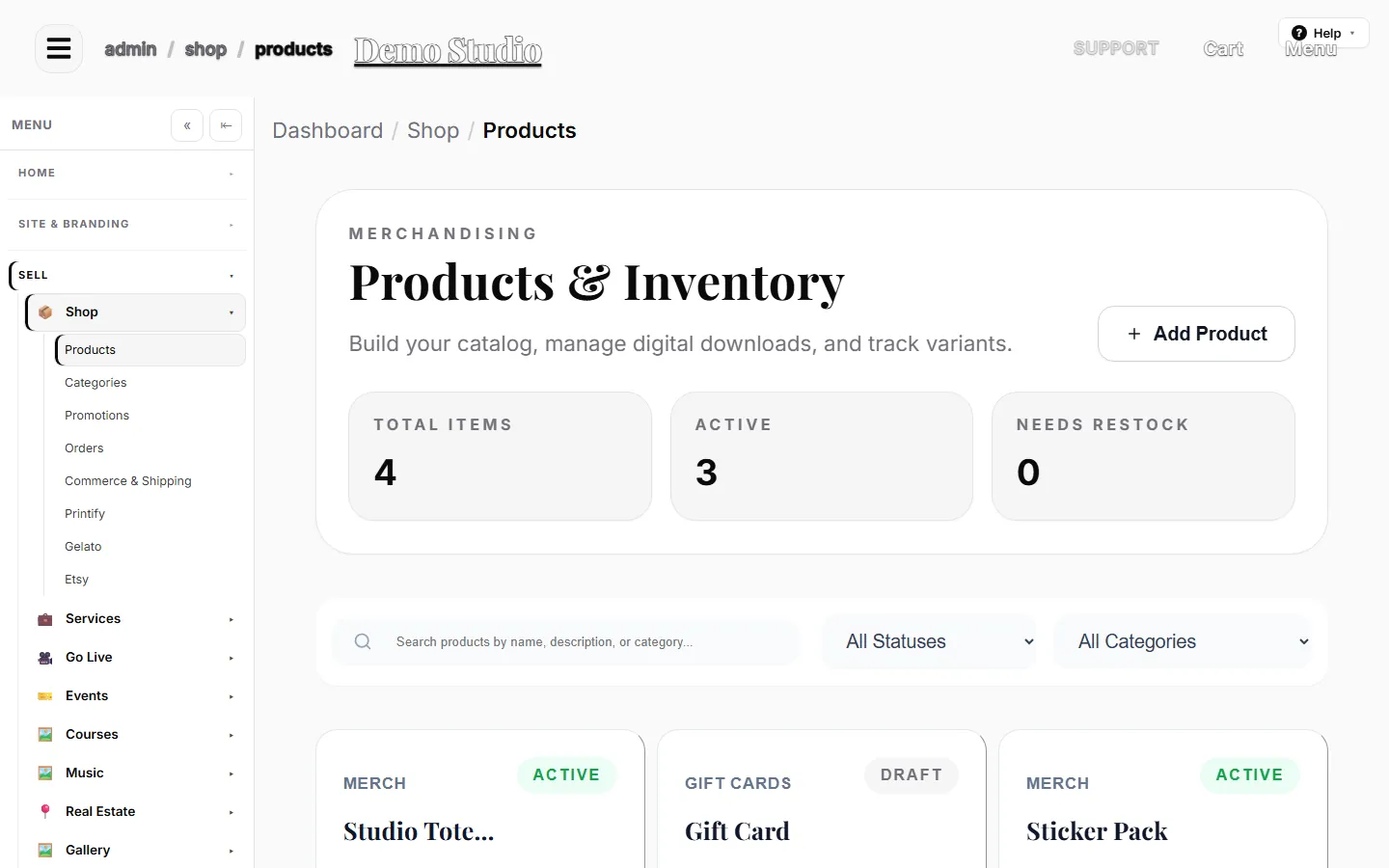
- Type in the search box to match a product's name or description.
- Use the status filter (All Statuses, Active, Draft, Archived) and the All Categories filter to narrow the list.
- Each card shows the category (or Uncategorized), a status badge, the price, and In stock or Out of stock.
- The list shows 25 products per page. Use Previous and Next to move between pages.
Add a product
- Click Add Product. A panel opens with tabs down the left side.
- On General Info, enter a Product Title and pick a Product Type: Physical Product, Digital Download or Service / Booking.
- Choose a Category. If you have none yet, a Create New Category box opens. You can also pick + Create new category, type a name, and click Save.
- Add a Description if you like.
- On Pricing & Status, enter the Price ($) and set Storefront Status.
- On Media, click Add Image, then Upload Image or paste an image link. Tick Primary on the main image.
- Fill in the tab that matches your product type (see below).
- Click Create Product.
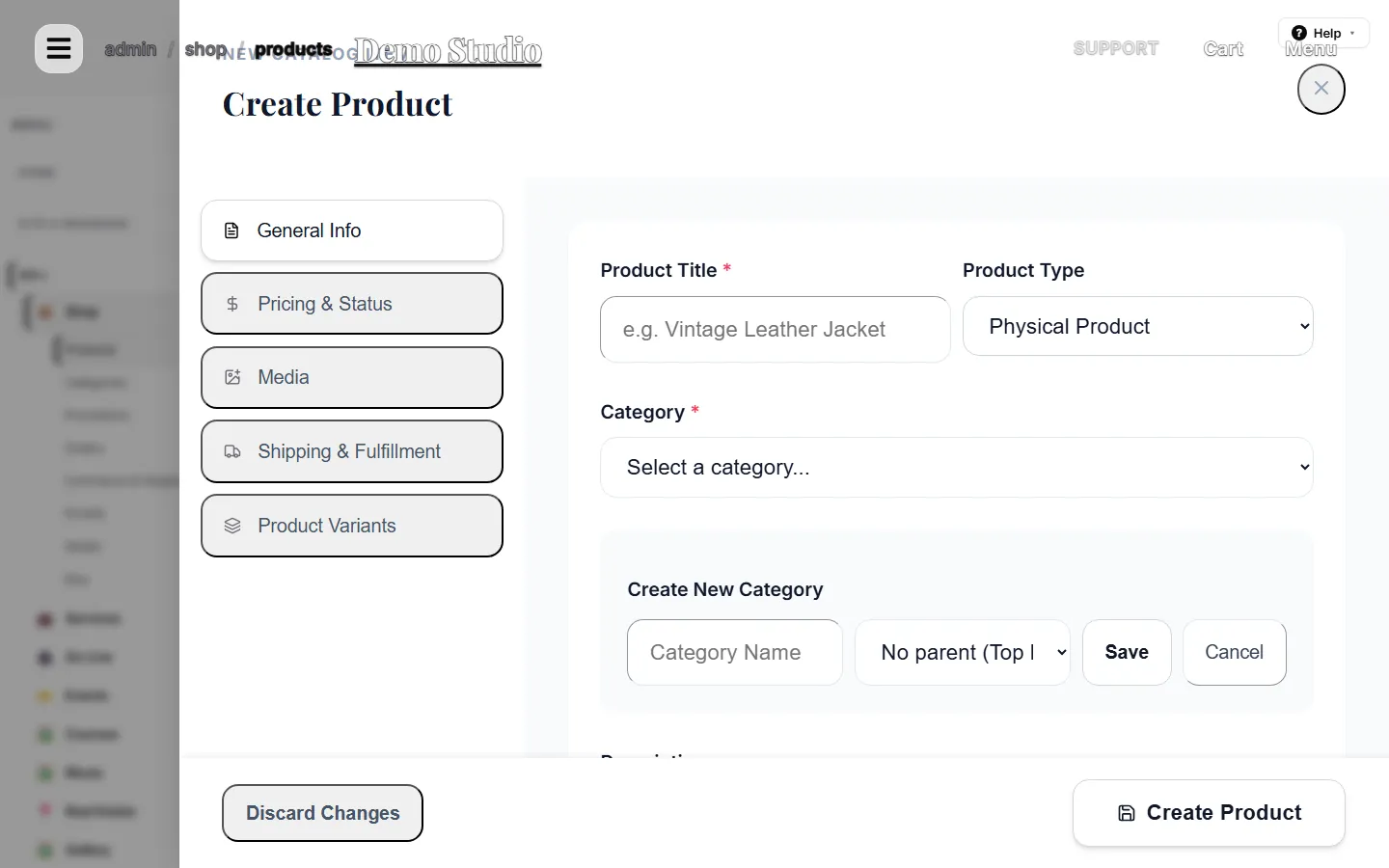
You need a title, a category, and a price above $0.00 before the product will save. If something is missing, the editor jumps to the tab with the problem.
- Physical Product: on Shipping & Fulfillment, tick This product requires shipping, enter the weight and size, and pick a Fulfillment Method: Ship to customer, Pickup only or Ship or Pickup (customer chooses). For pickup, fill in Min prep time (minutes), Max prep time (minutes) and Pickup instructions.
- Digital Download: under Downloadable Files, click Add File, give it a label, and paste a direct link to the file in Direct file URL or upload.... A digital product needs at least one file.
- Service / Booking: on Service Link, choose the Linked Service this product books.
When you save a new product, your site may open a social post draft for it so you can review it. Nothing is posted on its own. Search engines are also told about the new page.
Set a price, a sale and visibility
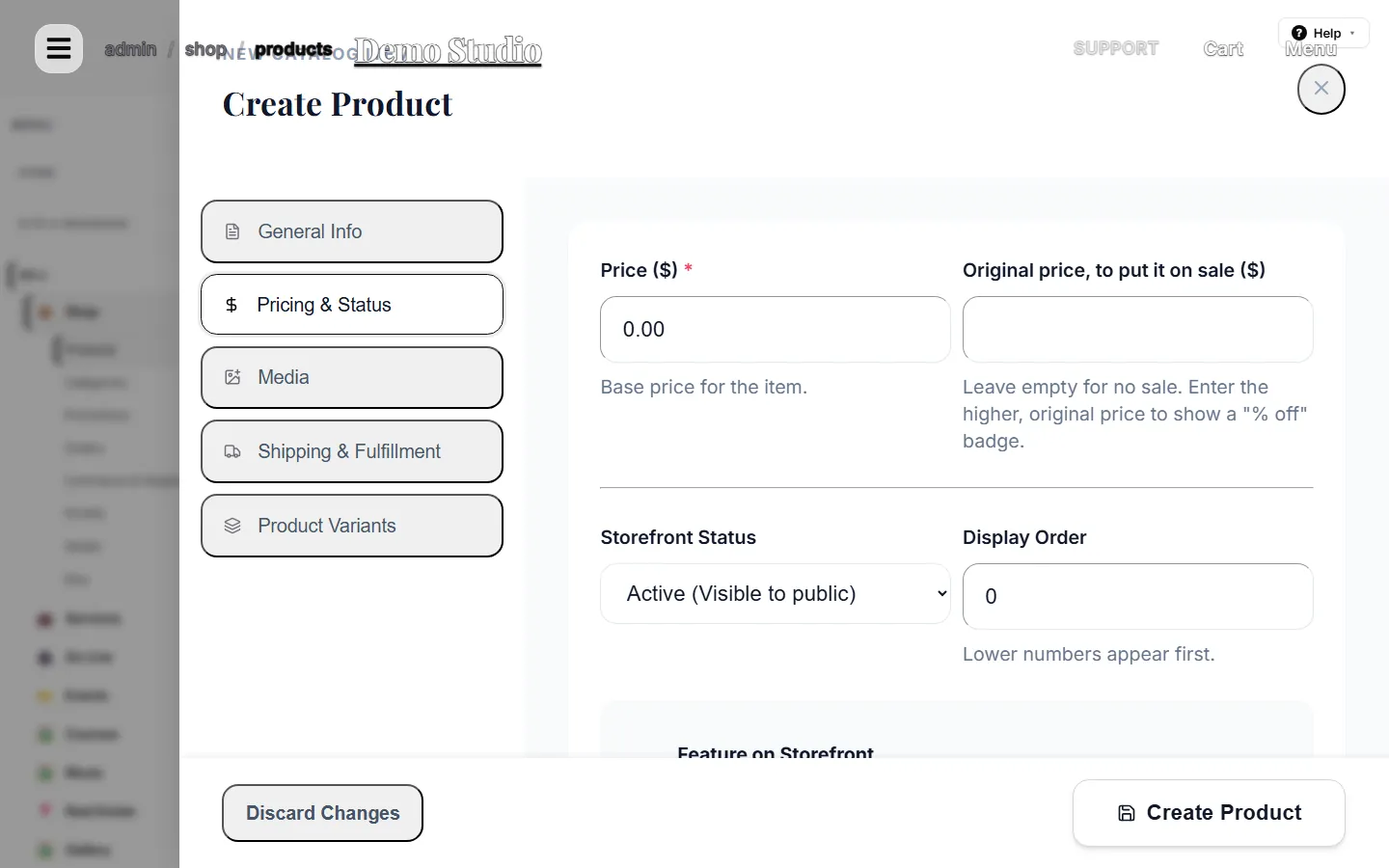
- Price ($) is what shoppers pay.
- To show a sale, enter the higher, pre-sale price in Original price, to put it on sale ($). Shoppers then see a % off badge with the old price crossed out.
- The original price must be higher than Price ($) to show as a sale. If it isn't, you'll see a warning, but the product still saves.
- Leave Original price empty for no sale.
- Tick Feature on Storefront to list the item ahead of your other products.
| Storefront Status | What it means |
|---|---|
| Active (Visible to public) | Shown in your shop and can be bought. |
| Draft (Hidden, admin only) | Hidden from your shop and its product page. Only you see it in the admin. |
| Archived (Hidden forever) | Hidden from your shop, kept in your admin for your records. |
Add sizes, colors and stock
- Open the Product Variants tab.
- Click Add Variant for each option, for example Small / Red.
- Fill in Label, and Color and Size if you want them.
- Leave Price ($) empty to use the base price, or enter a different price for that option.
- To limit stock, tick Track inventory and enter a quantity. Without tracking, the option is always available.
- Pick the Default Option and click Save Changes.
A product counts as in stock while any option has tracking off or a quantity above 0.
Edit or delete a product
- To edit, click the product's card, make your changes, and click Save Changes. Discard Changes closes the panel without saving.
- Renaming a product keeps its web address the same, so old links keep working.
- To delete, hover over the card, click the trash icon (Delete Product), and confirm. This can't be undone.
Questions
I changed the base price. Why didn't my variants change?
When you save, a variant with no price of its own stores a copy of the base price at that moment. Later changes to Price ($) don't update it. Open Product Variants and update each option's price too.
I ticked Track inventory and my stock went to zero.
Turning on Track inventory resets that option's quantity to 0. Type the real quantity in before you save.
What does Tax Code do?
Enter txcd_exempt to make the item tax-free. Other codes have no effect today. Your tax rate is set on Commerce & Shipping.
Why can't I see the tabs on my phone?
The tab list in the product editor only shows on wider screens. Use a tablet or computer to edit every tab.