Respond to a payment dispute
When a customer disputes a card payment with their bank (a chargeback), you can answer it by sending evidence such as receipts and messages. The Disputes page is where you open a dispute and submit that evidence.
Where to find it: /admin/disputes in your admin.
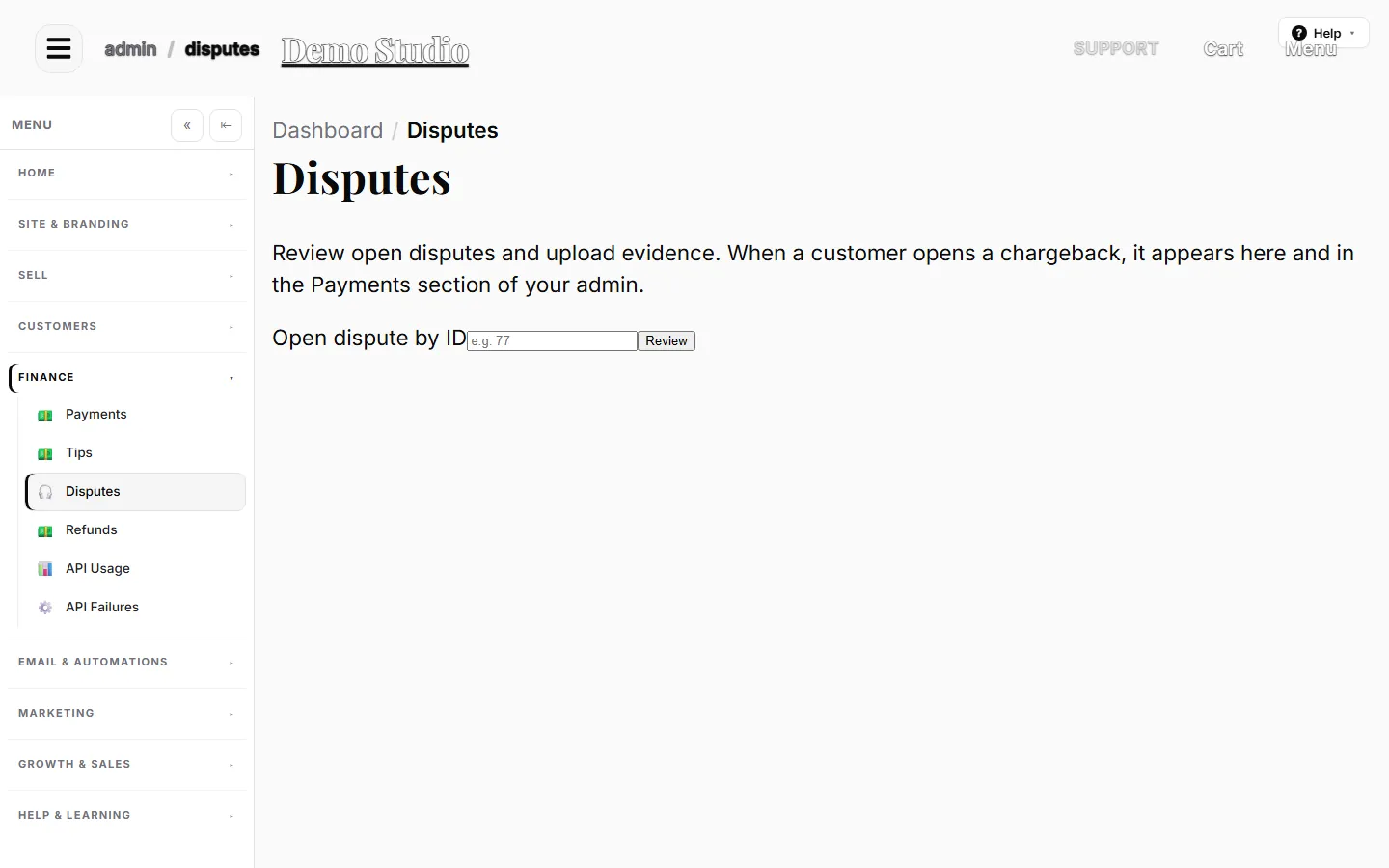
Open a dispute
Go to Finance → Disputes. Only the owner, admins and staff with Manage disputes & refunds can use it.
- Type the dispute's number in Open dispute by ID.
- Click Review.
The dispute page shows its status, the amount At risk, and the Evidence due date. Dispute details shows the reason and when it was opened. Payment details shows the payment it is about. View in Stripe Dashboard opens the same dispute in Stripe.
Add evidence
- Under Add evidence, pick a Type of evidence, such as Receipt, Customer message (file), Refund policy (file) or Customer email address.
- For a file type, use Upload a file (10 MB max). For a text type, type it in Enter text.
- Click Save draft.
- Repeat for each piece of evidence.
Saved items show under Staged evidence. Drafts are only saved on your site. Nothing is sent yet.
Submit your evidence
- Make sure Staged evidence has everything you want to send.
- Click Submit to Stripe.
- When asked "Are you sure? Evidence locks after submit.", click Submit evidence, or Cancel to go back.
You'll see "Evidence submitted. Dispute is now under review." The card network then decides the outcome, which shows under Dispute details.
Questions
My file won't upload. Why?
Files can be up to 10 MB. You'll see "File too large (10 MB max)." Shrink or split the file and try again.
Can I submit without evidence?
No. Save at least one item before submitting.
Can I change evidence after I submit?
No. Submitted evidence is locked.