Connect how you get paid
The Payments page is where you connect the account your customers' card payments go into. It also holds your Square connection, the note attached to Square payments, and the guest checkout switch.
Where to find it: /admin/payments in your admin.
What's on the Payments page
Go to Finance → Payments. Setting up payments is for the site owner and admins. Staff with View finances can see the menu link, but can't change these settings.
The page has four panels, from top to bottom:
- Your card processor panel, where you connect the account that receives card payments.
- Square, to connect a Square account.
- What Square sees on a payment, the note and reference attached to each Square payment.
- Guest checkout, to let buyers pay for tickets and tables without logging in.
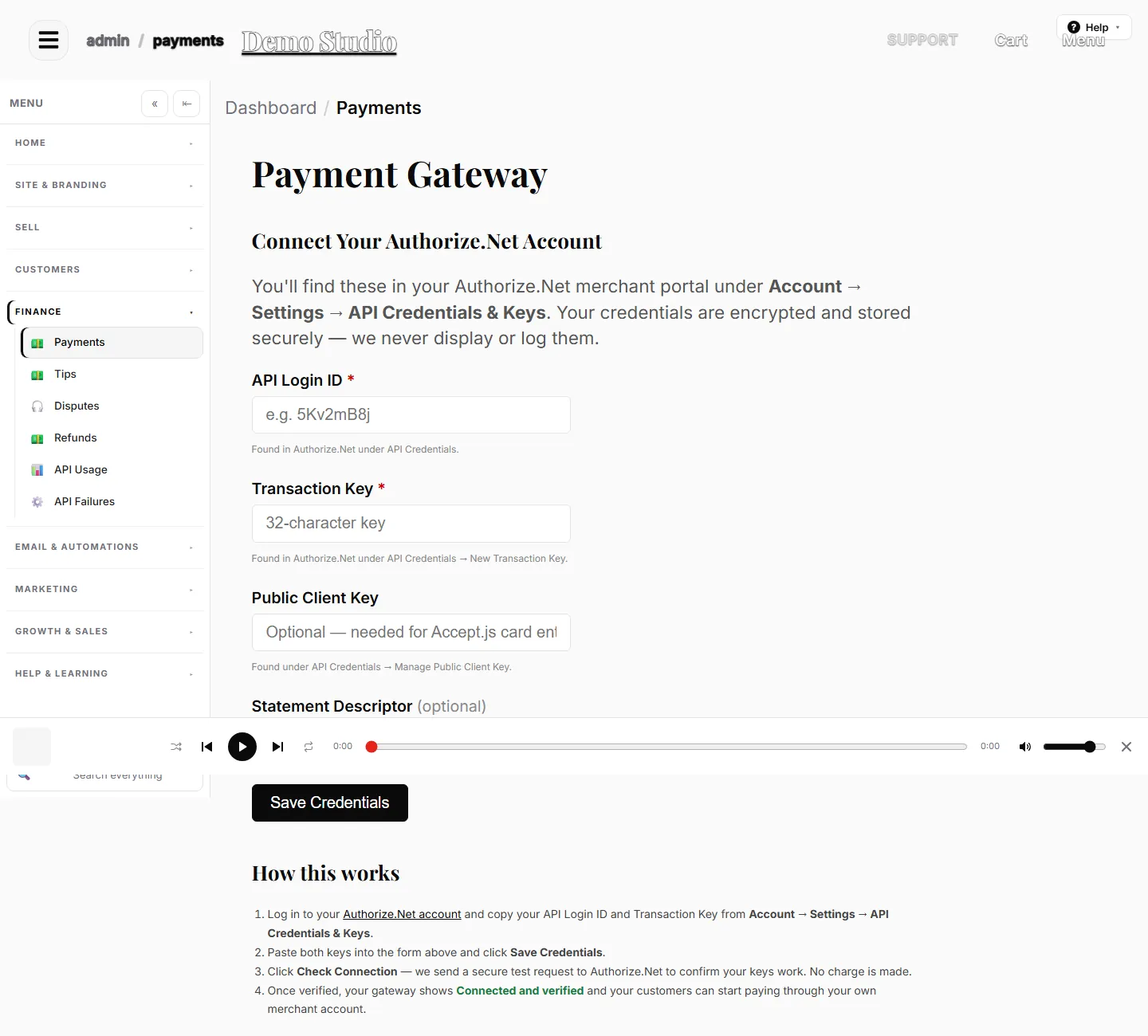
Connect your card processor
The panel at the top of the page is where you connect your card processor. What it asks for depends on how your site is set up, so follow the steps shown in that panel. When the panel shows your account as connected and verified, your site can take card payments.
Connect Square
You can connect a Square account to take payments through Square, instead of or alongside your other processor. You sign in on Square's own site, so you never type Square passwords or keys into your admin.
- In the Square panel, click Connect Square account.
- Sign in to Square and approve the connection.
- You are sent back to the Payments page. Check that Connection status: reads Connected.
If the panel says Square hasn't finished verifying your account yet, customers can't be charged until it has. Click Continue on Square to finish, then Refresh Status.
| Connection status | What it means |
|---|---|
| Not connected | No Square account is linked yet. |
| Connecting… | You started connecting but haven't finished on Square. |
| Connected | Square is linked. The panel shows the end of your merchant ID, the location and the date you connected. |
| Disconnected | The account was disconnected. Use Reconnect Square account to link it again. |
Set what Square sees on a payment
The What Square sees on a payment panel sets the note and reference attached to each Square payment, so you can match payments in your Square Dashboard.
- Type a Note template, using the tokens listed under "Available tokens:".
- Type a Reference template.
- Check the Preview: under each field.
- Click Save.
This does not change the wording on your customer's bank statement. Square sets that line in your Square Dashboard, for each location. Use wording your customers will recognise, because card networks require it and unclear wording leads to chargebacks.
Turn on guest checkout
Guest checkout lets a buyer who isn't logged in pay for event tickets and tables with just their name, email and phone. It is off until you turn it on. Shop items and memberships still need an account.
- Read the Before you turn this on checklist in the Guest checkout panel and run the test it describes.
- Turn on Allow guest checkout.
- Click Save.
- Check that the panel reads "Guest checkout is ON. Buyers can pay without logging in."
Questions
Do I have to use Square?
No. Square is optional. You can use it alongside your other card processor, or not at all.
It says "Square isn't available for this account type." Why?
Square can't be used for some kinds of business. Use the card processor panel at the top of the page instead.
Can my staff change payment settings?
No. Only the owner or an admin can. A staff member sees "Only the owner or an admin can change this setting." on guest checkout.
Guest checkout says it is not available or needs a database update. What now?
Guest checkout isn't ready on your site yet. Ask your platform admin.