See how your events did
Performance shows how past events did, and Package Sales lists everything sold on top of entry. Both are read-only reports for admins and owners.
Where to find it: /admin/events/performance in your admin.
Shows up when the Events feature is turned on for your site.
Performance
- Open Events → Performance. The page is titled How your events did.
- Pick a Time period. For Pick dates, set From and To.
- Optionally narrow by Location, Series or Event. The page reloads on every change.
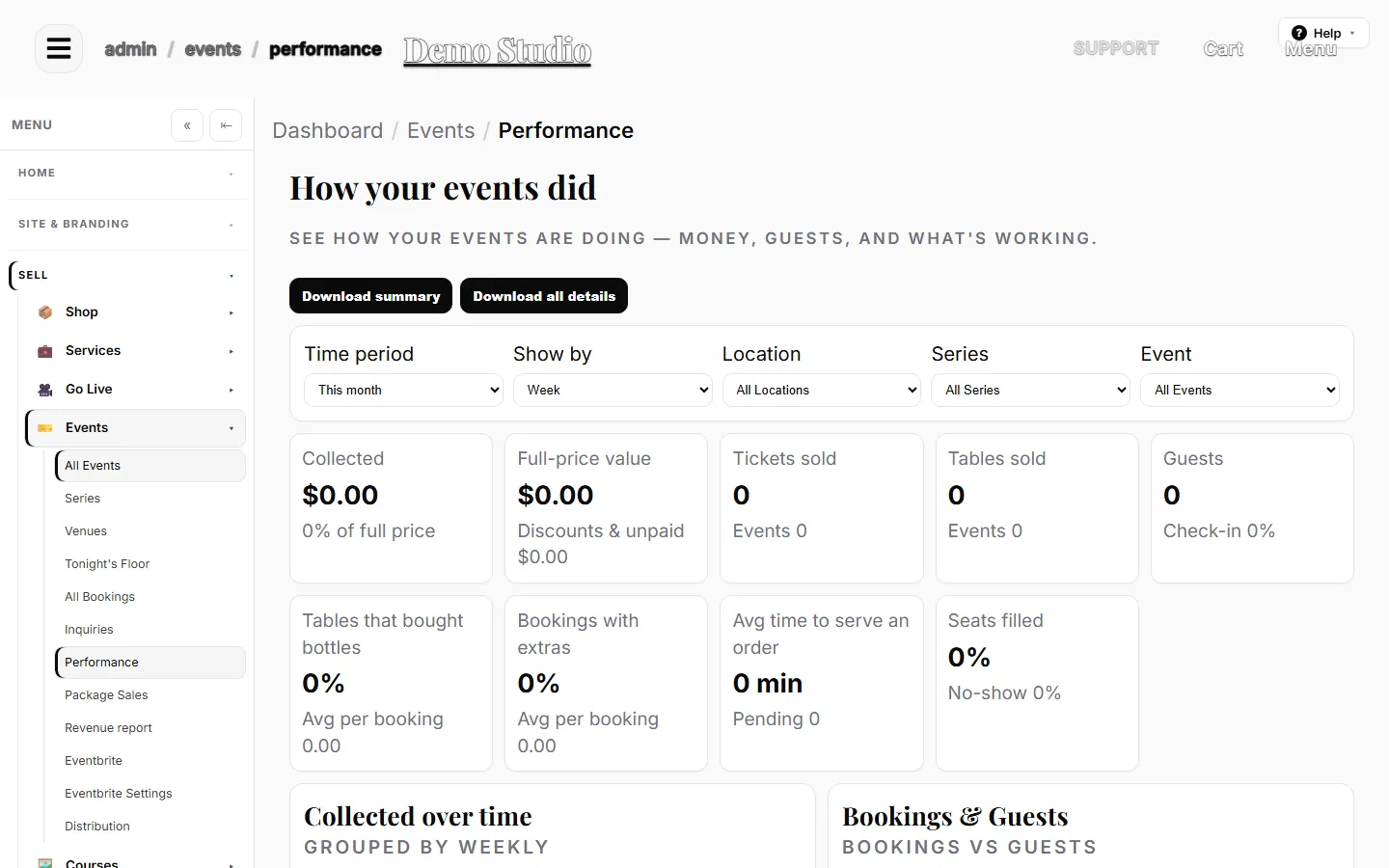
- Collected is the money taken on your site. Eventbrite money is shown under it but not added.
- Full-price value is what it would be with no discounts or unpaid amounts.
- Tickets sold, Tables sold, Guests (with check-in rate) and Seats filled (with no-show rate).
- Tips for next time suggests fixes, such as reminders when no-shows are high.
Click a row in Each event to open that event. Every time period ends now, so upcoming events are not counted.
Download the data
- Download summary gives one CSV.
- Download all details gives four CSVs: bookings, orders, QR codes and holds. Your browser may ask to allow multiple downloads.
- Download events gives the events table.
Package Sales
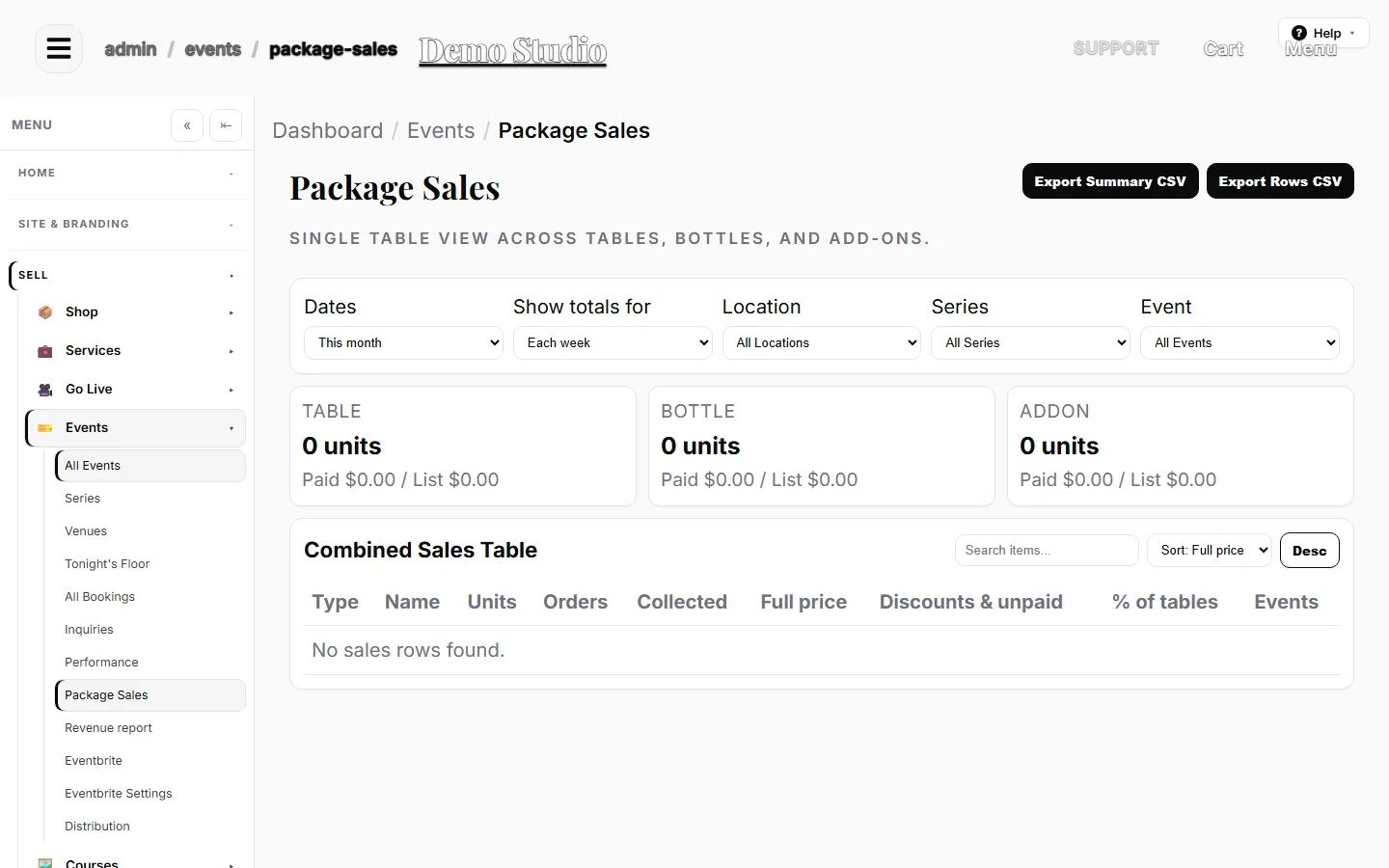
- Open Events → Package Sales.
- Pick Dates and any Location, Series or Event filters.
- Read the TABLE, BOTTLE and ADDON cards for units sold and paid versus list price.
- Search and sort the Combined Sales Table, then click Export Summary CSV or Export Rows CSV.
Questions
Can staff see these reports?
Only admins and owners can load them. Other staff may see the menu item but get an error.