See your live stream analytics
Live Analytics shows how each of your Go Live broadcasts did, plus lifetime totals. A broadcast record starts when you click Go Live and ends when you click Stop Live.
Where to find it: /admin/go-live/analytics in your admin.
Shows up when the Live Sessions feature is turned on for your site.
Lifetime totals
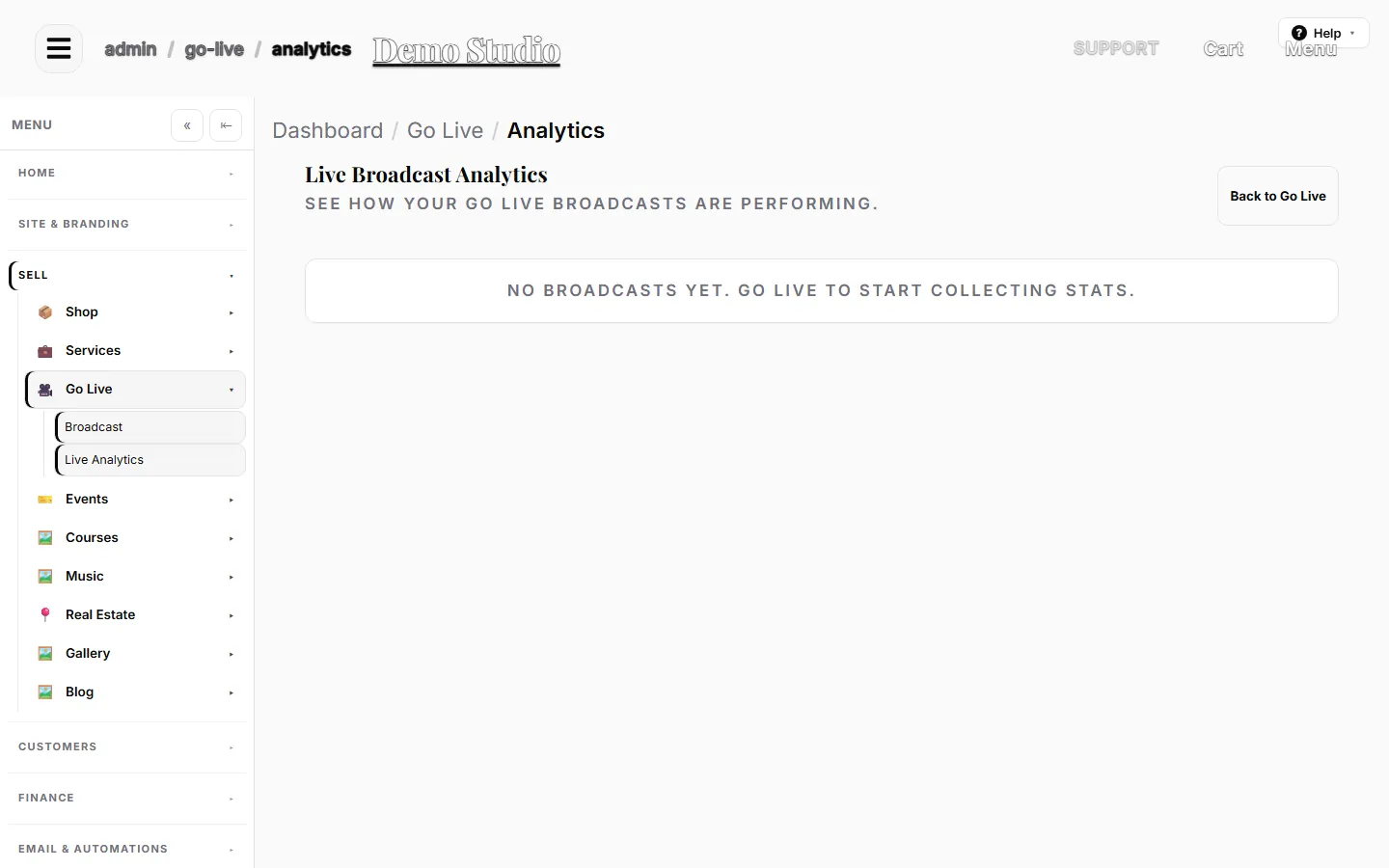
Open Go Live → Live Analytics, or click Analytics on the Broadcast page. The page is titled Live Broadcast Analytics.
- Total Broadcasts, Lifetime Unique Viewers, Lifetime Avg Watch Time and Lifetime Messages.
- Lifetime peak viewers, Lifetime total watch time and Lifetime total viewers.
Compare broadcasts
The table lists each broadcast, newest first. Click a column header to sort, and click again to flip. A stream that is still running shows Live now.
| Column | What it means |
|---|---|
| Total Viewers | Everyone who joined. |
| Unique | Different people who joined. |
| Peak | The most people watching at the same time. |
| Avg watching at once | The typical audience size during the stream. |
| Avg Watch Time | How long a viewer stayed, on average. |
| Revenue | Paid-view money before any fees. Shown only if a broadcast had paid views. |
One broadcast in detail
Click a broadcast's Started date to open Broadcast Details. It shows the same numbers for that stream and a Concurrent Viewers Over Time chart. Revenue shows Free when there were no paid views.
Questions
Can I export these numbers?
No. This page has no export or date filter.
What time zone are dates in?
Your device's time zone.