Go live: broadcast a live stream
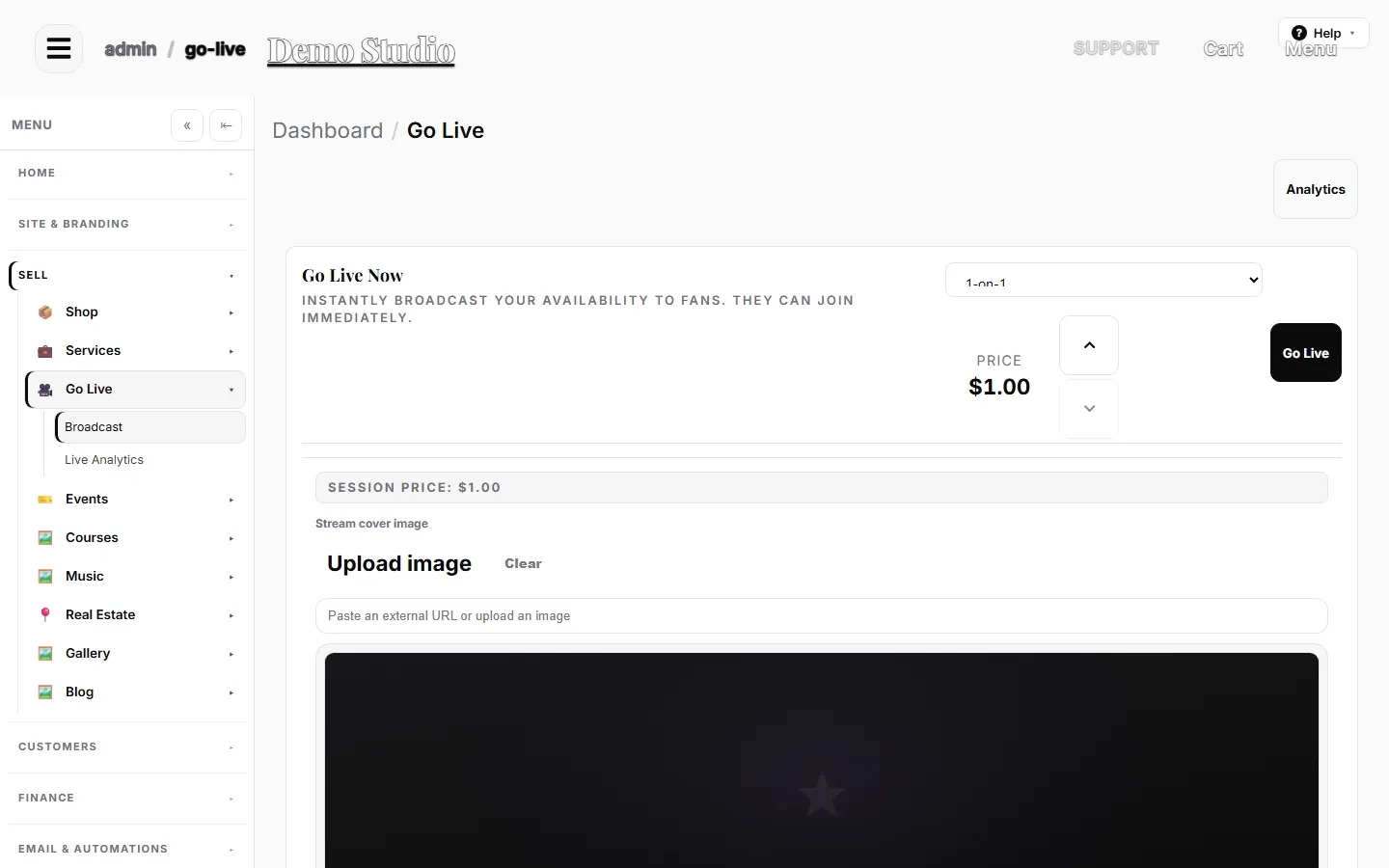
Go Live → Broadcast turns your live stream on and off, sets who can join and the price, and controls chat and the stream's look. It can also send the same stream to Twitch, YouTube, TikTok, Instagram, Kick or X.
Where to find it: /admin/go-live in your admin.
Shows up when the Live Sessions feature is turned on for your site.
Set up your stream
Every change on this page saves by itself. The top bar shows Saving... and then All changes saved.
- Under Go Live Now, pick a mode: 1-on-1, Public (Free) or Paid Group.
- For paid modes, set the Price with the up and down arrows. The minimum is $1.00, in $1.00 steps.
- Add a Stream cover image, Stream title and Stream description.
- Choose whether viewers can chat, use their camera or use their microphone.
For group modes, Max viewers limits the room. Leave it empty for unlimited. Once the room is full, new viewers are asked to try again later.
Start and stop
- Click Go Live.
- Click Join Stream to enter the room as the host.
- Click Stop Live when you are done. This ends the room for all viewers and stops every outside stream.
While you are live, chat, camera, microphone, Chat slow mode and Filter profanity in chat changes reach viewers within about a second. You can also pick a Reaction emoji and turn on Show logo watermark on stream.
Schedule a stream
- Under Schedule a stream (optional), pick a date and time. It uses your device's time zone.
- Pick when to email fans: 15 minutes, 30 minutes, 1 hour or 2 hours before.
Click Clear schedule to remove it. Changing the time sets up a new reminder.
Stream to other platforms
Connected Platforms sends your stream to other sites at the same time.
- Twitch and YouTube: click Connect Twitch or Connect YouTube, sign in on that site and approve. This gives your site access to stream to your channel. Use Disconnect to stop.
- TikTok, Instagram, Kick and X: click + Add TikTok destination (or the platform you want), paste the RTMP URL and Stream key from that platform's live settings, choose a Quality, leave Enabled ticked and click Save.
| Destination status | What it means |
|---|---|
| Idle | Ready, not streaming. |
| Starting… | Connecting to the platform. |
| Live | Receiving your stream. |
| Failed | It didn't work. The error shows under it. |
| Stopped | Your stream to it has ended. |
A link to your site is added to the end of the title and description sent to each platform. Destination changes only save when you click that destination's Save.
Questions
Does every fan get the go-live email?
It goes to fans registered on your site who have go-live alerts on. Alerts are on by default, so most registered fans get it. It is sent once each time you start, not when you edit the stream.
Can viewers use their camera?
Only if you tick Allow viewers to use their camera. Camera and microphone are off by default. Chat is on by default.
Where do I see how my stream did?
Click Analytics at the top of the page, or open Go Live → Live Analytics.