Review and sign your proposal
Proposals holds the plans and pricing prepared for you. Review the options, pick one, and sign online. It takes about two minutes.
Where to find it: /admin/proposals in your admin.
Find your proposal
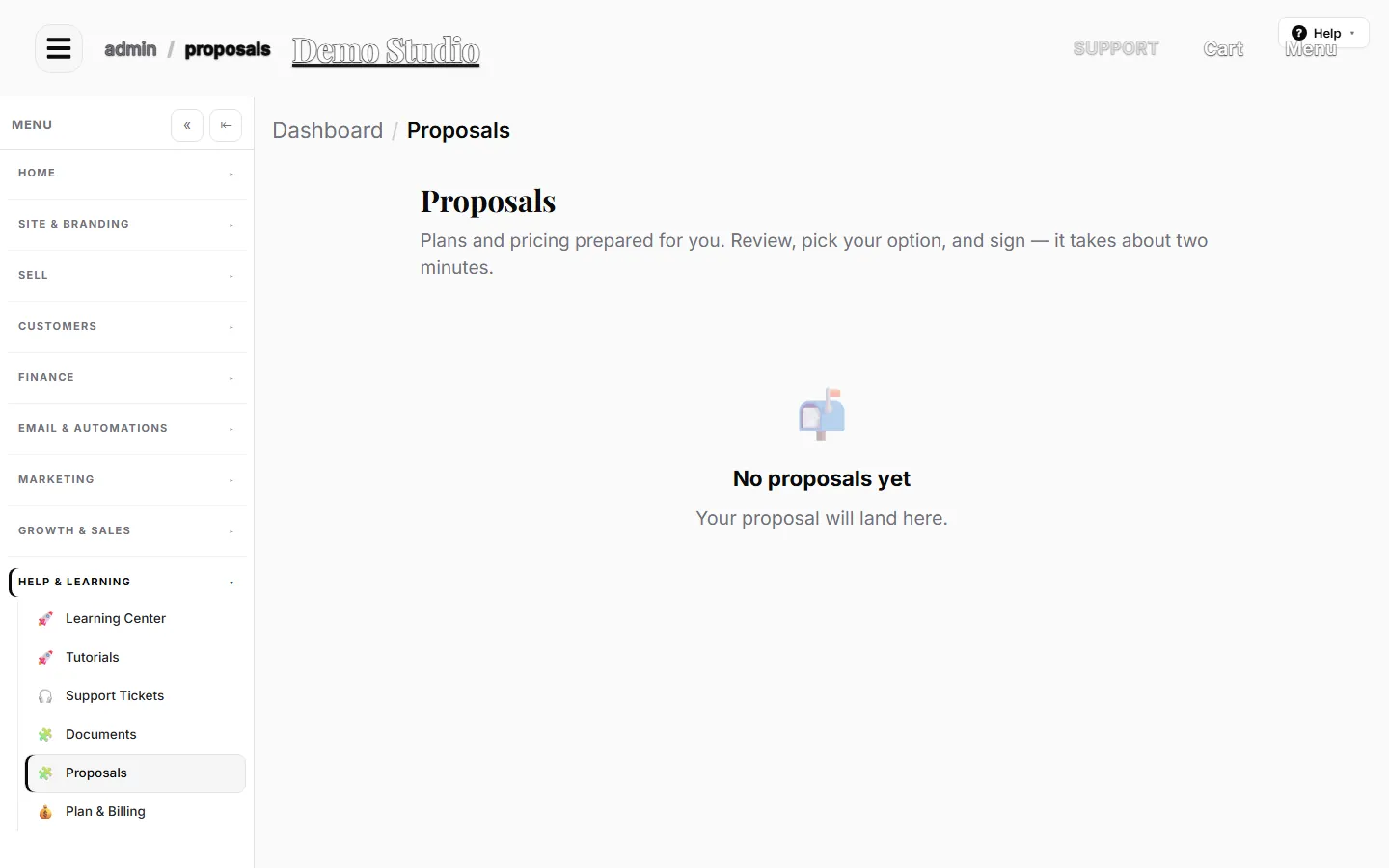
Open Help & Learning → Proposals. Each card shows when it was sent and its status.
| Status | What it means |
|---|---|
| Preparing | We're still putting it together. |
| Awaiting your review | Ready for you to read and sign. |
| In signing | Some people have signed, others haven't. |
| Signed | Done. The signed copy is in Documents. |
| Withdrawn | No longer active. |
Review and sign
- Click Review & sign → on the proposal.
- Read the Options. The suggested one is marked Recommended. Each option lists what's included in the first month and what costs extra.
- Click the option you want. To read every detail, open View the full document.
- In Review & sign, type Your full name.
- Sign on the Draw tab with your mouse or finger, or switch to Type. Click Clear to start over.
- Tick the box agreeing that your electronic signature counts as your handwritten one.
- Click Approve & sign.
After you sign
You'll see You're all signed. What happens next depends on how you're billed:
- Your first invoice is emailed to you. Pay it and you're live.
- Or you'll see One step left: set up payment so your plan can start. Click Set up payment to go to Plan & Billing.
- Click View in Documents to see the signed copy any time.
Questions
It says "You are not a signer on this document."
You can only sign while signed in with the email the proposal was sent to. Sign in with that email, or ask us to update the proposal.
It says "Choose an option above before signing."
Click one of the options at the top of the proposal first, then enter your name, sign, and tick the agreement box.
Can I write and send my own proposals here?
No. This page only holds proposals prepared for you.