Use your services calendar
Calendar shows your open service slots, bookings, trips and days closed for travel together. Use it to add extra hours or time off, and to manage venues and trips without leaving the page.
Where to find it: /admin/calendar in your admin.
Shows up when the Services feature is turned on for your site.
Read the calendar
- Open Services → Calendar. It opens in Month view.
- Switch to Week, Day or Agenda, or click Today.
- Filter with the status (Available, Booked, Blocked), type and location menus.
- Click a booking, then Open booking to work it.
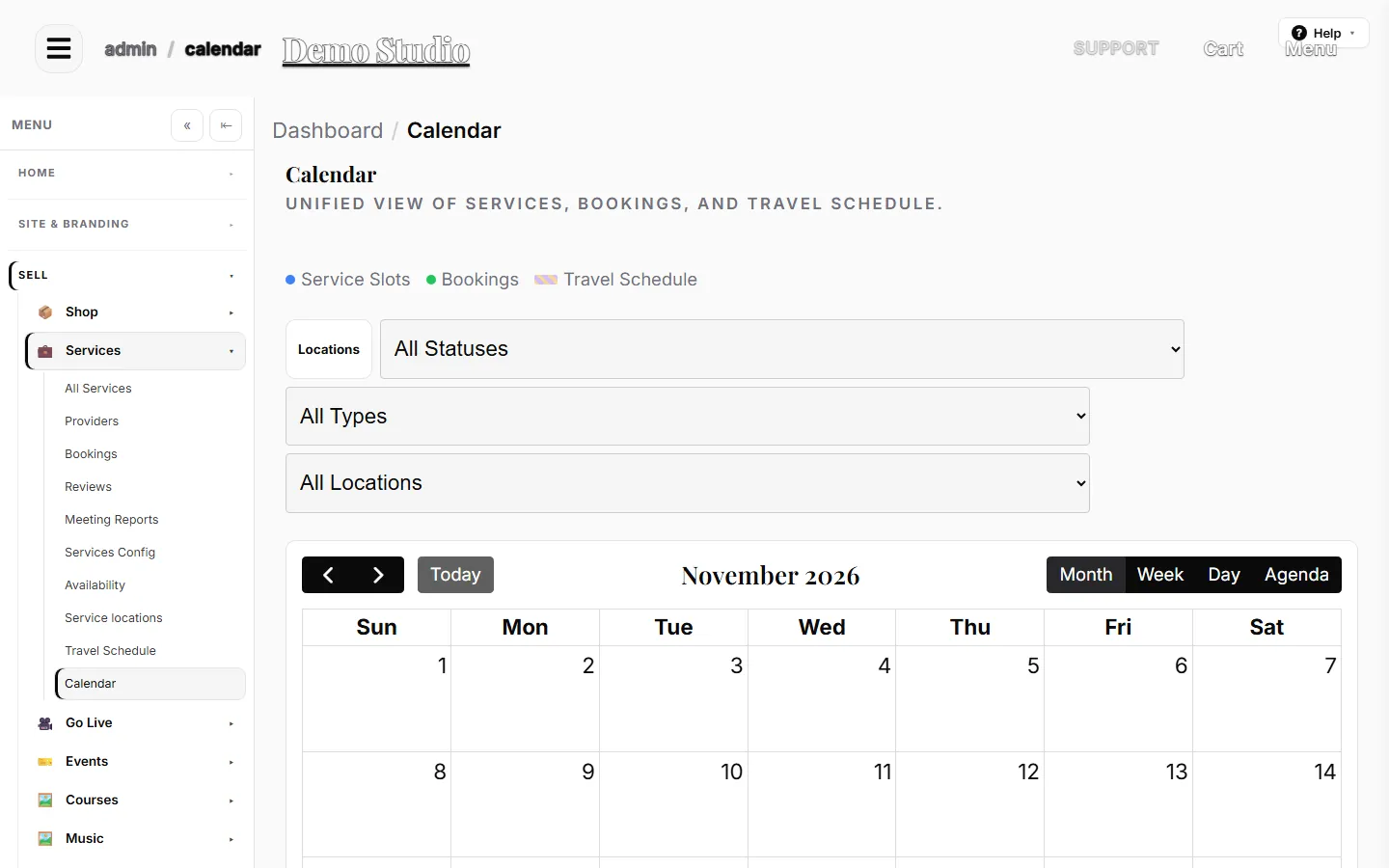
The calendar shows waiting and confirmed bookings. Days marked Off while you travel are in-person services closed by a confirmed trip. All times use your default venue's time zone.
Add open hours or take time off
- Drag across empty time on the calendar. Create Block opens.
- Pick Add open hours or Take time off.
- Check Date, Start Time and End Time (30-minute steps). For time off, add a Reason.
- Click Save.
Both change the real times customers can book. Added open hours open up that time for your services that use your shared hours, not only the one you pick. Nobody is emailed.
Venues, trips and where each service runs
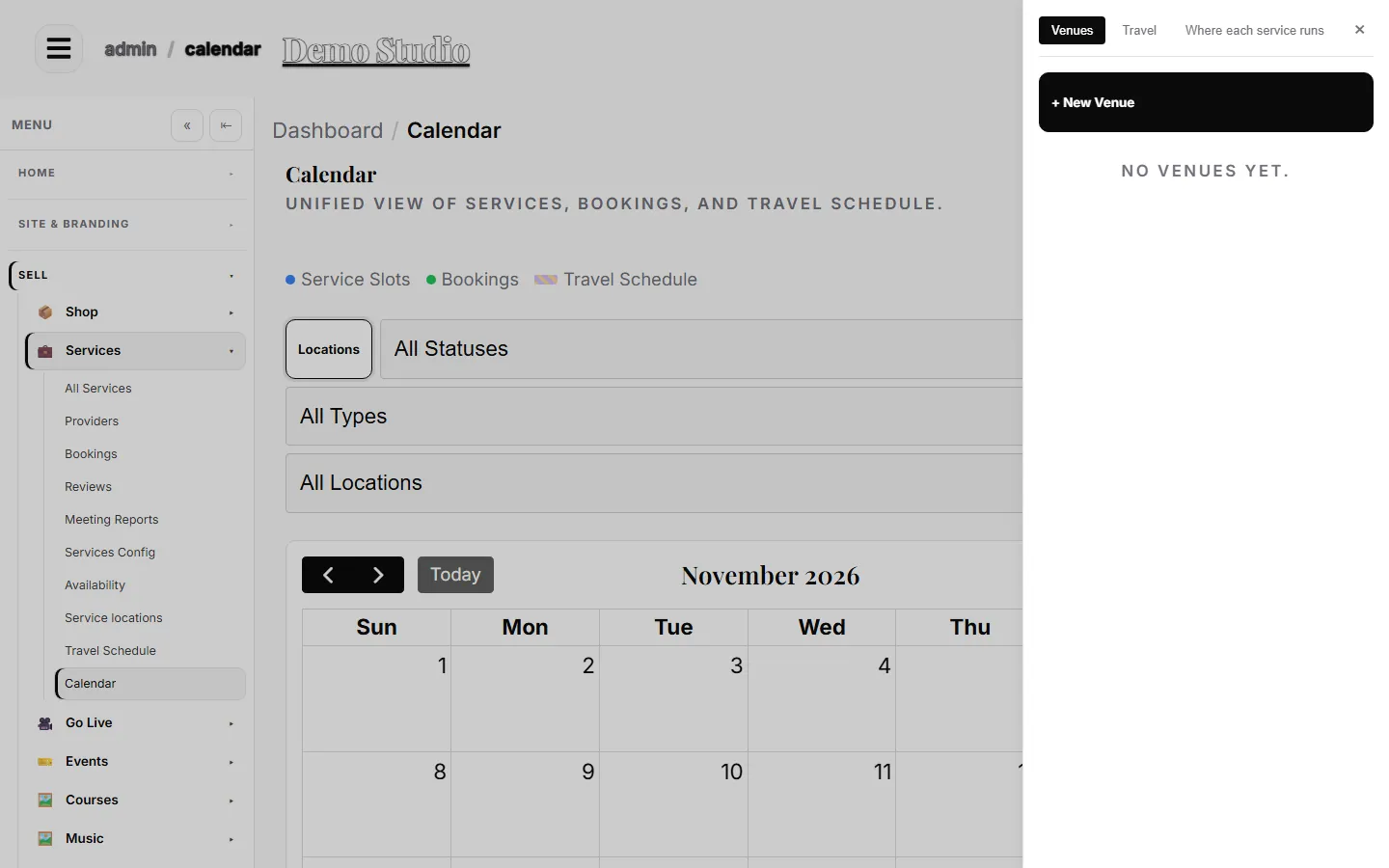
Click Locations to open the side panel. It has three tabs:
- Venues: add, edit or delete venues. Use the Service locations page to set the default.
- Travel: add, edit or delete trips.
- Where each service runs: pick a service and a location, choose In-Person, Virtual or Hybrid, and click Add. Click a delivery badge to switch modes. Click Remove to unlink.
Questions
Does this sync with Google or Outlook Calendar?
No. This calendar only shows what is on your site. There is no outside calendar connection.
Can I drag a booking to a new time?
No. Calendar items can't be moved by dragging. Use the booking's reschedule tools instead.