Set your open hours and booking rules
Availability sets the days and times customers can book, the rules around them, and one-off special days. These hours are shared by every service where the customer picks a time.
Where to find it: /admin/availability in your admin.
Shows up when the Services feature is turned on for your site.
Whose hours you are editing
Open Services → Availability. The page is titled Business Hours & Availability. A note at the top tells you whose schedule it is:
- By default, each admin edits their own schedule.
- Some businesses use one shared schedule. Then any admin who changes the hours changes them for everyone.
- If you see You don't have permission to change this schedule., ask an owner to make the change.
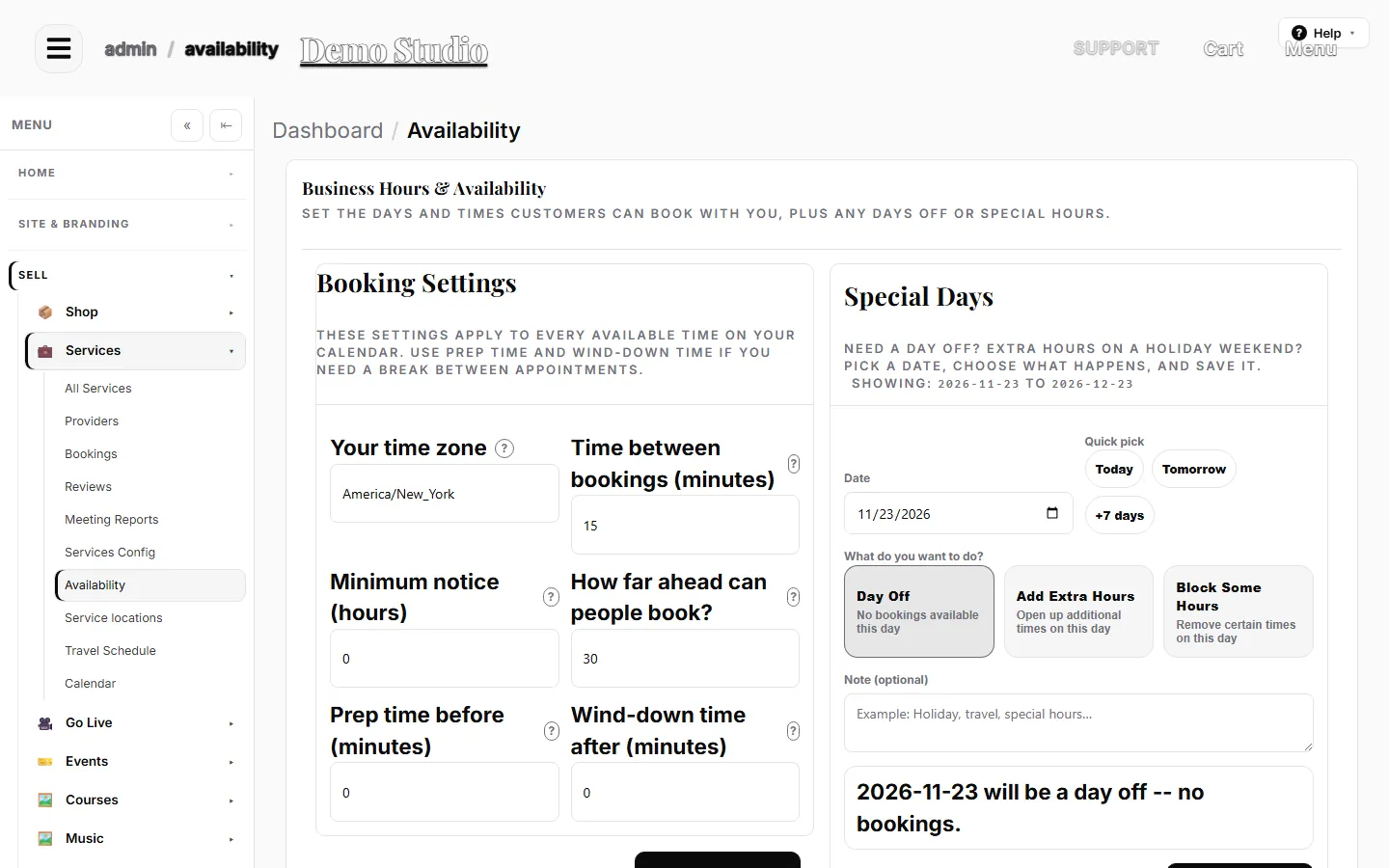
Booking settings
- Enter Your time zone, for example America/Chicago. All your hours use this zone.
- Set Time between bookings (minutes). 30 means start times at 11:00, 11:30, 12:00 and so on.
- Set Minimum notice (hours) and How far ahead can people book? (in days).
- Set Prep time before (minutes) and Wind-down time after (minutes) if you need a break between appointments.
- Click Save Booking Settings.
| Setting | Allowed range |
|---|---|
| Time between bookings | 5 to 120 minutes |
| Minimum notice | Up to 14 days |
| How far ahead | 1 to 365 days |
| Prep time and wind-down time | 0 to 240 minutes each |
Values outside these ranges are quietly brought back inside them. A time zone name that isn't recognised is replaced with America/New_York, so check the spelling.
Weekly hours
- Tap every day the hours apply to, or click Weekdays or Every day.
- Set Start and End and leave Active on.
- Click Add Hours (it reads Add to N days when you picked several).
- Repeat to add a second window on the same day, for example after a lunch break.
To change hours, expand a day and use Edit, then Save. Delete asks you to confirm and can't be undone. Weekly hours save as soon as you add, edit or delete them.
Special days
- Pick a Date, or use Today, Tomorrow or +7 days.
- Under What do you want to do?, pick Day Off, Add Extra Hours or Block Some Hours.
- For extra or blocked hours, set Start time and End time.
- Add a Note (optional), such as Holiday, and click Add Special Day.
Open hours from a service
On the services list, the Hours button opens the same shared hours in four steps: Booking Settings, Set Your Hours, Special Days and Your Calendar Preview. The preview shows exactly the times customers will see for that service.
Questions
Do customers get notified when I change my hours?
No. Changes apply to new bookings straight away and nobody is notified. Existing bookings stay as they are.
Can each service have its own hours?
Hours, notice, booking window and breaks are shared by all services that use a calendar. Services with no schedule ignore them.
Why do times look different on my bookings screen?
Your bookings screens show times in your device's time zone. Your hours use the time zone you set here. If you are travelling, the two can differ.