Set service pricing, deposits and quotes
Step 2 of the service editor, Pricing & Access, sets how a service is charged and who can book it. You can also change the deposit or total based on how a customer answers your questions.
Where to find it: /admin/services/new in your admin.
Shows up when the Services feature is turned on for your site.
Pick how you charge
Under How do you want to charge?, pick one option:
| Option | How it works |
|---|---|
| Fixed | One set price, entered in Price (USD). |
| Charge by the minute | A Rate per minute, an optional Base fee, and the minimum, maximum and step for the length the customer picks. |
| Deposit + balance | A Total price (USD) and a Deposit (USD). The deposit is charged now and the rest later. |
| Deposit, then quote | A Deposit (USD) now, and you send the final total after reading their answers. |
| Quote only | No set price. The customer sends a request and you reply with a quote. |
| Free | No charge. Good for consultations or promos. |
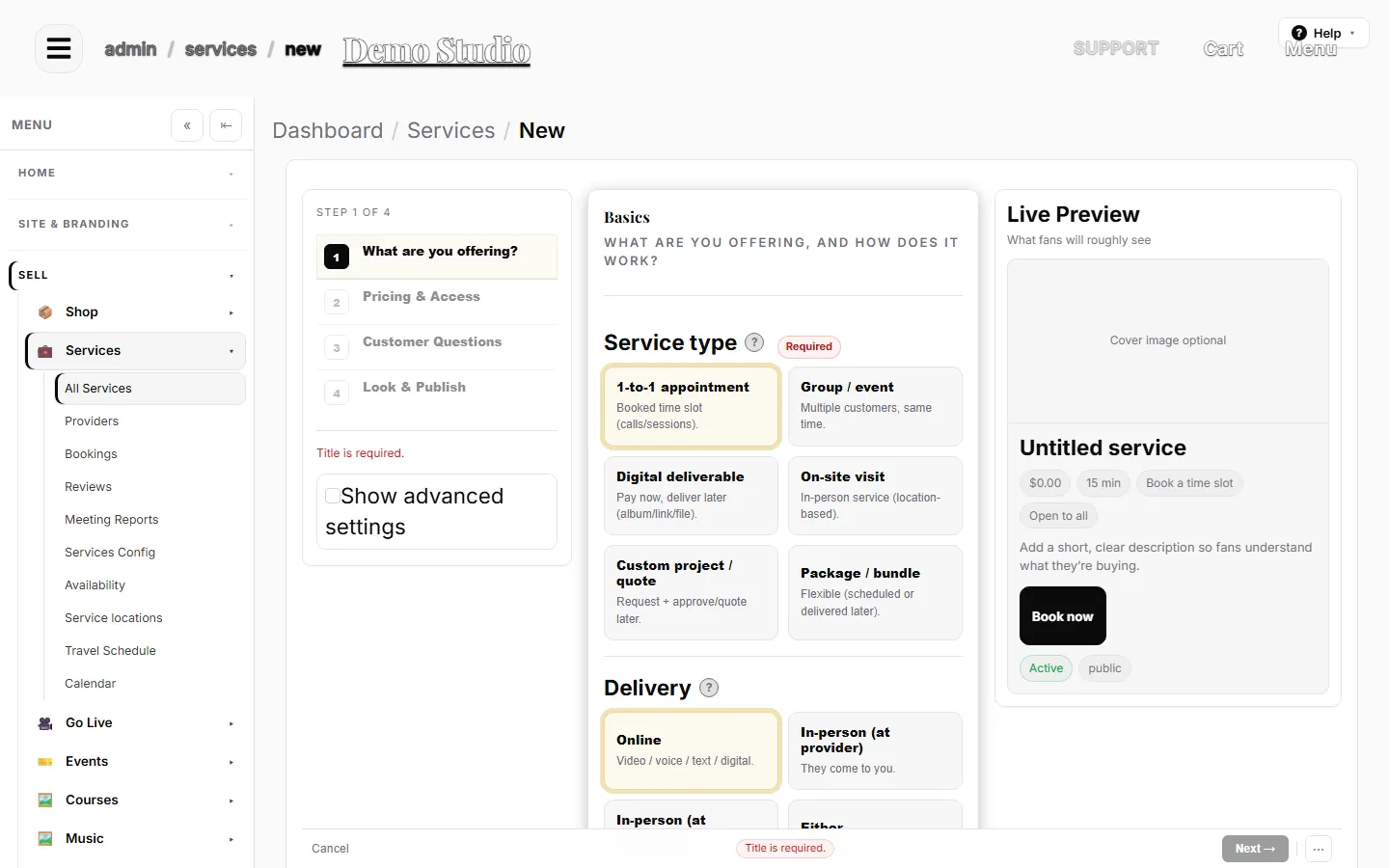
A Custom project / quote service only offers Quote only.
Deposits and balances
- For Deposit + balance, enter Total price (USD) and Deposit (USD). The deposit can't be more than the total.
- Under When is the rest due?, enter the hours after the deposit. Leave it blank for no deadline.
- Tick The deposit is non-refundable to show that in the fine print and in the customer's emails.
For Deposit, then quote, leave Total is quoted later ticked, or untick it and enter a total. Then pick When do they pay the deposit?:
- Pay now to hold it: the customer pays the deposit at checkout.
- Inquiry first: they submit without paying. You review, then send the deposit as a price option from the booking.
Take requests and send quotes
There are three ways to let people ask first and pay later:
- Set Service type to Custom project / quote. Customers send a request with no price shown.
- Pick Deposit, then quote with Inquiry first.
- On any type, pick Quote only. The booking becomes a request.
You send the price from the booking itself. See Work a single booking.
Change the price based on answers
- Save the service once. Triggers attach to a saved service.
- In step 3, add the questions the price depends on. A Dropdown or Number works best. Save the service again.
- Back in step 2, under Change the price based on their answers (optional), click + Add trigger.
- Pick the Question, the Condition and the Answer.
- Under Changes, pick Deposit or Total. Under How, pick Set to, Add or Add per unit (number questions only).
- Enter the Amount, and optionally a Priority and Name (optional).
- Click Save triggers.
One Set to wins and becomes the starting number. Every Add stacks on top. If two Set to triggers match, the higher priority wins. You can have up to 50 triggers per service.
Members-only services and member prices
- Under Who can book this?, pick Members only.
- Pick a Minimum tier required: Bronze+, Silver+, Gold+ or Platinum only.
With Show advanced settings on, Member price (optional) lets you give members a Percent off or a Fixed member price. It isn't offered for Quote only, Free, Deposit + balance or custom project services.
Questions
What currency are prices in?
US dollars, with up to two decimal places.
Can I change the price after someone books?
Changing the service price only affects new bookings. To change one booking's price, set its agreed price or send a new quote from the booking.
Why does Review say the price isn't set on my per-minute service?
The checklist looks at the base fee. A per-minute service with no base fee still saves and works.