Create or edit a service
The service editor has four steps: what you are offering, pricing and access, customer questions, and look and publish. The same screen creates a new service and edits an existing one.
Where to find it: /admin/services/new in your admin.
Shows up when the Services feature is turned on for your site.
Before you start
Click New Service on the services list to start. The left side shows Step N of 4. A later step unlocks once the earlier ones are filled in. Tick Show advanced settings to see extra fields.
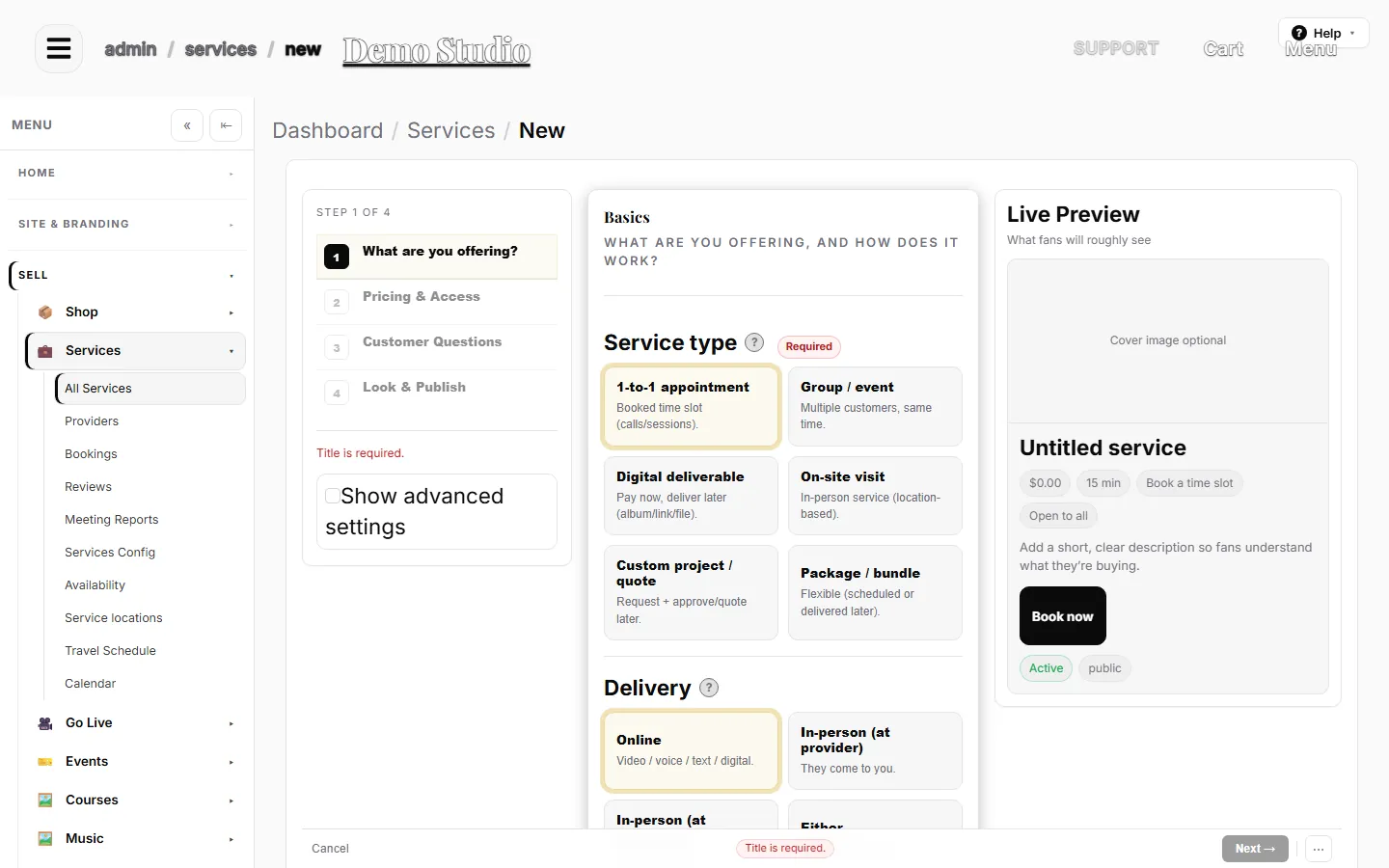
Step 1: What are you offering?
- Under Service type, pick the closest match: 1-to-1 appointment, Group / event, Digital deliverable, On-site visit, Custom project / quote or Package / bundle.
- Under Delivery, pick Online, In-person (at provider), In-person (at customer) or Either.
- Under Scheduling, pick Scheduled (the customer picks a time) or No schedule (you deliver or approve later).
- Enter a Title in plain words, and a Description (optional) if you want one.
- Click Next →.
Some types lock these choices. A digital deliverable is always online with no schedule. A custom project is never scheduled. Appointments, group events and on-site visits are always scheduled.
Step 2: Pricing & Access
Choose how you charge, set the price and length, and decide who can book. Every pricing option is explained in Set service pricing.
- Duration (minutes) is required for scheduled services.
- Most times one customer can book is optional. Leave it blank for no limit.
- Who can book this? is Public or Members only with a Minimum tier required.
Step 3: Customer Questions
- Turn Ask questions before they book on if you need information first. When it is off, customers only see the purchase button and an optional notes field.
- Click + Add suggested to start from questions that fit your service type, or + Add question to write your own.
- For each question, fill in Question text, pick an Answer type and tick Required to book if needed.
- Use the arrows to reorder and x to remove a question.
Answer types are Short text, Long text, Dropdown, Checkbox, Number, Email, Phone and Booking Date. A Booking Date answer becomes the booking's requested date, so you can sort by it in your bookings list. You can have one per service.
Step 4: Look & Publish
- Review & Publish shows a checklist. Use each Edit button to jump back to a section.
- Set Button text (the default is "Book now") and an optional Badge, such as New or Popular.
- Under Who can see it, set Visibility, keep On (taking bookings) ticked to go live, and tick Featured to sort it first.
- Booking & settings shows delivery settings for unscheduled services: Turnaround (days), Delivery method and Allow customer to upload files.
- Video and voice services can turn on Record calls and AI meeting recap.
- Extras holds delivery albums for digital services and a custom Refund and cancellation policy.
- Click Create service ✓ for a new service, or Save changes when editing.
- In the Service Created banner, click Set your hours for scheduled services.
To save a new service without going live, open the ⋯ menu and pick Save as draft. That menu option stays greyed out until every step is filled in, including a price or a Free or Quote only choice.
What happens when you save
- A new service goes on your site straight away unless it is hidden or switched off.
- Changing the title changes the service's web address. Saving fails if another service already uses that address.
- Customers won't see any times to book until your open hours are set.
- Pricing triggers and locations save on their own buttons. Cancel doesn't undo them.
When editing, use ⋯ → Social Campaign or Generate Campaign with AI to create a social post draft. Nothing is posted until you approve it in Social Automation.
Questions
Why is Save as draft greyed out?
Every step must be valid first. A new service starts as Fixed at $0, so set a price, or choose Free or Quote only, before you can save a draft.
Do new services get a cancellation policy?
Yes. If you don't set a custom one, the default allows a 50% refund when a customer cancels 24 or more hours ahead, and rescheduling up to 12 hours before. Refunds are never sent automatically. You refund in your payment processor.
Are open hours set per service?
No. Your open hours, notice, booking window and breaks are shared by all your services.