Add service providers and booking options
Providers sets who on your team performs each service, with optional display details and pricing per person. Services Config decides whether customers choose a provider and which layout your services page uses.
Where to find it: /admin/services/providers in your admin.
Shows up when the Services feature is turned on for your site.
Add a provider
- Open Services → Providers and click Add Provider.
- Pick the Service * and the Team member *.
- Optionally fill in Name on the booking page, Bio and Photo link (optional). Leave the photo blank to use their profile photo.
- Fill in Their price in $ (blank = normal price) or Their length in minutes (blank = normal length) only if they differ from the service.
- Set Order on the booking page. Lower numbers show first.
- Click Add Provider.
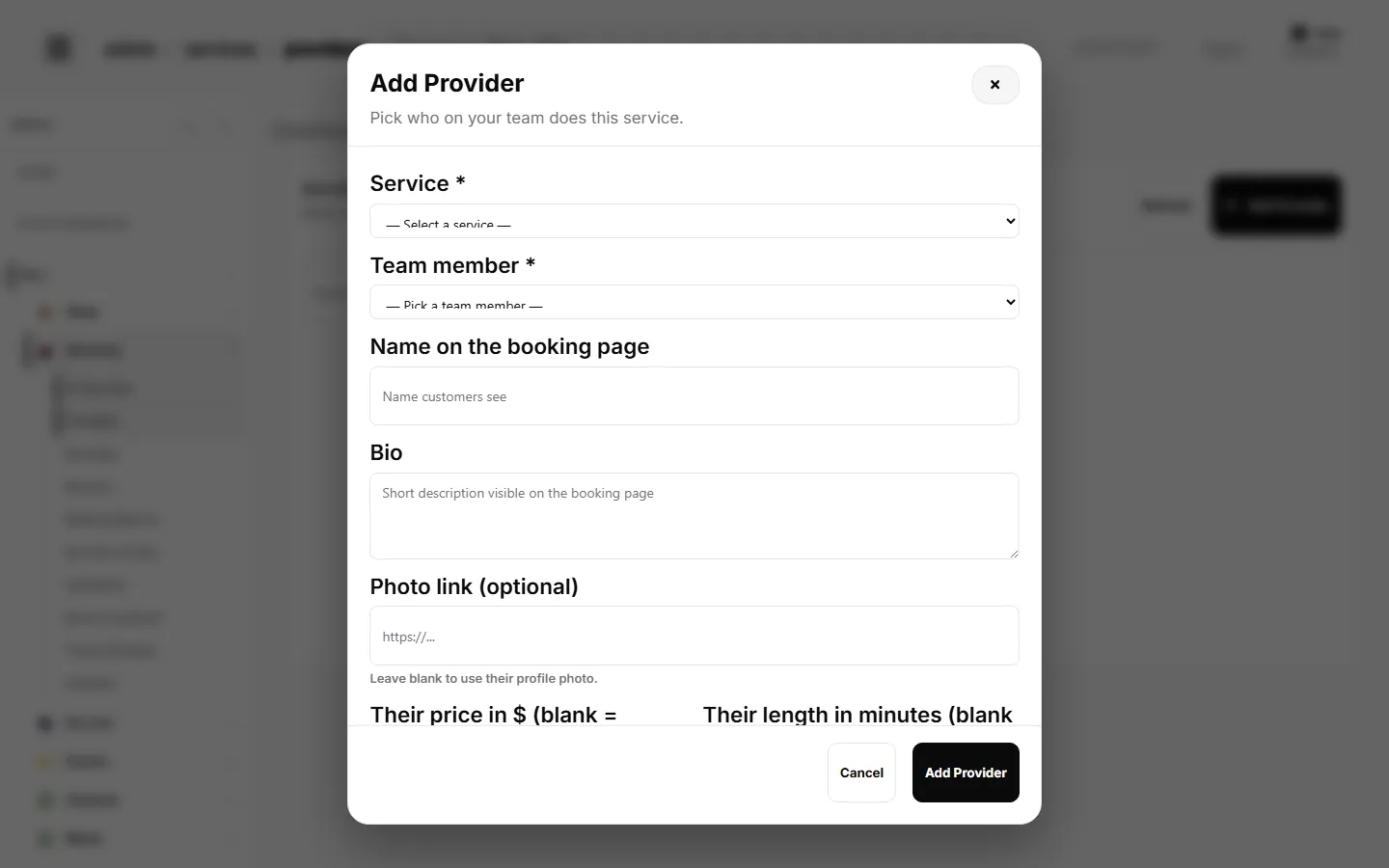
Only team members with a staff, admin or owner role can be picked. The same person can't be added to the same service twice.
Edit, deactivate or reactivate
- Click Edit to change the display details, price, length or order, then Save Changes. The service and team member can't be changed after creation.
- Click Deactivate and confirm to stop new bookings with that person. Existing bookings are not changed.
- Click Reactivate to bring them back.
Use the search box, the status filter (Active only, Inactive only) and the service filter to narrow the list.
Let customers pick who they book with
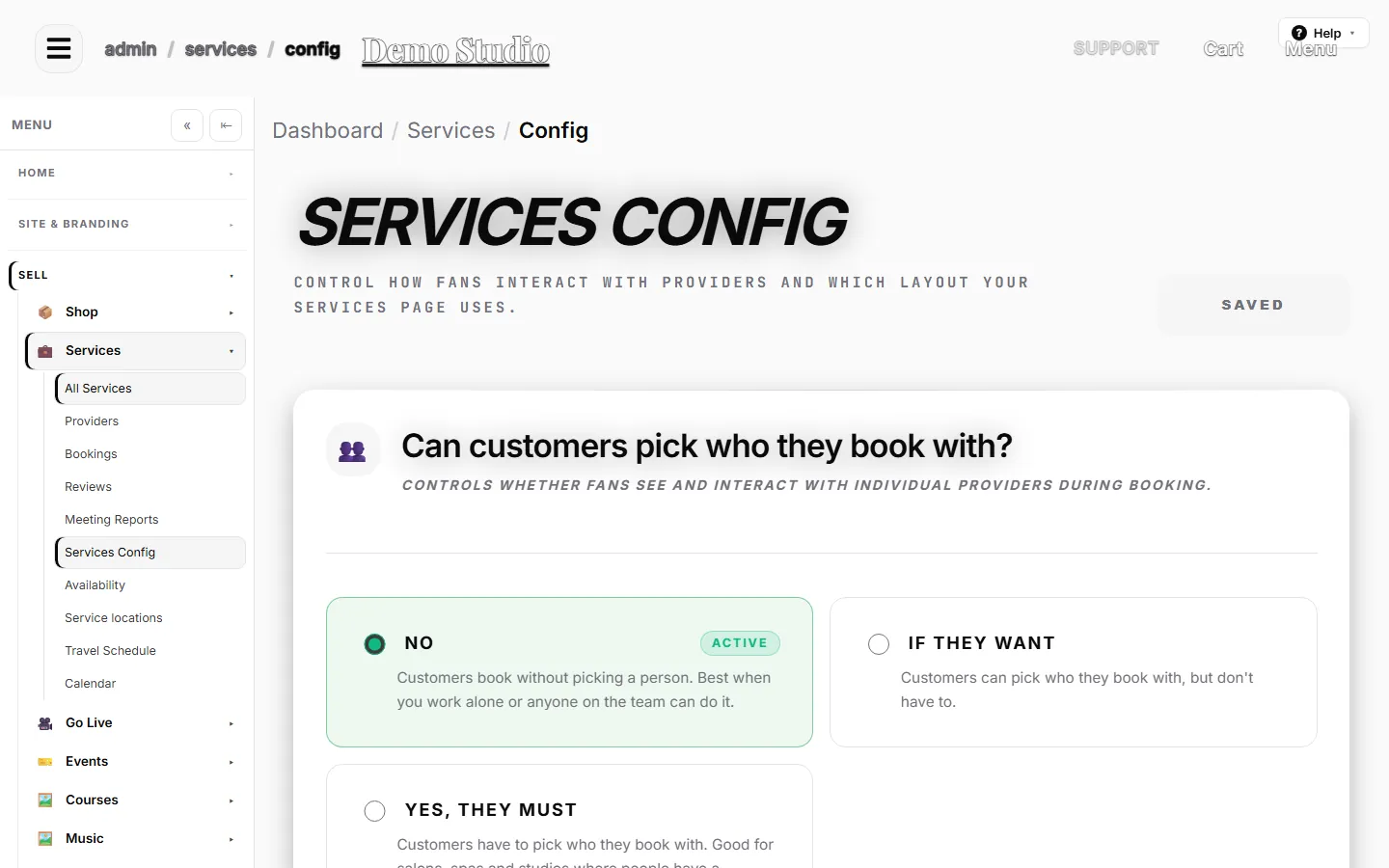
- Open Services → Services Config.
- Under Can customers pick who they book with?, choose No, If they want or Yes, they must.
- Under Business Type, pick Creator, Salon, Fitness, Professional or Spa. This sets the layout and emphasis of your public services page.
- Click Save Changes.
Questions
Does adding a provider notify them?
No. Nothing is emailed when you add, edit or deactivate a provider.
Can a provider charge a different price?
Yes. Enter their price in the provider form. Leave it blank to use the service's normal price.