Connect social accounts and publish posts
Connect Instagram, Facebook and your other accounts, then write, schedule and publish posts from your admin. You can also keep your accounts busy with daily posts from a library, set up repeat posts, and make AI images.
Where to find it: /admin/social-automation in your admin.
Shows up when the Social Automation feature is turned on for your site.
Connect your accounts
- Open Marketing → Social and choose Accounts.
- Click Connect on a network. You're sent to that network's own sign-in page.
- Sign in and approve access. You come back to your admin.
- If Finish account setup appears, click the account or Facebook Page to use.
- Optional: open the ⋯ menu and click Check connection.
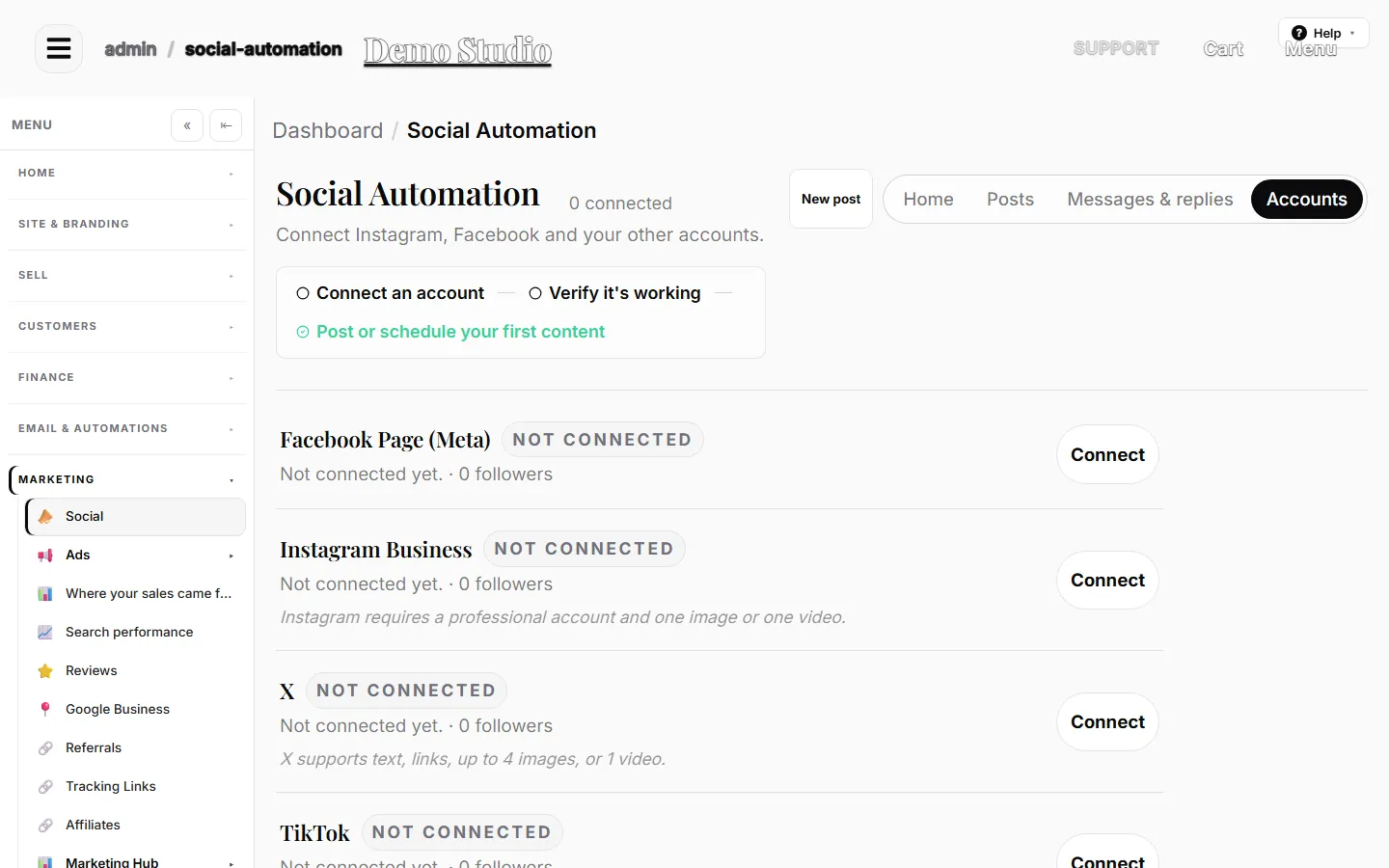
You can connect a Facebook Page, an Instagram business account, X, TikTok, YouTube and Tumblr. To switch Facebook Pages, use Change Page. To remove a network, open ⋯, click Disconnect, then confirm. This stops posting and auto-replies there.
Write and publish a post
- Click New post. The composer opens.
- Write the Caption. Optionally add a Link people should tap.
- Click Add photo or video. Drag tiles to reorder them. The first one is the cover.
- Turn on the networks you want under Post to. Check the preview for each one.
- Optionally open Options for this post, for example to post to Instagram as a Reel or Story, or to set YouTube privacy.
- Click Publish and confirm with Yes, publish now. Or click Schedule and pick a time.
If a network can't take the post, for example Instagram with no photo, the confirm box says Fix blocking issues before publishing and lists what to fix. The Publish status panel at the bottom right shows progress, and it's safe to leave the page while it works.
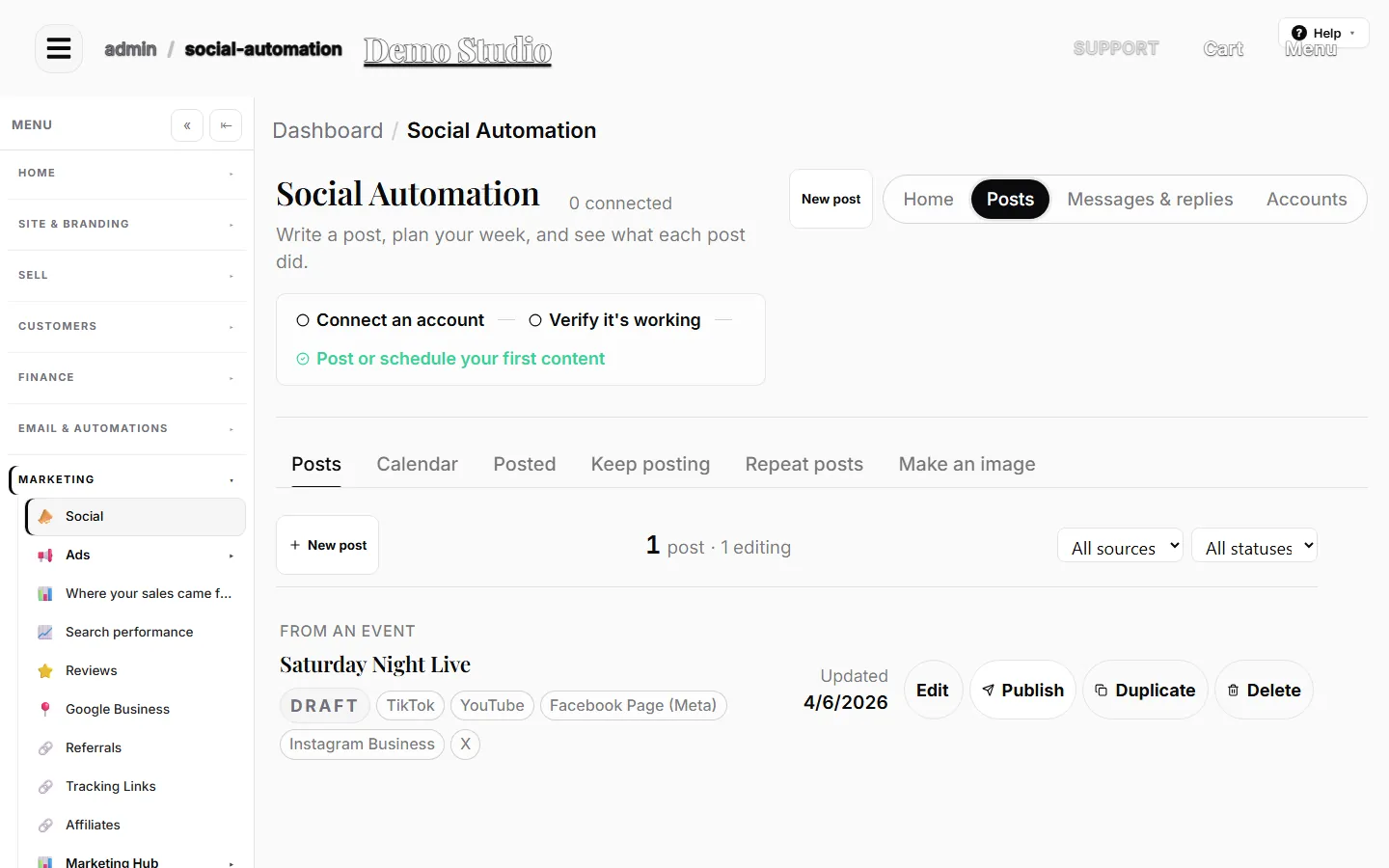
Plan and track posts
- Posts lists every draft, scheduled and published post. Use the row actions to publish, cancel a schedule, duplicate, retry a network that failed, or delete a draft.
- Calendar shows posts by day. Click a day and choose New post on this day, or use Move to another time to reschedule.
- Posted is the history of published posts, with a link to view each one on the network.
- Needs your OK lists posts and replies waiting for you. Nothing in it goes out until you approve it.
Post every day from a library
Keep posting posts from a library of evergreen posts every day, so your accounts never go quiet. Each post lands on your calendar first, so you can edit, move or cancel it.
- Open Posts → Keep posting and add posts under Your library. Each has a Name (only you see this), a Caption, a Page on your site people should go to and a Photo or video.
- Under How often, pick Post to, Posts a day, At and Time zone.
- Turn the switch On.
- If asked, post once yourself, check it looks right, then click I checked my first post, let posts go out on their own.
Repeat posts works the same way on a weekly schedule or whenever you publish a new album, event or service. Write the caption yourself or choose Let AI write it. With Post on its own off, each post waits for your OK. With it on, posts go out by themselves once your first post is checked.
Make an image or short video
Open Posts → Make an image. Pick What's this for?, fill in Describe what you want, and generate. When it's ready, click Download or start a new post with it. The counters show Photos today and Videos today.
Questions
Why can't I publish to Instagram?
Instagram needs a photo or video. Add one with Add photo or video, or leave Instagram off. Facebook can post text only.
Where do I find an automation I made with Start an automation?
It's saved as a repeat post under Posts → Repeat posts. It starts paused and stages each post for your approval until you turn it on.
Does turning off Keep posting delete my planned posts?
No. Planned posts still go out unless you click Cancel them. Cancelled posts move back to your drafts.