Answer customer support tickets
Support Tickets is the inbox for help requests your customers send through your site. Read each ticket, reply, and mark it resolved when it's handled.
Where to find it: /admin/support in your admin.
See your tickets
Open Help & Learning → Support Tickets. You'll see the requests your own customers sent through your site. The counts at the top show how many tickets are Open, In Progress, Waiting on User and Resolved, plus Avg Resolve, your average time to resolve.
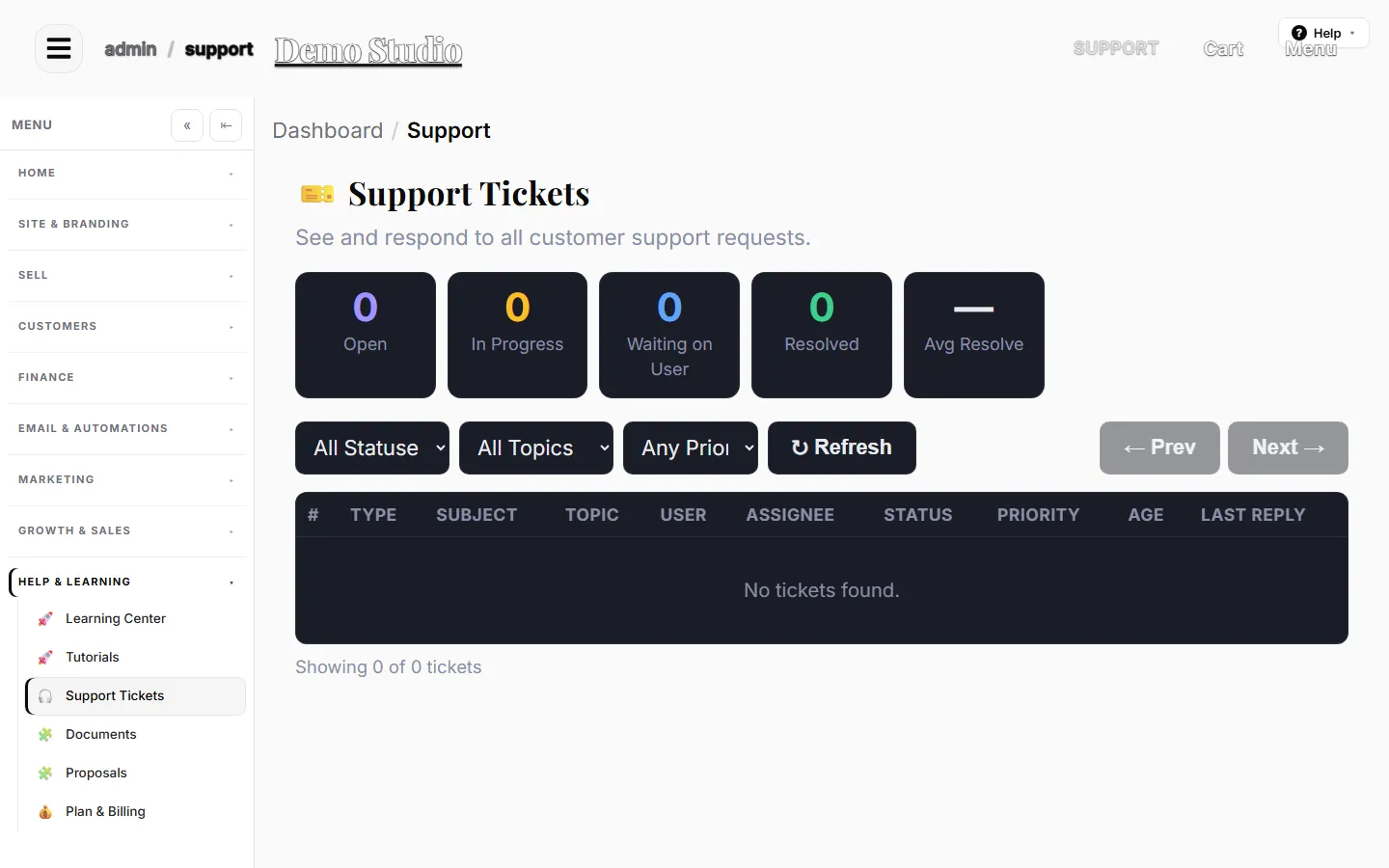
- Narrow the list with All Statuses, All Topics and Any Priority.
- Click ↻ Refresh to check for new tickets.
- Use ← Prev and Next → to page through.
- A ⚠️ next to a ticket's age means it has waited longer than it should for a reply.
This page is for tickets from your customers. You can't open a new ticket from here.
Reply to a ticket
- Click a ticket to open it. You'll see the 📋 Original Request and any 📎 Attachments.
- Type your reply in the box, or pick a ready-made reply from Insert canned response… and edit it.
- Click Send, or Send & Resolve to reply and close the ticket out in one go.
Change status, priority or add a private note
- In the side panel, set Status and Priority.
- Type in Internal Note (only you see this) to keep a private note. Customers never see it.
- Click 💾 Save Changes, or ✅ Mark Resolved to close it out.
| Status | What it means |
|---|---|
| Open | New. Nobody has picked it up yet. |
| In Progress | You're working on it. |
| Waiting on You | You've asked the customer something and are waiting for their answer. The count at the top calls this Waiting on User. |
| Resolved | Handled. |
| Closed | Finished. Click ↻ Reopen to open it again. |
Priorities are Low, Normal, 🔥 High and 🚨 Urgent.
Questions
Can I contact platform support from this page?
No. This page only holds tickets from your own customers.
Can staff members answer tickets?
Yes, if the owner gives their role access to support.
Who sees internal notes?
Only people working in your admin. Customers never see them.