Choose your alerts and fan notifications
Notifications controls which alerts you get and where: email, in-app or text. The same page holds fan newsletters, automatic fan alerts, and delivery stats.
Where to find it: /admin/notifications in your admin.
Choose your own alerts
Open Site & Branding → Notifications. The My notifications tab opens first. Emails go to the address shown at the top of the page.
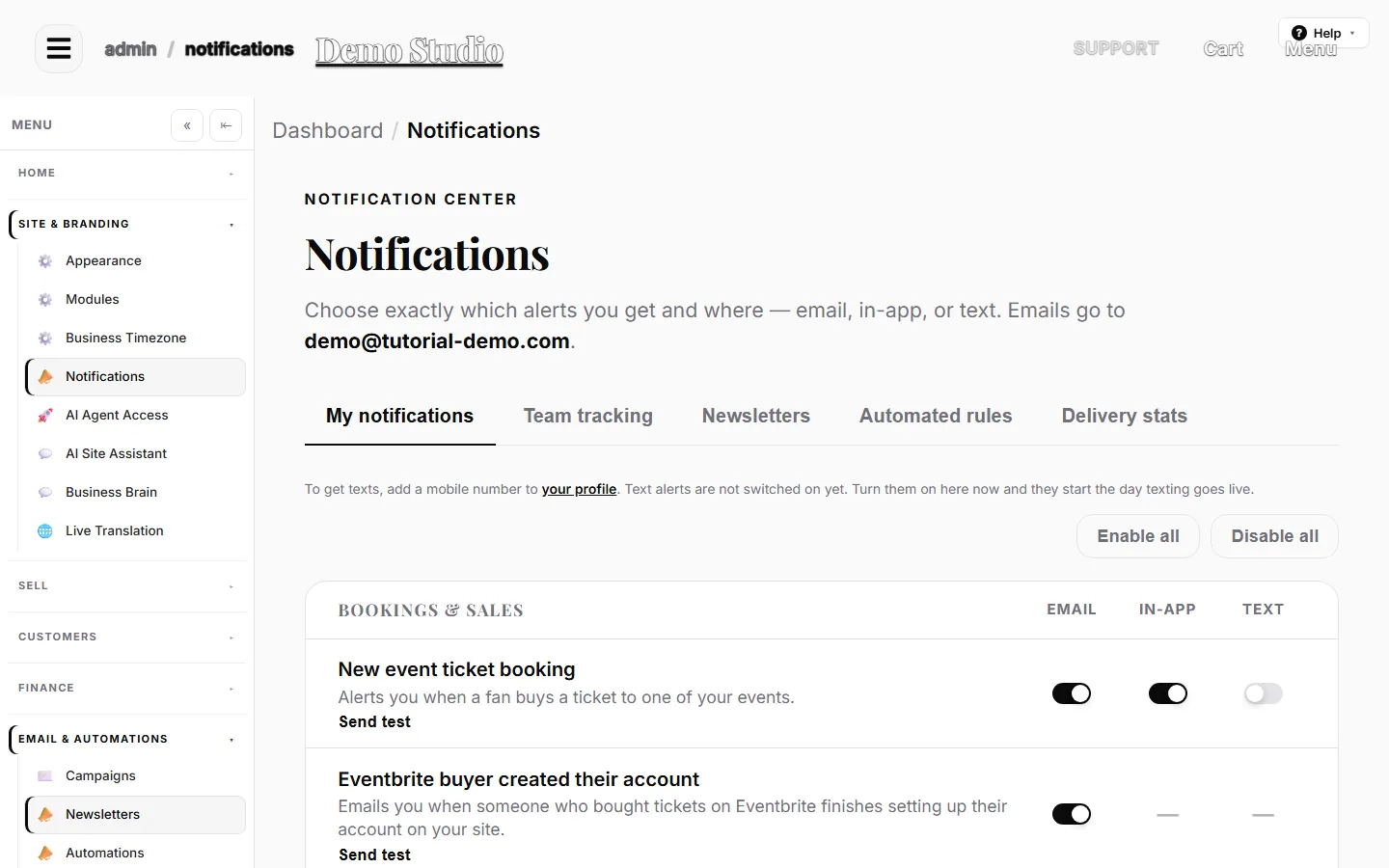
- Find the alert in the list. Each row has a switch for Email, In-app and Text. A dash means that channel isn't offered for that alert.
- Flip the switches you want. Use Enable all or Disable all to change everything at once.
- Click Save changes. You'll see Notification settings saved.
- To get texts, add a mobile number to your profile. The page tells you which number texts go to.
- If you replied STOP to our texts, text START to the same number to get them again.
- Some critical security and compliance emails always send and aren't listed here.
See who on your team gets what
Owners also see a Team tracking tab. It's a read-only grid showing which admin gets which alert, and on which channel: E for email, A for in-app and T for text. Each person changes their own settings on their own My notifications tab.
Automatic fan alerts
On the Automated rules tab, each alert has an On / Off switch and a channel: Email, SMS, Email + SMS or Off. Alerts include newsletters, event reminders, service price drops, new services and going live.
For event reminders, set Remind fans to when reminders go out, such as 7d, 1d, 1h (d is days, h is hours, m is minutes), then click Save timing.
The Delivery stats tab shows how many fan alerts were Sent, Delivered, Opened, Clicked and Opted out, by notification and channel.
Questions
I turned on text alerts but nothing arrives.
Make sure your profile has a mobile number. Texts also need to be switched on for the platform; if they aren't yet, Send test tells you.
The Newsletters menu item opens My notifications.
Click the Newsletters tab at the top of the page.
Can staff members change notifications?
Yes, if the owner gives their role access to notifications.