Manage accounts and staff logins
The Accounts & staff tab lists every login on your site, from customers to staff to owners. Use it to change someone's role, give staff a job-title role, turn off a login, or change a member's subscription.
Where to find it: /admin/people?tab=users in your admin.
Open Accounts & staff
Go to Customers → People and click the Accounts & staff tab. The page is titled User Management and shows how many users you have and how many joined this week.
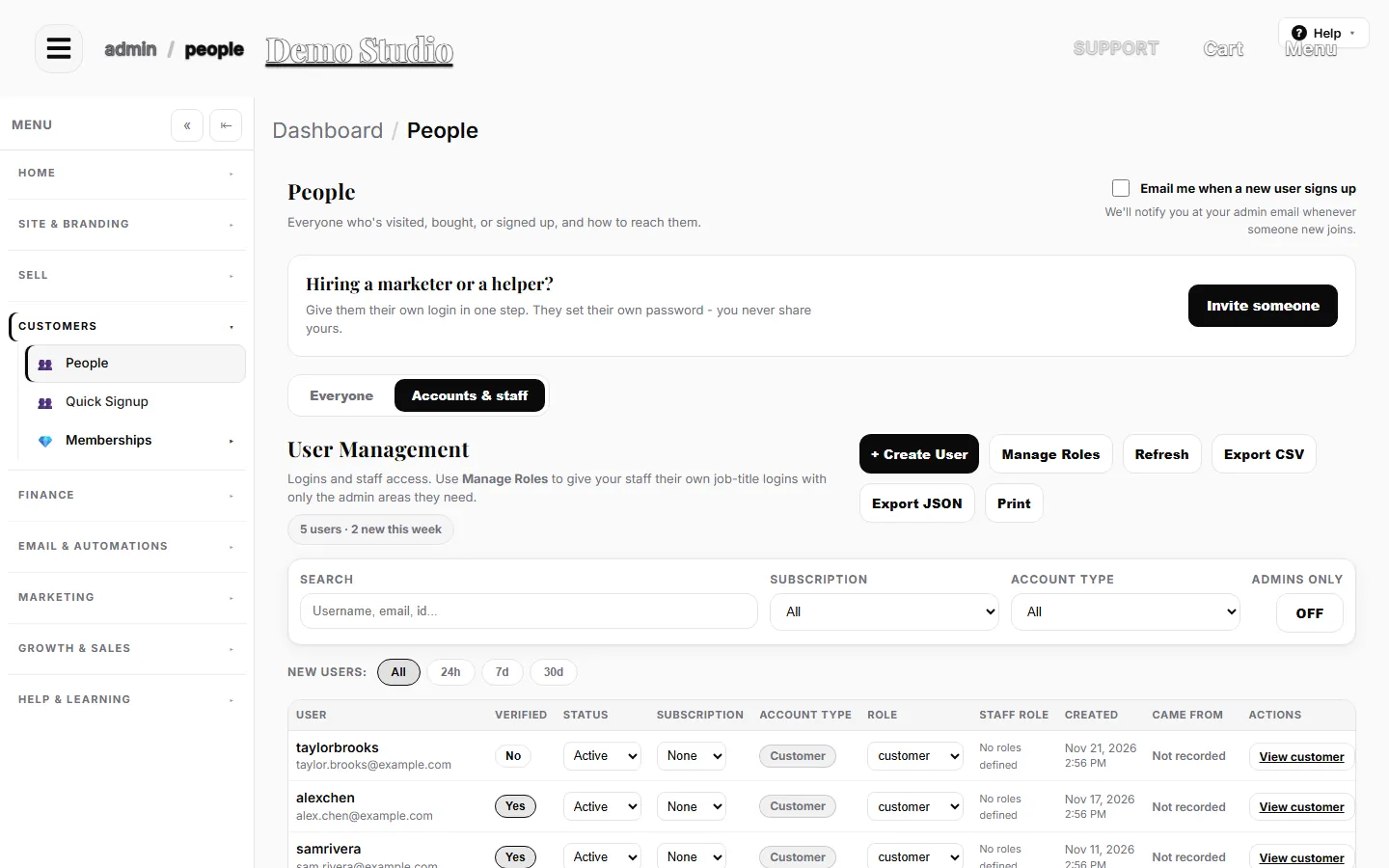
- Search finds people by username, email or id.
- Filter by Subscription, Account Type, Admins only, or how new they are with All / 24h / 7d / 30d.
- Export CSV, Export JSON and Print give you a copy of the list. Refresh reloads it.
Changes on this tab are for owners and admins.
Change someone's role
The Role column decides how much of your admin a person can use. The choices are Customer, Creator, Staff admin and Owner.
- Find the person in the table.
- Pick a new value in their Role dropdown.
- If you picked Staff admin or Owner, read the question and confirm.
The Staff Role column gives someone a job-title role, such as Bartender or Marketing. Pick one from the dropdown, or — No Role to remove it. If you see "No roles defined", create roles first with Manage Roles. See Set up staff roles and access.
Your site always needs at least one active admin or owner. A change that would leave none is refused, so promote someone else first.
Change or cancel a member's subscription
The Subscription dropdown on each row is the only place in your admin to cancel a membership or give one for free.
- Pick None to cancel the person's current membership. No refund is made.
- Pick a plan to cancel their current membership and give them that plan free for one billing period (a month or a year, depending on the plan). They are not charged.
Turn off someone's login
- Find the person in the table.
- In Actions, click the bin icon, labelled "Turn off login".
- Confirm when asked "Turn off this person's login? They won't be able to sign in."
This turns the account off. It does not delete their history or purchases. The Disable/Delete button in the User Details drawer does the same thing.
Other actions on each row: View customer opens their customer page, the info icon opens User Details, and the link icon opens their public profile page.
Questions
Why can't I turn off this person's login?
The last active admin or owner on a site can't be turned off. Promote someone else first.
Why can't my admin make someone an Owner?
Admins can't create new owners or admins. The site owner has to make that change.
Is there a cancel button on the Memberships pages?
No. Cancelling or giving a free membership is done with the Subscription dropdown on this tab.
What does the Verified pill do?
It marks the person's email as verified (Yes) or not verified (No).