Manage email lists and segments
Your audience is the people you can email. Lists hold the contacts, and segments pick out a smaller group from a list, like everyone with a gmail address. Use this page to add, import and check contacts before you send a campaign.
Where to find it: /admin/marketing/email/lists in your admin.
Shows up when the Marketing Hub feature is turned on for your site.
How lists work
Open Email & Automations → Audience. The Lists tab shows every list you can send to.
- Every site has an All contacts list. It has the Updates itself badge because people who sign up, book or buy are added to it on their own.
- You can make your own lists, for example Newsletter subscribers or VIP guests.
- Anyone who unsubscribes stays off every list, even if you add or import them again.
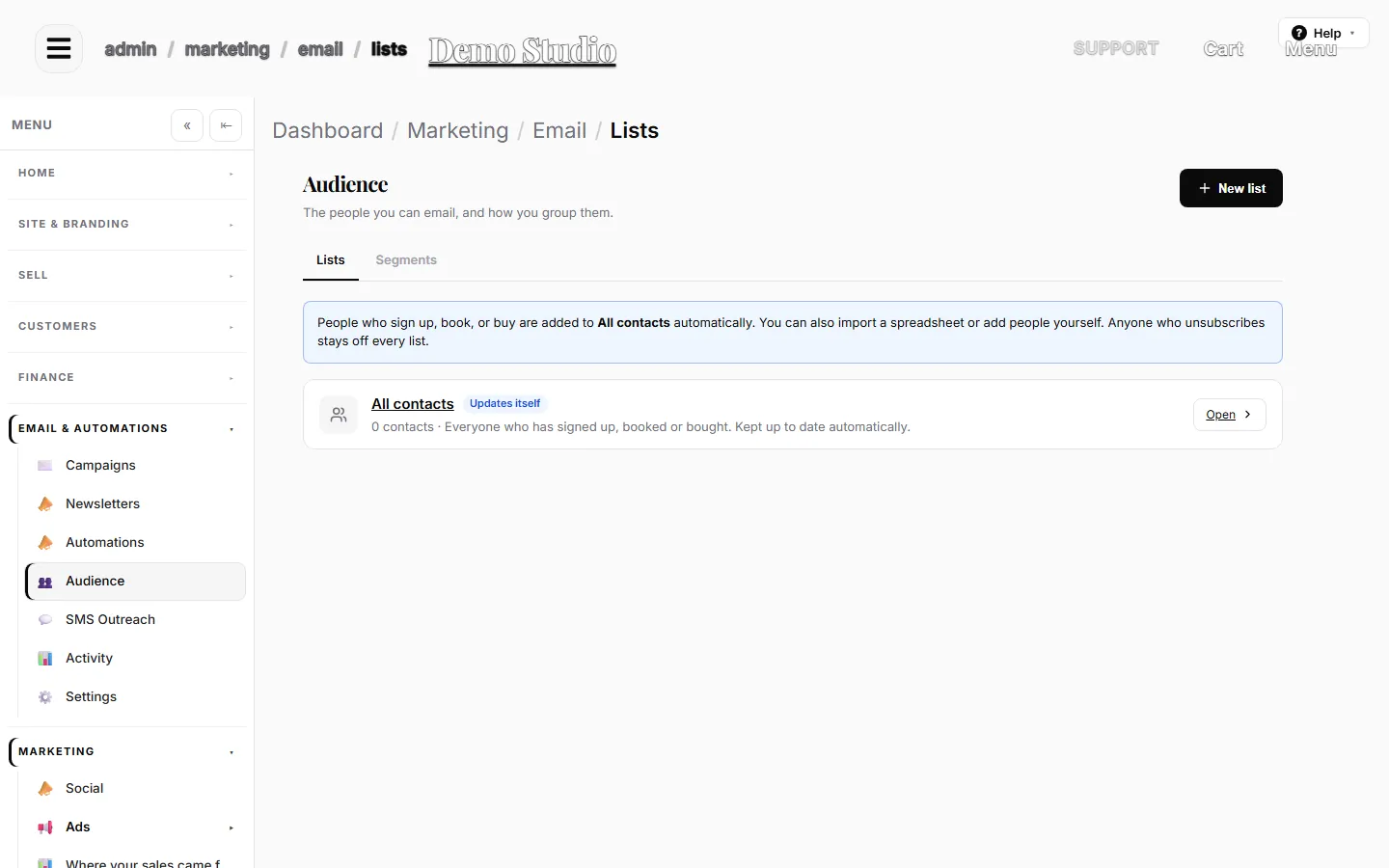
- Click New list.
- Type a List name, and optionally fill in What is it for? (optional).
- Save, then click Open on the list to add people.
Add or import contacts
Open a list to see its contacts, search them with Search by name or email, and see who is Subscribed or Unsubscribed.
- To add one person, click Add a contact, fill in Email, First name, Last name and Phone (optional), and save.
- To add many people, click Import from spreadsheet. Choose a CSV file, or paste your contacts into the box.
- Check the preview table. Nothing is uploaded until you confirm.
- On the All contacts list you can also click Import my customers to pull in customers who are already on your site.
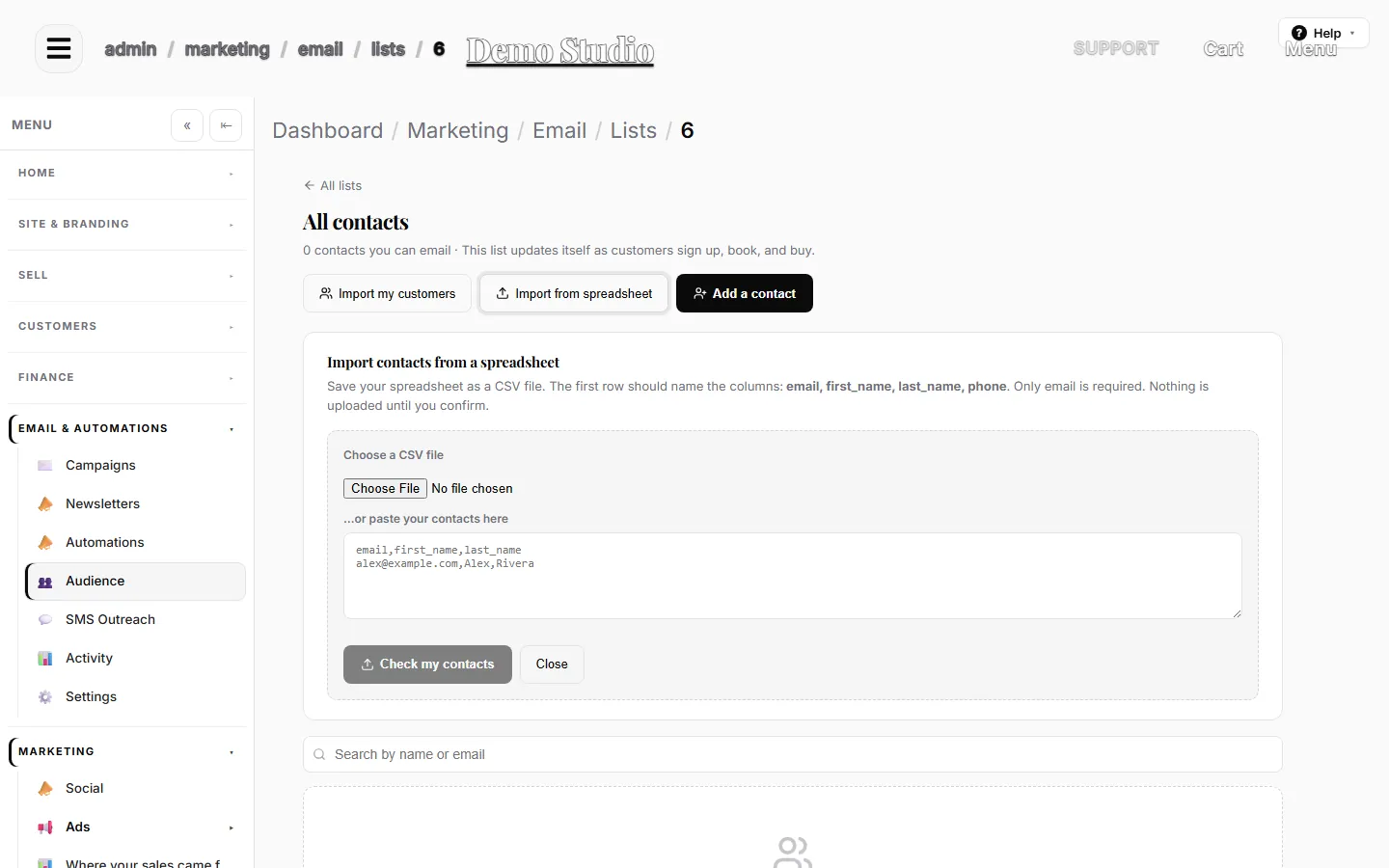
Importing doesn't email anyone. To take someone off a list, remove them from the list. They stay in your customers, they just stop getting emails sent to that list.
Make a segment
You don't need a segment to send a campaign. Make one only when you want to email a smaller group from a list.
- On Audience, open the Segments tab and click New segment.
- Type a Segment name, for example Gmail users.
- Add rules. Each rule has a Field (Email, First name, Last name, Where they came from, Joined before, Joined after), a Condition and a Value.
- Save, then click Check how many to see how many people match.
- When you write a campaign, pick the segment in Only people who match (optional).
Questions
How big can my spreadsheet be?
Up to 8 MB and 50,000 rows per file.
If someone unsubscribed and they're in my spreadsheet, will they be added back?
No. People who unsubscribed before stay unsubscribed, even if they're in your file.
What happens to sent campaigns if I delete a list?
Nothing. Campaigns already sent are not affected.