Set up texting and send text campaigns
Text your customers from a phone number that belongs to your business. First you register your business with the phone carriers and get a number, then you can send text campaigns to people who agreed to get texts.
Where to find it: /admin/marketing/sms in your admin.
Shows up when the Marketing Hub feature is turned on for your site.
Set up texting
Open Email & Automations → SMS Outreach. The Status badge at the top shows where your setup is. Until texting is active, the page opens on the Overview tab, which shows Where you are, the Next step and How to fix it if something is blocked.
- On Business details, fill in your business, address, contact person and Your texts sections, then click Save business details. The carriers check these against your website, so they have to be true.
- On Overview, click Ask for my texting account to be set up.
- Then click Submit my business for carrier registration.
- When your registration is approved, open Numbers, type an Area code, click Search, and click Request this number on the one you want.
- Follow each request on the Requests tab.
Requests don't buy anything on their own. CloserAccess reviews and approves each one, and the What this costs card shows the estimated carrier and messaging fees before anything is bought. Searching for numbers is free. Only the account owner or an admin can ask for steps that cost money.
What each setup status means
| Status | What it means |
|---|---|
| Not started | You haven't begun setup. |
| Details needed | Fill in Business details. |
| Waiting for approval | CloserAccess is reviewing your request. |
| Carrier review | The phone carriers are checking your registration. |
| Almost there | Registration is nearly done. |
| Setting up your number | Your number is being prepared. |
| Active | You can send texts. |
| Not approved | The registration was turned down. The Overview tab says why. |
| Limited | You can text, with limits. |
| Paused | Texting is paused. |
| Not available | Text messaging isn't available for this account. |
Send a text campaign
- Open the Campaigns tab and click New campaign.
- On 1. Write, type a Campaign name (only you see this) and the Message. Click Add first name to personalise it. The counter shows how many 160-character parts the text uses.
- Click Next: Audience. Under Who should get it?, pick Everyone on my contact lists or one list. Optionally pick a segment under Narrow it down (optional).
- On 3. Send, type your own number under Send yourself a test first and click Send test.
- Click Send now and confirm with Yes, send it. Or pick a time under Or send it later and click Schedule.
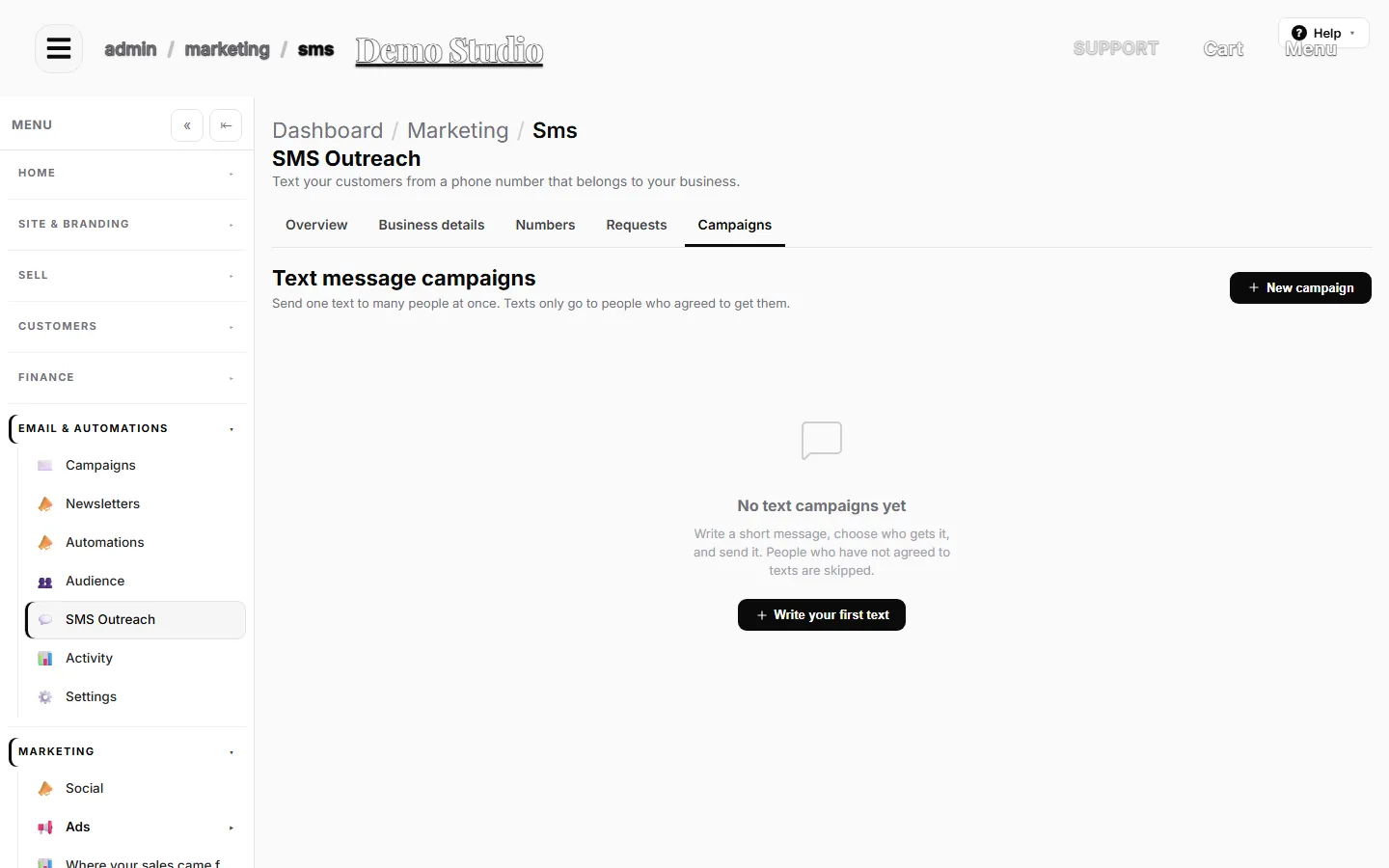
Texts only go to people who agreed to get texts and have a phone number on file, so the real number can be smaller than your list. Your business name is added to the start of each text and a STOP line is added at the end. You can write campaigns before setup is finished, but you can't send them until your number is ready.
Send WhatsApp messages by hand
The WhatsApp hand-send tool link at the bottom of the Overview tab opens a page that helps you work through a list of customers one chat at a time. Your site doesn't send anything. It opens WhatsApp with the message typed in, and you press Enter yourself.
- Click New campaign, fill in Campaign name and Message, pick how to Send with, and choose Who to include.
- Under Consent, keep Opted-in only unless you're sure everyone expects your message.
- Click Save changes.
- Click Open next. WhatsApp opens with the message ready. Press Enter there, then come back and click Sent, open next.
- If someone asks you to stop, click Asked to stop.
Questions
Who gets my text campaign?
Only contacts who agreed to get texts and have a phone number on file. Everyone else is skipped.
What happens when someone replies STOP?
They stop getting your texts.
How long can a text be?
Up to 1,600 characters. Long texts are split into 160-character parts, and the counter shows how many.
Why can't I send yet?
Your business's texting setup isn't finished, so its number isn't ready to text from. Check the Status badge and the Overview tab for the next step.