Set up recurring event series
A series turns one night into a repeating schedule. The system builds the nights for you and keeps adding more as they get close. Manage it from Events → Series.
Where to find it: /admin/events/series in your admin.
Shows up when the Events feature is turned on for your site.
Create a series
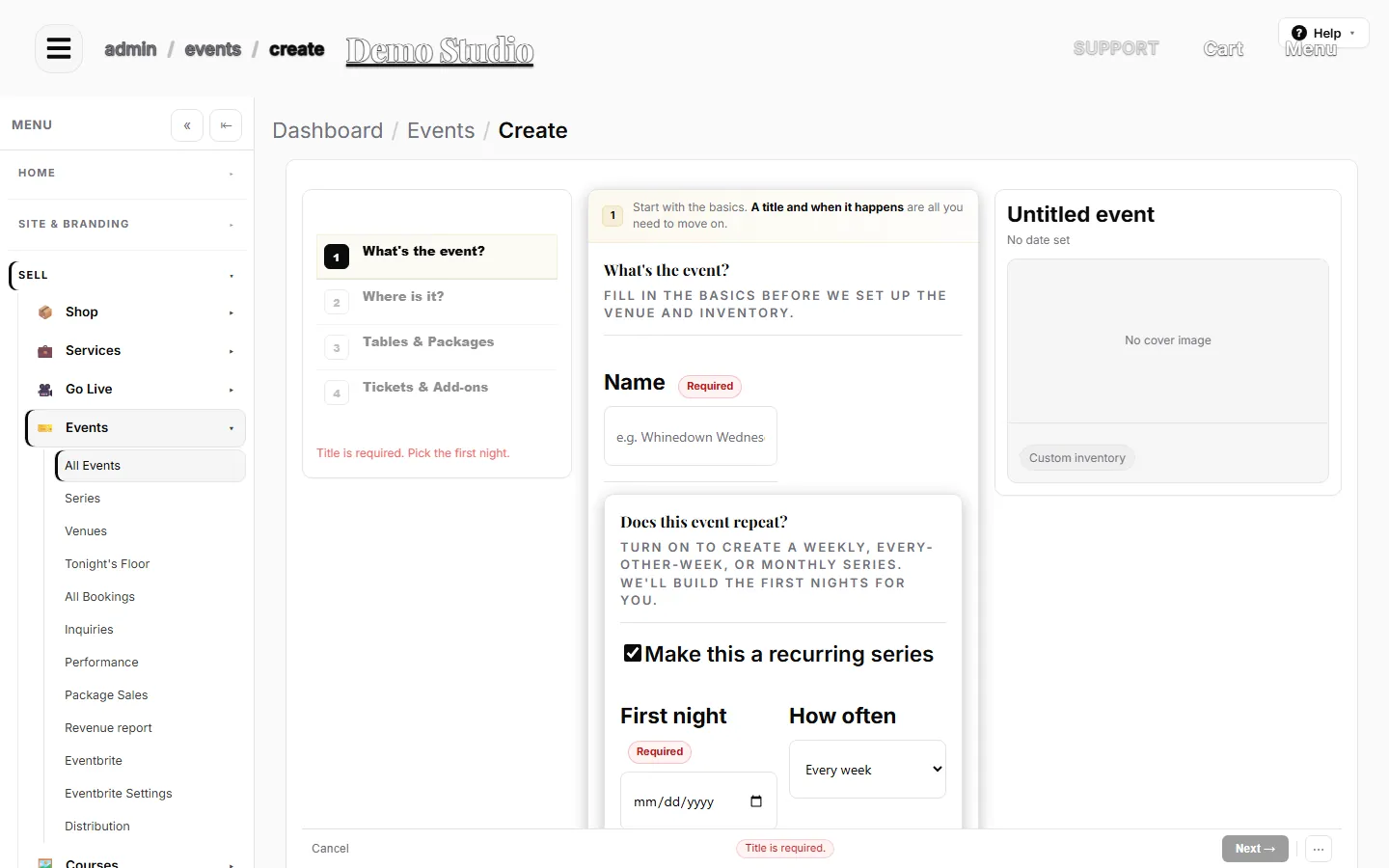
- On Events → Series, click + Create recurring event. Or tick Make this a recurring series in step 1 of the event editor.
- Set First night, How often (Every week, Every other week or Every month) and Repeats on.
- Set Start time and End time. An end at or before the start means the next morning.
- Under Ends, pick Keeps going, After N nights or On a date.
- Check the Timezone. Times stay at the same local hour across daylight saving.
- Go through steps 2 to 4 and click Create series.
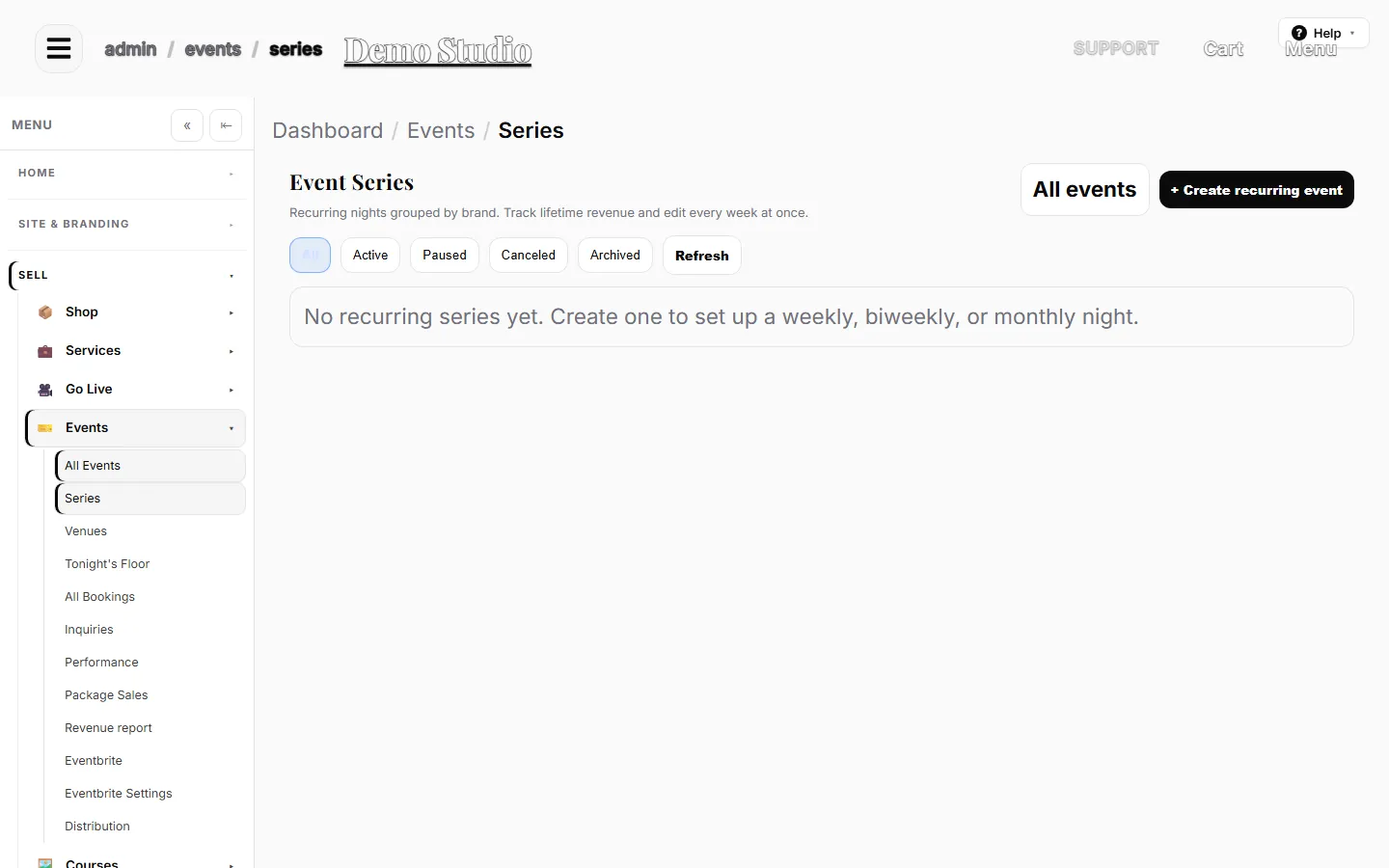
The series list
The list shows each series with its status, frequency, next date, number of nights and lifetime revenue. Use the tabs All, Active, Paused, Canceled and Archived.
| Status | What it means |
|---|---|
| Active | New nights are added automatically as the schedule runs. |
| Paused | No new nights are added. Existing nights stay active. |
| Canceled | Future nights are canceled. Past data is kept. |
| Archived | Hidden from the default list but still in analytics. |
Price steps for every night
- Open the series and go to the Price steps tab.
- Edit each step's Name, Price ($) and How many, and add steps with + Add a step.
- Set Free RSVPs per account per night if you have a free step.
- Click Preview changes, then Save for upcoming nights and confirm.
Paid steps sell one after another. A free step sells alongside them. Only the last paid step can be unlimited. New nights copy these steps.
Edit the whole series
- Open the series and click Edit series.
- Change the details or schedule. Changes go to upcoming nights only.
- Click Review changes and read the summary.
- Click Save changes.
Nights that have bookings or that you changed by hand keep their own settings. Nights with bookings stay on their dates even if they no longer fit the new schedule. Nights without bookings that no longer fit are canceled. You can't change the time zone while future nights have paid bookings.
Cancel, pause or delete
- Cancel date on the Occurrences tab cancels one night.
- On Settings, Pause stops new nights, Resume starts them again, Cancel future cancels all future nights, and Archive puts the series away. Archive is refused while a future night has paid bookings.
- Delete on the series list permanently removes the series, all its nights and their unpaid bookings. It is refused while any night has paid bookings.
Questions
How many nights can a series have?
With After N nights, up to 200. With Keeps going, nights are added automatically about 26 weeks ahead.
Can I list a series on Eventbrite automatically?
Yes. Eventbrite Settings can post upcoming nights of chosen series every day.