Find leads and send outreach emails
The Lead Engine finds local businesses that match who you want to reach and writes outreach emails and Instagram DM scripts for you. Nothing sends by itself: you read, approve and send each batch.
Where to find it: /admin/lead-engine in your admin.
Shows up when the Lead Engine feature is turned on for your site.
Set up a campaign
- Open Growth & Sales → Lead Engine → Setup Wizard.
- Your Business: fill in Business name, What do you do?, City / Region, your website and Your name (who's reaching out?). Click Next. Each Next saves your campaign.
- What You Sell: fill in Your main offer, Your pitch, Your ideal customer and What they get out of saying yes. Click Next.
- Who You Want: pick at least one business type and list the Cities or regions to search, one per line. Click Next.
- Find Leads: choose filters such as Must have an email address, then click Find leads.
- Outreach: turn on Email and or Instagram DM scripts, set Emails per day, and click Start finding customers.
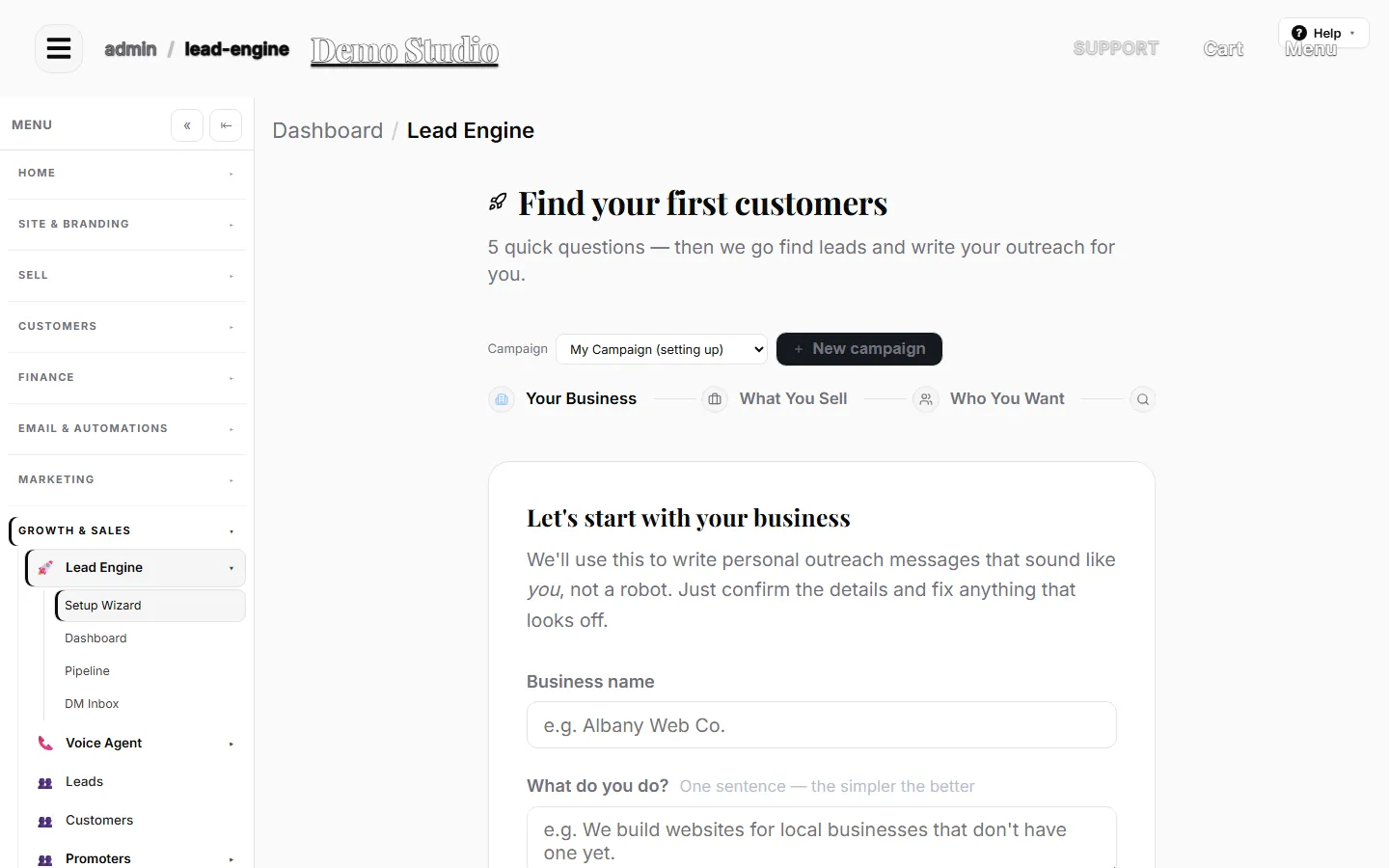
Find leads only adds businesses to your campaign. It doesn't contact anyone. Start finding customers writes your first emails for you to read. No email is sent.
Add your sender details
Open Lead Engine → Dashboard. In Your sender details, click Add details and fill in Where should replies go? and Business mailing address (the law requires it in sales emails). Emails can't be sent until both are set. These details are shared with your other email settings.
The dashboard also shows Leads found, Emails to read, Reply rate and Calls booked, and lets you switch between Outreach on and Outreach paused.
Approve and send emails
- Open Lead Engine → Pipeline.
- Under Emails to read, open each email. Edit it if you like, then click Approve, or Approve & next to move through them.
- Click Check before sending for a dry run. Nothing goes out.
- Click Send approved emails and confirm.
Click Write emails or Write follow-ups to have more written, 10 at a time. Every email gets an unsubscribe line and your mailing address added on its own. Open View full pipeline board to move leads through stages, from New Leads to Client.
Instagram DMs
Your site never sends Instagram messages. On a lead's page, copy the Instagram message (you send it) and paste it into Instagram yourself. Lead Engine → DM Inbox shows messages your connected Instagram account received, with a Suggested reply you can copy with Copy & paste in IG. Connect Instagram under Marketing → Social first.
Questions
Does the Lead Engine send emails on its own?
No. You approve and send every batch yourself.
How many emails can I send a day?
You choose 1 to 20 per day in Emails per day. There is also a daily limit for your whole site. When you reach it, sending stops until the next day.
What about leads with no email address?
They can't get an email. Call, text or DM them from the pipeline instead.
Some searches didn't finish. What now?
Try again in a minute.