Create coupons and promotions
Promotions are your shop discounts: coupon codes shoppers type at checkout, bundle deals that apply when the cart holds certain items, and automatic discounts for your paying members. Only the single biggest discount applies to a cart.
Where to find it: /admin/shop/promotions in your admin.
Shows up when the Shop feature is turned on for your site.
See your promotions
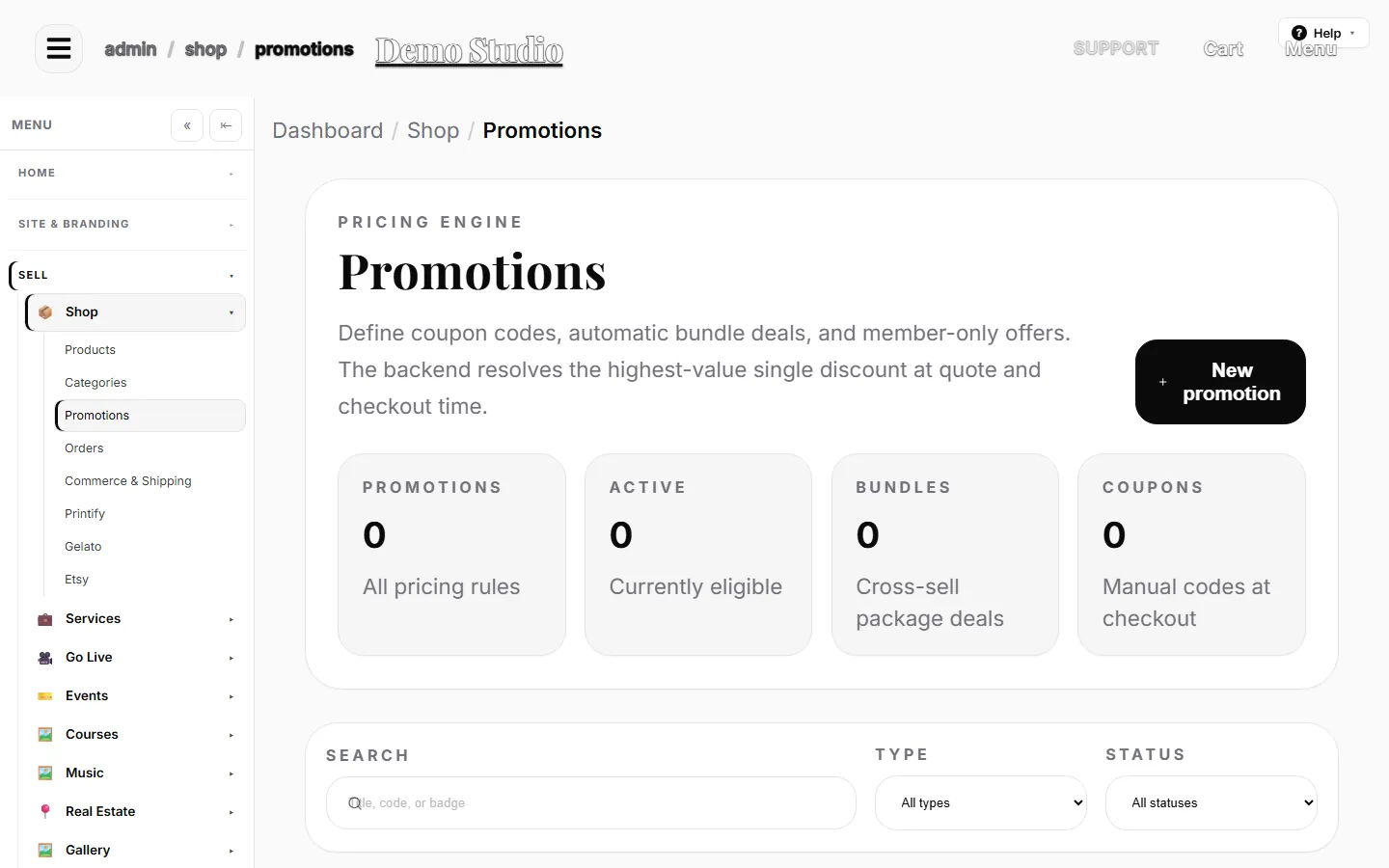
Open Sell → Shop → Promotions. The top shows counts for Promotions, Active, Bundles and Coupons. Filter the list by Type and Status, or search by title, code or badge.
| Type | How it applies |
|---|---|
| Coupon | Only when the shopper types the matching Coupon code at checkout. |
| Bundle | On its own, when the cart holds every item listed under Bundle components. |
| Membership auto | On its own, for signed-in shoppers with an active subscription to your site. |
When more than one promotion fits a cart, the shopper gets the one worth the most. Discounts are never stacked, and a discount never goes above the price of the items it applies to.
Create a coupon code
- Click New promotion.
- Set Type to Coupon and Status to Active.
- Enter a Title and a Coupon code. Codes are saved in capitals.
- Choose Discount mode: Percent or Fixed amount, and enter the value.
- Optionally set Starts, Ends, Usage limit, Per user limit and Minimum subtotal ($).
- To limit the coupon to certain items, click Add target and pick a Product or Category.
- Click Create promotion.
A coupon code can't match one of your ticket or table codes. If it does, you'll be asked to pick another name.
Create a bundle or member discount
- Click New promotion and set Type to Bundle.
- Click Add component for each product or category the cart must hold, and set the quantity.
- Set the discount.
- Optionally add Targets to choose which items the discount comes off. Without targets, it comes off the bundle's own items.
- Click Create promotion.
For a member discount, set Type to Membership auto, set the discount, add Targets if you want, and save. It applies to signed-in shoppers with an active subscription.
Display badge is a short label for the deal, such as Member price. It shows on order badges in your admin.
Pause, edit or delete a promotion
- Click Edit, change Status to Paused or Draft, and click Save promotion. Only Active promotions apply at checkout.
- Click Delete and confirm to remove a promotion for good.
| Status | What it means |
|---|---|
| Active | Applies at checkout when its rules are met. |
| Draft | Saved but not in use. |
| Paused | Turned off for now. Set it back to Active to use it again. |
Questions
I set Usage limit to 0 and the coupon stopped working.
A Usage limit of 0 means the promotion can never be used. Leave the field empty for no limit.
I switched Discount mode and the amount looks wrong.
Switching between Percent and Fixed amount keeps the old number, which then means something else. Type the amount in again after switching.
Does Per user limit work for guest checkout?
No. Per user limit is only checked for shoppers who are signed in.
What counts toward Minimum subtotal?
The cart's product total before any discount.